Creating a Service Contract from a Service Plan
You can create a service contract directly from a service plan to define the coverage, pricing, and terms offered to a customer. The service contract automatically inherits all configurations defined in the service plan, including pricing rules, parts pricing, labor pricing, expense pricing, travel policies, service offerings, preventive maintenance (PM) offerings, and work plan offering details. This ensures consistency in pricing, coverage, and service delivery when generating customer contracts from predefined service plan templates.
When a service contract is created, the following details are automatically carried over from the selected service plan:
• Pricing Configurations: Includes pricing-related data such as parts, labor, expense, and travel pricing defined in the service plan.
• Discount and Zone Settings: Includes any applied parts discounts, mileage tiers, and zone-based pricing configurations.
• Policies and Rules: Includes travel and labor rounding rules, rate types, and billing parameters defined in the plan.
• Service Offerings: Defines the types of services available to customers under the service contract.
• Preventive Maintenance (PM) Offerings: Includes predefined PM schedules, coverage parameters, and maintenance intervals.
• Work Plan Offerings: Auto-generates corresponding Covered Work Plan records on the service contract. Each covered work plan inherits details such as the work plan name, unit, agreed quantity, quantity per transaction, associated products, Service Level Agreement (SLA) terms, and coverage percentages for parts, labor, and expenses.
For more information on configuring these elements within a Service Plan, see the following topics:
These inherited details ensure that the service contract mirrors all operational, pricing, and billing parameters configured at the service plan level maintaining uniformity across customer contracts.
To create a service contract from a service plan:
1. Go to ServiceMax Setup > Warranties & Service Contracts > Service Plans.
The Service Plans page is displayed. By default, the Service Plans page displays only recently viewed service plans.
 |
Alternatively, you can access the Service Plans page by clicking the App Launcher, type Service Plans in the search bar, and selecting it from the results.
|
2. To view all service plans, click All Service Plans from the list view dropdown.
3. In the Service Plan Name column, select the required service plan name.
The selected Service Plan is displayed.
4. In the Service Flow Wizard, under the Other Actions section, select Create Contract.
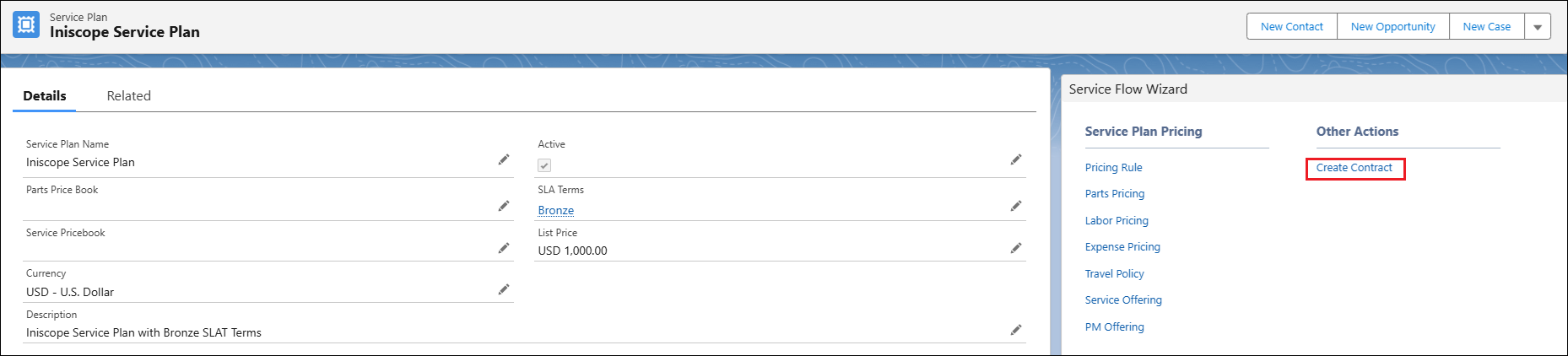
The Create Service Contract from Service Plan page is displayed.
In the Service/Maintenance Contract section, the Service Plan Name and SLA Terms fields are pre-populated based on the selected service plan. You can modify these values if needed.
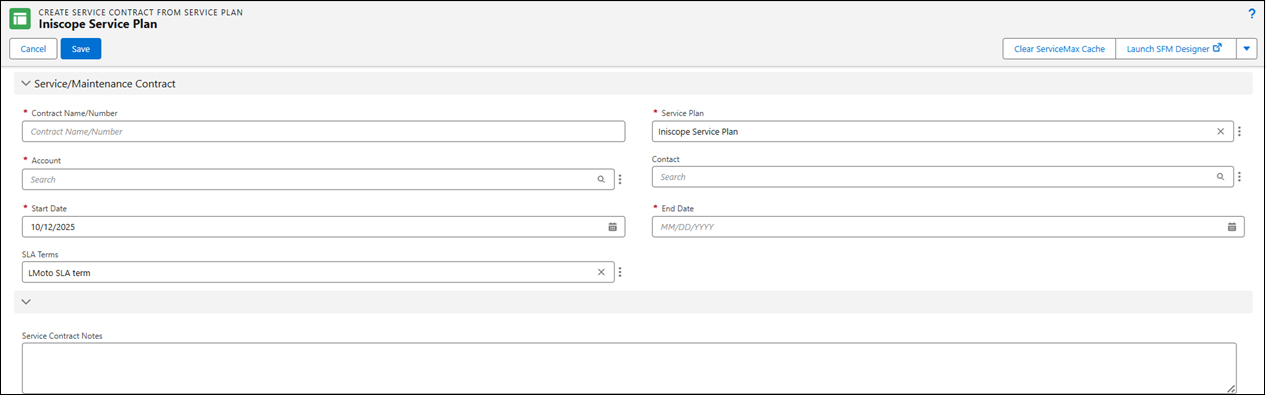
Provide the details for the fields as described in the following table.
|
Field
|
Description
|
|---|---|
|
Contract Name/Number
|
Displays the name or number assigned to the service contract. This is a mandatory field. Enter a unique contract name or number to identify the service contract.
|
|
Service Plan
|
Displays the name of the service plan used to create the contract. This field is pre-populated based on the selected service plan. Review the populated service plan. You can modify it if required.
|
|
Account
|
Displays the customer account associated with the contract. This is a required field. Select the required Account from the lookup.
|
|
Contact
|
Displays the customer contact person associated with the account. Select the required Contact from the lookup.
|
|
Start Date
|
Displays the start date of the service contract. Select the date when the service contract becomes active.
|
|
End Date
|
Displays the end date of the service contract. Select the date when the service contract will expire.
|
|
SLA Terms
|
Displays the Service Level Agreement applicable to the contract. This field is pre-populated based on the SLA term defined in the service plan. Review or select the required SLA Term from the lookup.
|
|
Service Contract Notes
|
Allows users to enter additional information or comments related to the contract. Enter any relevant notes or remarks about the service contract.
|
5. To save the changes, click Save.
The Service Contract is created.
After creation, the newly created Service Contract page is displayed. Select the Related tab to view all configurations that were automatically inherited from the associated Service Plan. These include pricing, coverage, and work plan details defined in the Service Plan. Under the Covered Work Plans section, you can view the work plans automatically created based on the service plan configuration. For more information, see Covered Work Plans.
6. By default, the Service Contract is not active. To activate it, go to the Details tab, select the Edit Active pencil icon, and check the Active box.
This enables all associated terms, coverages, and work plan settings defined in the service plan.
|
|
You can also create service contract from an Account. For more information, see Creating a Service Contract from an Account.
|