Adding Parts Discount
You can define how discounts are applied to products, product families, or product lines in a service plan by adding parts discounts based on the selected parts price book.
To add parts discount:
1. Go to ServiceMax Setup > Warranties & Service Contracts > Service Plans.
The Service Plans page is displayed. By default, the Service Plans page displays only recently viewed service plans.
 |
Alternatively, you can access the Service Plans page by clicking the App Launcher, type Service Plans in the search bar, and select it from the results.
|
2. To view all service plans, click All Service Plans from the list view dropdown.
3. In the Service Plan Name column, select the required service plan name.
The selected Service Plan record page is displayed.
4. In the Service Flow Wizard panel, under the Service Plan Pricing section, select Parts Pricing.
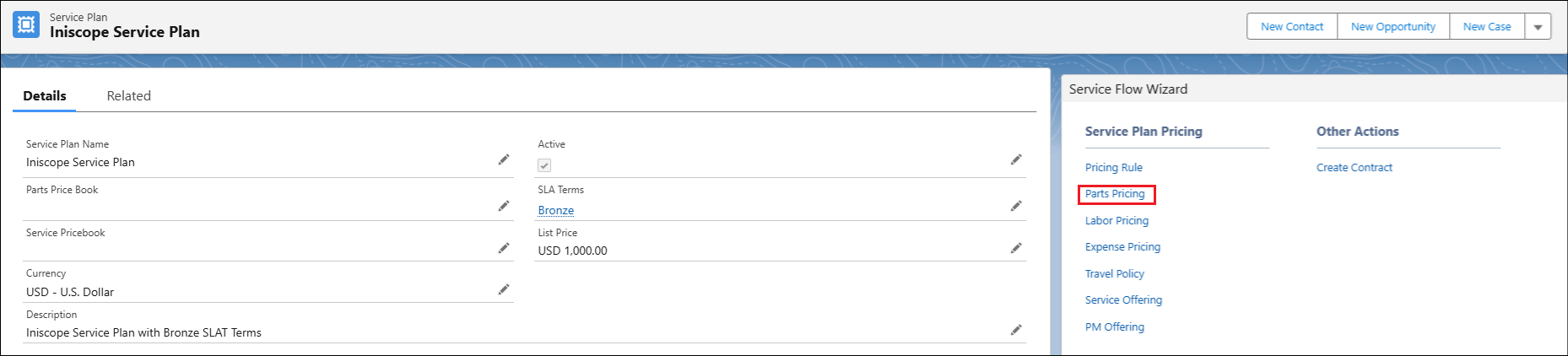
The Edit Service Plan Parts Pricing Wizard is displayed.
5. In the Edit Service Plan Parts Pricing wizard, under the Lines section, select the Parts Discount tab.
6. Click Add Parts Discount.
The Product Lookup window is opened.
7. In the Quick Find text box, search for the required product name, and then click Search.
8. Select the required product name, and then click Add.
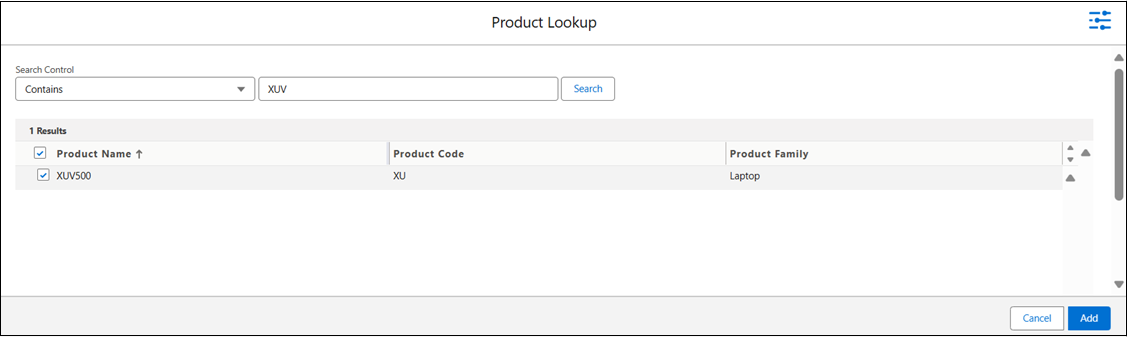
A new row is created in the Parts Discount tab.
9. Provide the details for the fields as described in the following table.
|
Field
|
Description
|
|---|---|
|
Product
|
Displays the product for which the discount applies. Enter or select the required product.
|
|
Product Line
|
Displays the product line associated with the selected product. Enter or select the appropriate product line.
|
|
Product Family
|
Displays the product family linked to the selected product. Enter or select the correct product family.
|
|
Discount
|
Displays the percentage of discount applied to the pricebook entry that’s associated with the product/product line/product family. Enter the discount percentage value.
|
|
Active
|
Displays the activation status of the discount. By default, the Active checkbox is selected.
|
|
|
• A discount % value can only be associated with one of the three product-related options (product, product family, product line). If you populate more than one of the three fields (product, product family, or product line) in a parts discount row, an error message displays: Discount must be applied on only one of Product, Product Family, or Product Line.
• To add a new row for a product line or product family, click the Add Parts Discount button and add a product. After the new row is created, remove the product and then select the applicable product line or product family. Alternatively, in the Parts Discount tab, select the down arrow icon next to an existing parts discount record, and then select Clone. A new row is created, and you can modify the details as needed.
|
10. To save the changes and to stay on the Parts Discount page, click Quick Save.
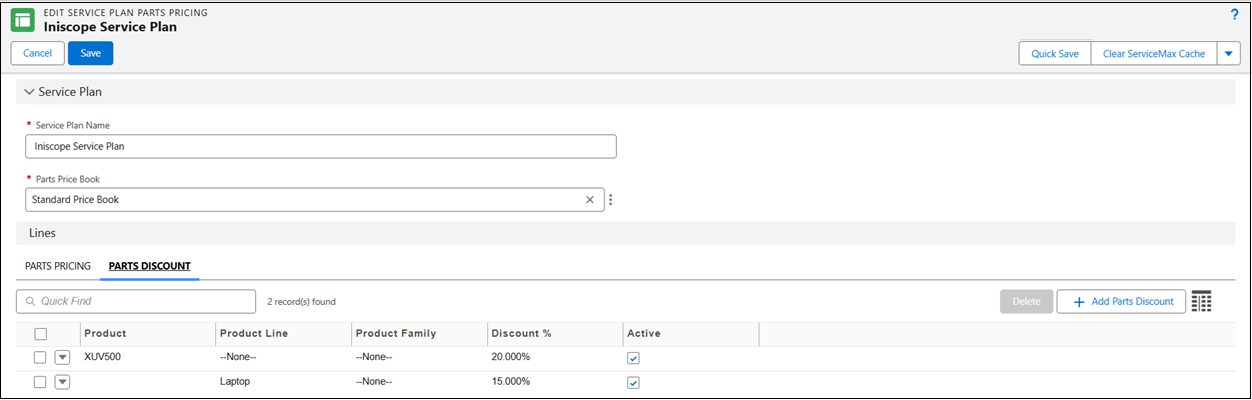
11. To save the changes and navigate back to the Details tab, click Save.
In the Related tab of the Service Plan record page, under Parts Discount related list, you can view all parts discount for the selected service plan.