Creating a Service Contract from an Account
You can create a service or maintenance contract directly from an account to quickly associate a contract with a customer. Creating a contract from the account record using a Service Plan ensures that the account, contact, and service details are automatically linked, helping maintain accuracy in entitlement, billing, and service coverage.
To create a service contract from an Account:
1. From the Home page, select Accounts.
The Accounts page is displayed.
2. Click the Account record for which you want to add a service contract.
The selected Account record page is displayed.
3. In the Service Flow Wizard, under the Edit Account section, select Create Service Contract.
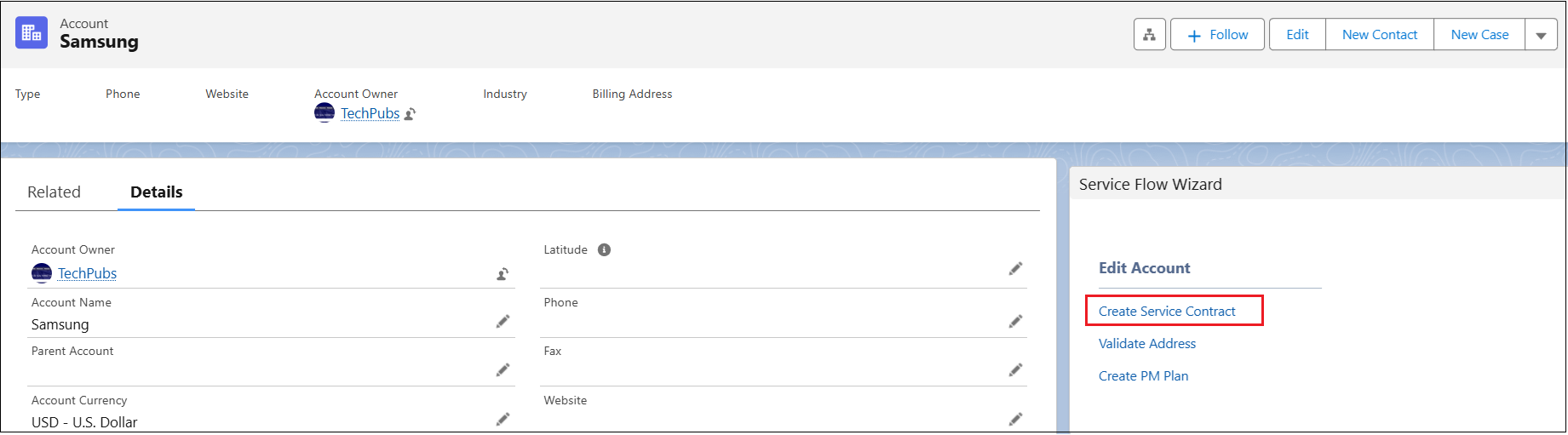
The Create Service Contract from Account wizard is displayed.
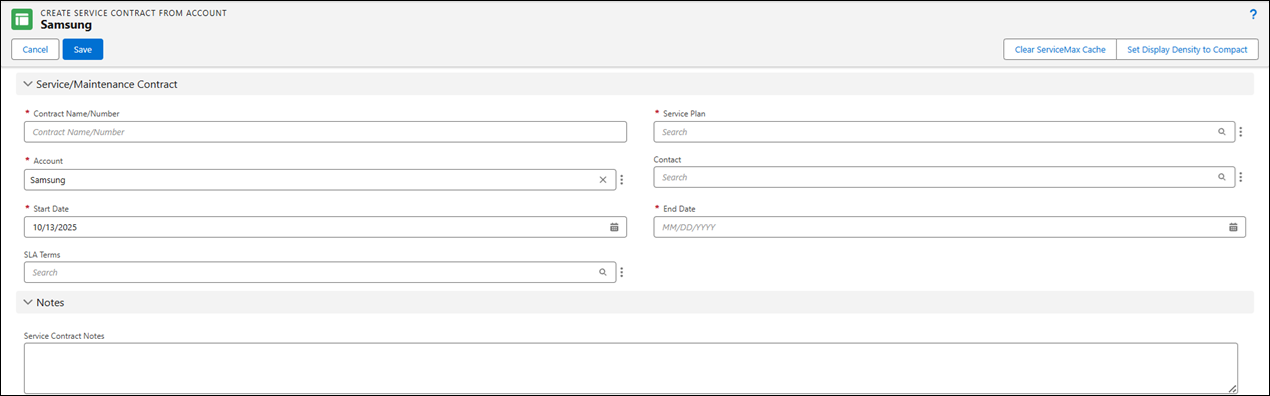
4. Provide the details for the fields as described in the following table.
|
Field
|
Description
|
||
|---|---|---|---|
|
Contract Name/Number
|
Displays the name or number assigned to the service contract. This is a mandatory field. Enter a unique contract name or number to identify the service contract.
|
||
|
Service Plan
|
Associates the contract with a preconfigured service plan that defines the scope of services and entitlements covered. Search for and select the applicable service plan.
|
||
|
Account
|
Displays the account associated with the contract. This field is auto-filled based on the selected account. Verify the account name. This field is mandatory.
|
||
|
Contact
|
Identifies the primary contact person for the contract. Search for and select the contact associated with the account.
|
||
|
Start Date
|
Indicates when the contract becomes effective. Enter the start date or select it from the date picker.
This field is mandatory.
|
||
|
End Date
|
Indicates when the contract expires. Enter the end date or select it from the date picker.
This field is mandatory.
|
||
|
SLA Terms
|
Defines the Service Level Agreement (SLA) associated with this contract. If the Service Contract is created from a Service Plan, this field is automatically populated with the SLA defined in the Service Plan.
|
||
|
Service Contract Notes
|
Allows users to enter additional information or comments related to the contract. Enter any relevant notes or remarks about the service contract.
|

5. After completing all required fields, click Save to create the contract.