Using AI Chat in Console
You can use the AI Chat feature to validate AI chat configurations in a safe, non-production environment. This feature is designed for administrators who need to test AI behavior before deploying it to end users.
The AI Chat feature streamlines the testing process by enabling administrators to validate AI chat configurations within the console. This eliminates the need for integration with external applications, significantly reduces the time required to test configurations across platforms like ServiceMax Go and Salesforce Web, and avoids additional setup steps across environments.
You can quickly test changes to:
This accelerates configuration validation, shortens iteration loops, and improves the overall efficiency of AI Chat. It replicates the AI Chat experience found in applications while enabling you to simulate interactions using actual or no-context records from your Salesforce instance.
Use Cases
The following list represents some use cases for the AI Chat feature:
• Add a new object and field to the data source, then confirm the update works as expected.
• Update agent guidelines and check if responses reflect the new instructions.
• Trigger AI actions to verify they execute correctly.
• Test how AI chat responds to typical user queries before deploying to client apps.
• Identify and fix issues in the AI setup without switching environments.
|
Prerequisites
|
|---|
|
Ensure that you have enabled ServiceMax AI. For more information, see Managing ServiceMax AI.
|
To use AI Chat, perform the following steps.
1. Navigate to > > .
The ServiceMax AI Console is launched.
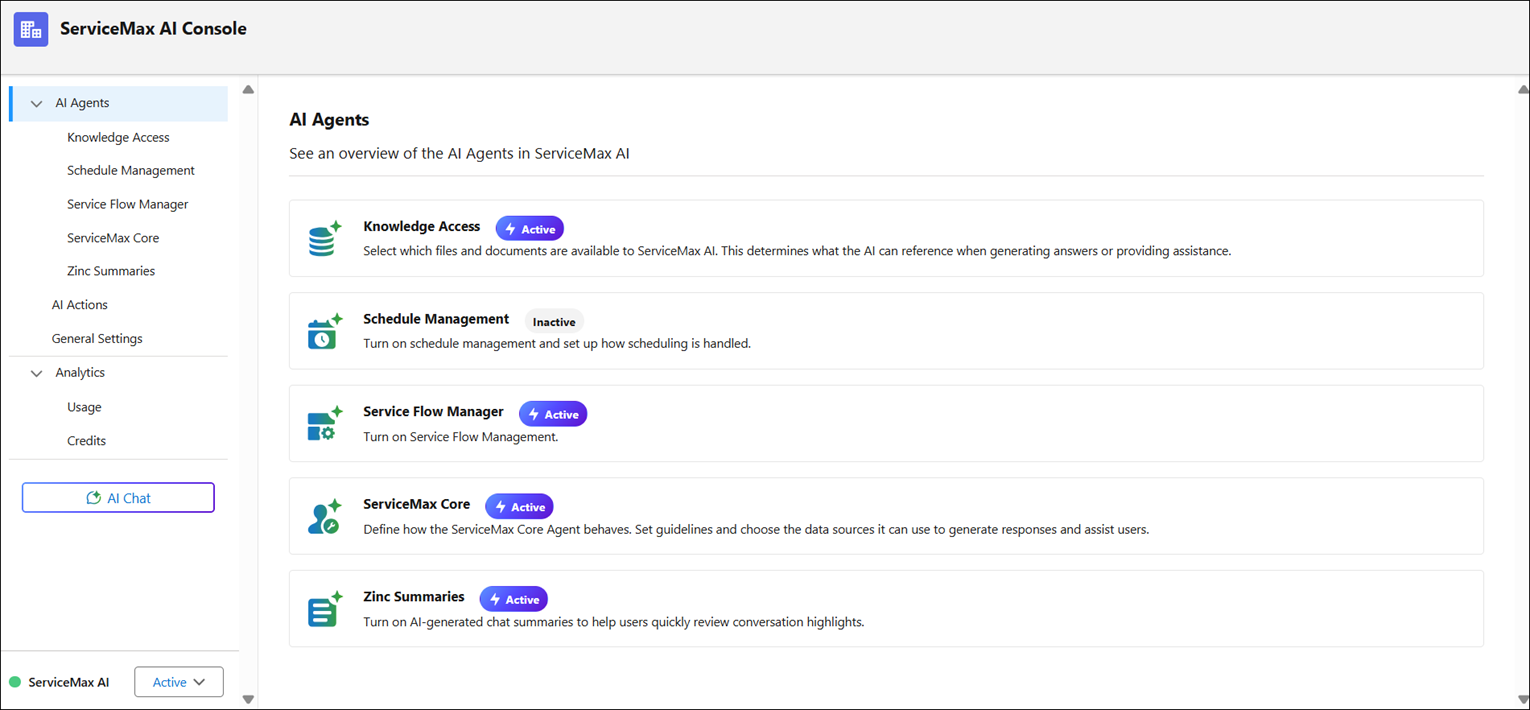
2. On the sidebar, click AI Chat.
3. In the search field, enter a record name. For example, Work Order, Installed Product, Location, or Case.
The field supports autosuggestions and dynamically filters matching records based on a minimum input of three characters. For example, 123.
4. Click the record.
The ServiceMax AI Assistant window is displayed with a context-aware record.
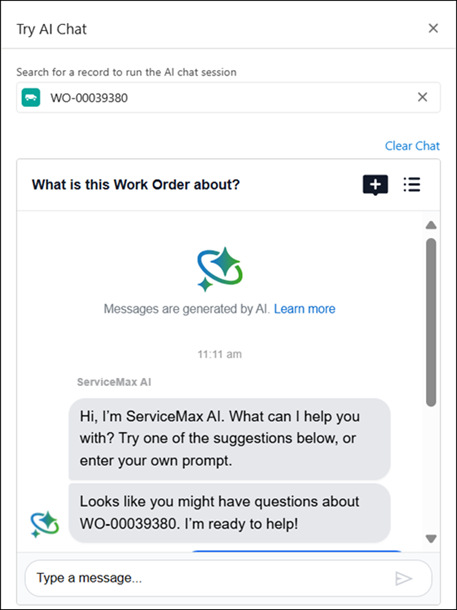
AI Chat functions similarly to the ServiceMax AI Assistant. For more information, see Using ServiceMax AI Assistant in Salesforce Web.
 |
If there are no valid records, use try AI Chat without context.
|
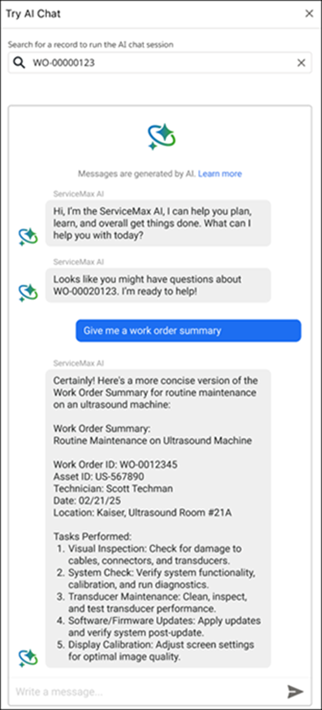
5. Enter your prompts in the message area. For example, give me a work order summary.
The AI processes the input based on the configured objects and fields.
|
|
You can directly navigate to a record page from the AI-generated summary response by clicking on the hyperlink. All record names like Work Order, Location, Installed Product, etc. are displayed as clickable links, only if you have required permission to access these objects. Otherwise, these are displayed as plain text.
|
6. Evaluate the AI-generated responses for accuracy and relevance.
7. To improve responses, update the configured objects and fields. For more information, see Configuring ServiceMax Data Sources.
8. Click Save.
9. To start a new session, click Clear Chat. The current conversation closes, and a new chat opens. For more information, see Creating New Chats.
The AI Chat feature validates objects and fields, AI Agents, and AI Actions in the ServiceMax AI Console. This confirms that the AI configurations work as intended and are ready for deployment.