Using Run AI Action
Use the Run AI Action feature to evaluate AI actions with data records such as Work Orders, Cases, Locations, and Installed Products. This approach gives you access to the latest configuration changes without needing to open an app where AI chat is enabled. You can also edit AI instructions, save your changes, and run the AI action again.
 |
The AI Console tracks all AI action usage for analytics. For more information, see ServiceMax AI Analytics.
|
To use the Run AI Action feature, perform the following steps.
1. Go to > > .
The ServiceMax AI Console is launched.
2. On the sidebar, select .
The AI Actions page displays and lists all available AI actions.
3. Choose an AI action and click Run. For example, Summarize Work Order.
The AI Console displays the Try AI Action – Summarize Work Order window, where you can search for a Work Order record.
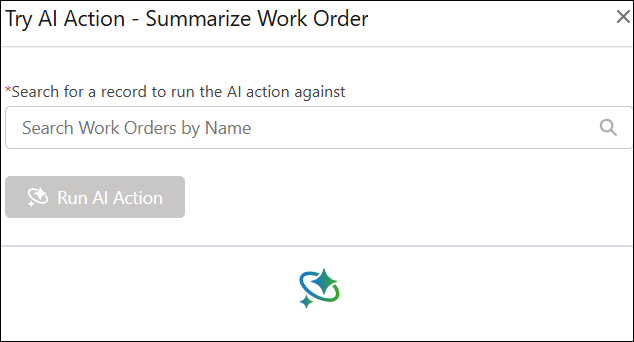
4. Provide the details for the fields as described in the following table.
|
Field
|
Description
|
Screenshot
|
|---|---|---|
|
Fields marked with * are mandatory.
|
||
|
Run AI Action
|
Generates an AI summary based on the selected object, such as:
• Case
• Location
|
|
|
Search for a record (Work Order)*
|
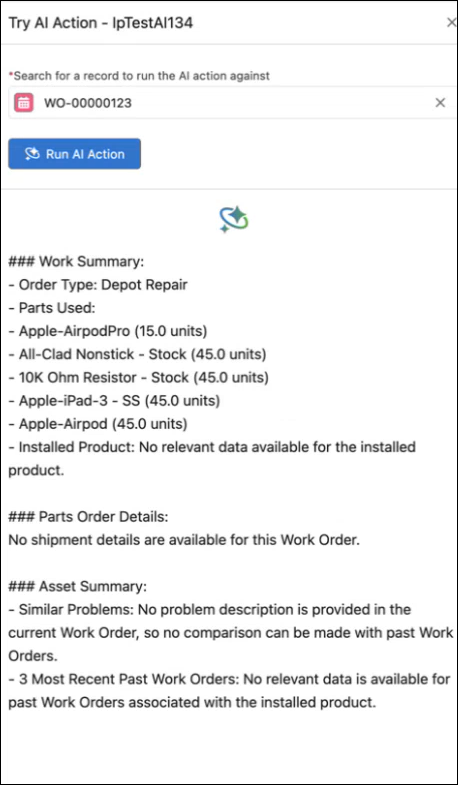
A text input field used to search for a record within the selected Work Order object. The field supports autosuggestions and dynamically filters matching records based on a minimum input of three characters (e.g., 123). Once a record is selected, a summary of the Work Order is displayed according to the specified AI instructions.
|
 |
|
Search for a record (Case)*
|
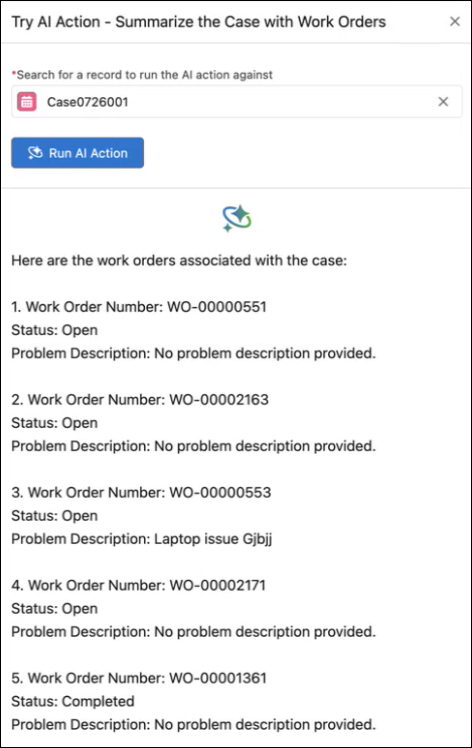
A text input field used to search for a record within the selected Case object. The field supports autosuggestions and dynamically filters matching records based on a minimum input of three characters of the record ID or case subject (e.g., 001 or monitor not working). Once a record is selected, a summary of the Case and its associated Work Orders is displayed according to the specified AI instructions.
|
 |
|
Search for a record (Location)*
|
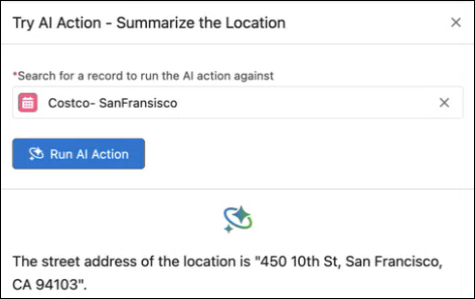
A text input field used to search for a record within the selected Location object. The field supports autosuggestions and dynamically filters matching records based on a minimum input of three characters (e.g., San). Once a record is selected, a summary of the Location is displayed according to the specified AI instructions.
|
 |
|
Search for a record ( Installed Products)*
|
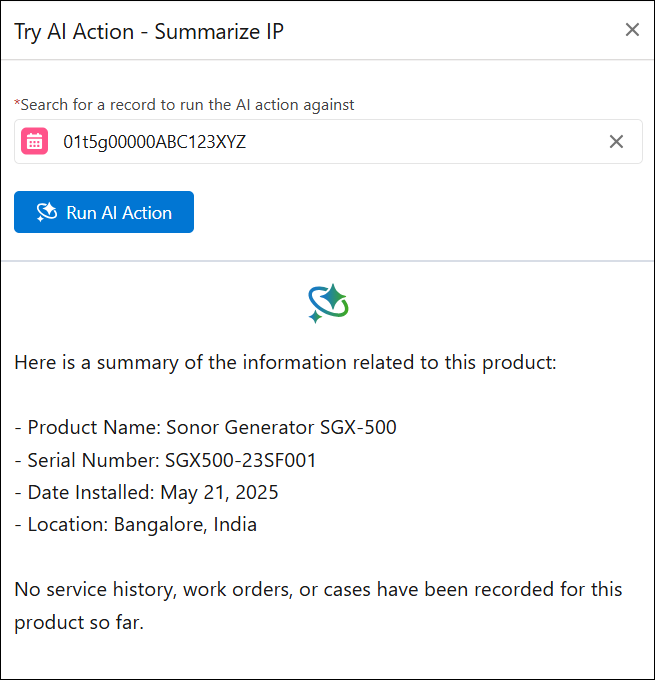
A text input field used to search for a record within the selected Installed Product object. The field supports autosuggestions and dynamically filters matching records based on a minimum input of three characters (e.g., XYZ). Once a record is selected, a summary of the Installed Product is displayed according to the specified AI instructions.
|
 |
|
X
|
The selected AI action or record can be removed using the adjacent X button.
|
|
You can perform the following additional tasks in the AI Actions page.
• Defining a New Action — You can define new actions to configure custom AI actions. For more information, see Defining a New Action.
• Editing an Action — You can modify the name of an existing AI Action and its associated AI instructions after the actions have been created. For more information, see Editing an Action.
• Deleting an Action — You can delete any AI action from the AI console to ensure the available actions are correct and dependable. For more information, see Deleting an Action.
|
|
• The AI Console disables the Run AI Action button if you have unsaved changes or delete the AI action, to prevent running outdated or invalid configurations. It still displays previously generated results for reference.
|