Defining a New AI Action
Define AI actions to help end users efficiently manage service requests and perform maintenance tasks. AI actions use the following objects: Case, Installed Product, Location, and work order. By linking actions to these objects, you can guide the AI with detailed instructions that align with specific workflows and user needs.
Use Cases
The following list represents some of the use cases for defining a new AI action:
• A technician generates a detailed asset health summary for an installed product. The summary includes recent faults, maintenance history, and open service recommendations.
• A manager creates a structured case summary that includes the reported issue, diagnostics, replaced parts, and resolution steps. This summary supports internal audits and customer communication.
• Before a service visit, a technician prepares a pre-job summary that covers asset configuration, known issues, safety checks, and customer-specific instructions.
To define a new action, perform the following steps.
1. Go to > > .
The ServiceMax AI Console is launched.
2. On the sidebar, select > .
The AI Actions page appears with a list of all available AI actions. For more information about each field, see Configuring AI Actions.
3. Click Define New Action.
The Define AI Action window is displayed.
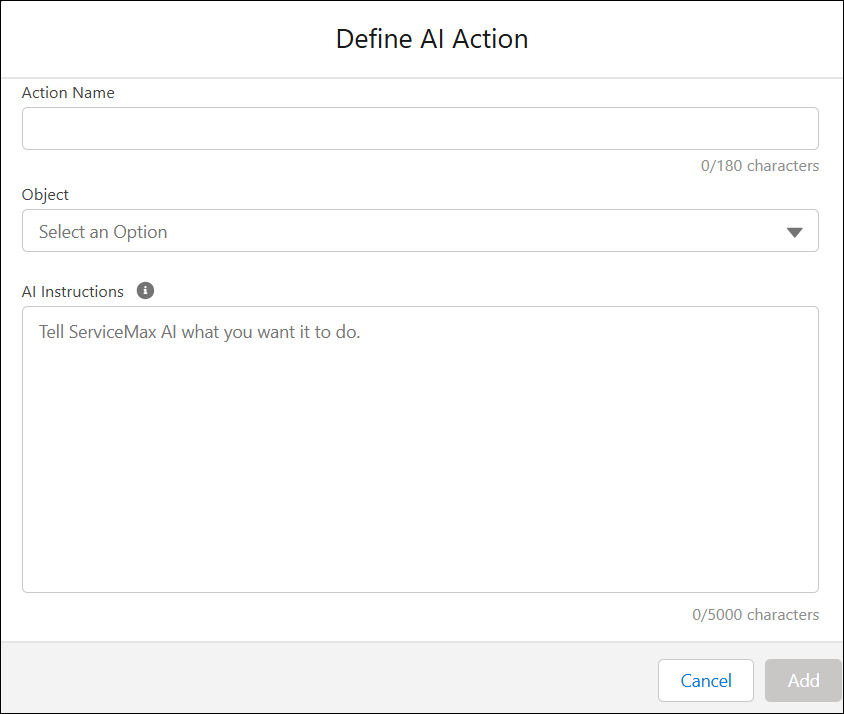
4. Provide the details for the fields as described in the following table.
|
Field
|
Description
|
|---|---|
|
Action Name
|
Specifies the name of the AI action. This name appears in the list and helps users identify the action.
|
|
Object
|
Links the AI action to a specific object, such as a case or work order.
|
|
AI Instructions
|
Describes what the AI should do, helping it perform tasks accurately based on user needs.
|
|
Cancel
|
Removes any unsaved changes and exits the action creation process.
|
|
Add
|
Saves the AI action and includes it in the list of available actions.
|
5. Click Save to make the AI action available.
The AI Console saves the action and makes it available in Salesforce web and mobile apps. For more information about using AI Actions, see AI Actions.
 |
You can define multiple AI actions consecutively before saving them.
|