ServiceMax AI Analytics
ServiceMax AI Analytics provides insights into how users interact with AI actions across Salesforce web, Go, Zinc web, and mobile applications. Administrators use this feature to monitor AI usage patterns, evaluate prompt effectiveness, and refine AI configurations based on user feedback and interaction outcomes. For example, if a prompt does not return the expected result, administrators adjust the associated AI instructions to improve accuracy.
The ServiceMax AI Analytics Dashboard provides a centralized view of AI-driven operational insights across ServiceMax applications. It is designed to help administrators and business users monitor AI usage, evaluate performance, and identify optimization opportunities. The dashboard supports data-driven decision-making by visualizing key metrics related to AI Actions, AI Chat, and configuration changes.
This dashboard is especially useful for teams managing AI adoption and performance across field service workflows. It enables proactive monitoring and helps ensure that AI capabilities are aligned with business goals.
Use Cases
The following list represents some use cases for the ServiceMax AI Analytics feature:
• Change Management Monitoring: An administrator is rolling out a new AI agent to a group of dispatchers and needs to track who has started using the skill and who has not.
• Business Case Development: An operations manager is preparing a proposal to expand ServiceMax AI access to more teams. To support the proposal, the manager needs to show current usage and value.
• AI Credit Budgeting and Spend Management: A procurement analyst needs to understand how many AI credits have been used and forecast future needs.
Data Sources
The dashboard aggregates data from the following sources:
• AI Console Logs: Tracks execution details of AI Actions and configuration changes.
• AI Chat Interaction Logs: Captures user queries, responses, and engagement metrics.
• Service Flow Automation Events: Provides context for AI-triggered actions within service flows.
• Agents and External Server: Tracks AI Actions from agents (Service Insights, Knowledge Access, Service Flow Manager, Zinc Summaries). AI Actions exposed via MCP show MCP Server as origin in the AI Analytics dashboard.
To view AI Analytics usage, perform the following steps.
1. Navigate to > > .
The ServiceMax AI Console is launched.
2. On the sidebar, select > > .
The ServiceMax AI Analytics page is displayed.
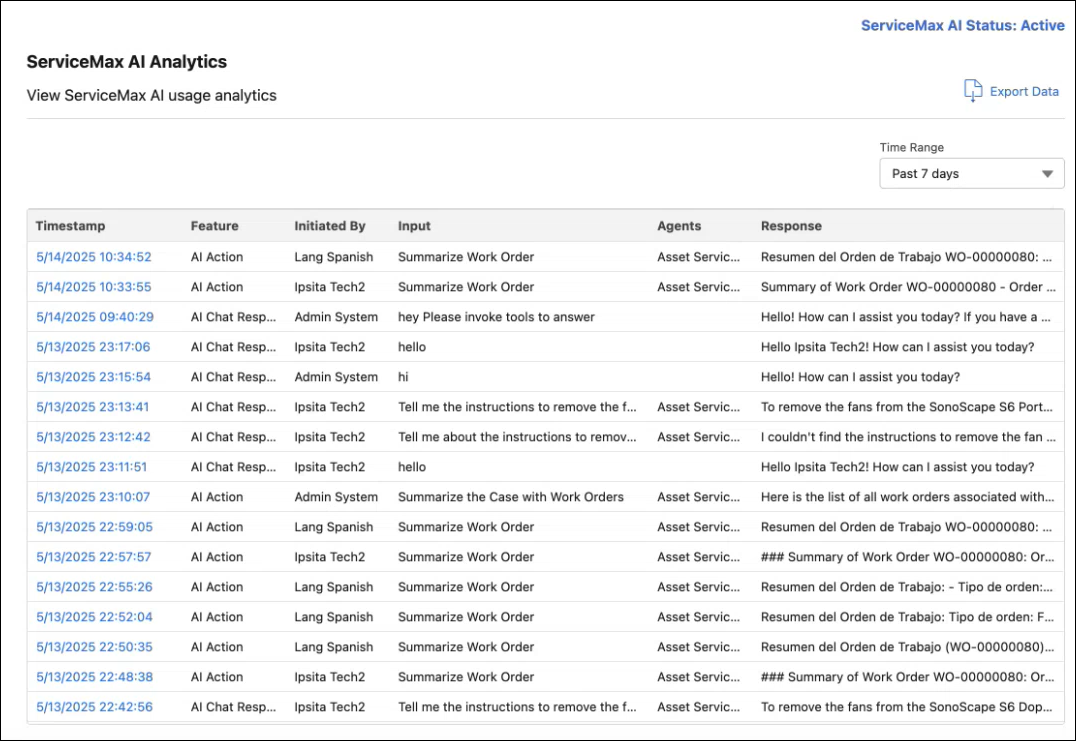
The ServiceMax AI Analytics lists the following information:
|
Field
|
Description
|
|---|---|
|
Timestamp
|
Date and time when the AI interaction occurred.
|
|
Feature
|
Method used to start the AI Action – either through a chat or a wizard.
|
|
Initiated By
|
User who triggered the AI Action (Salesforce username or e-mail address).
|
|
Input
|
Prompt message entered by the user.
|
|
Agents
|
AI agent used to run AI Action such as Service Insights, Knowledge Access, Zinc Summaries, etc.
|
|
Response
|
Output generated by the AI, such as a work order summary or conversation.
|
You can perform the following additional tasks in the ServiceMax AI Analytics page:
• Time Range — Click this field to filter AI usage data based on a specific time. The available options in the dropdown are: Past 7 days (selected by default), Past 30 days, Past 6 months, and Past year.
• Export Data — Click this button to download a CSV file of the AI Usage data.
• Run Details — Click a timestamp to view a detailed log of a specific AI interaction session. For more information, see Viewing Run Details.
• Viewing AI Credit Consumption — Analyze end-user AI credit usage across platforms such as Asset Service History, Knowledge Access, and DataGuide. For more information, see Viewing AI Credit Consumption.