Troubleshooting Current-Day Optimization Jobs
 |
Current-Day Optimization is a Production Beta feature in Service Board 25.1.
|
Jobs that fail to be automatically scheduled by Current-Day Optimization appear on the Job List marked with a red icon.
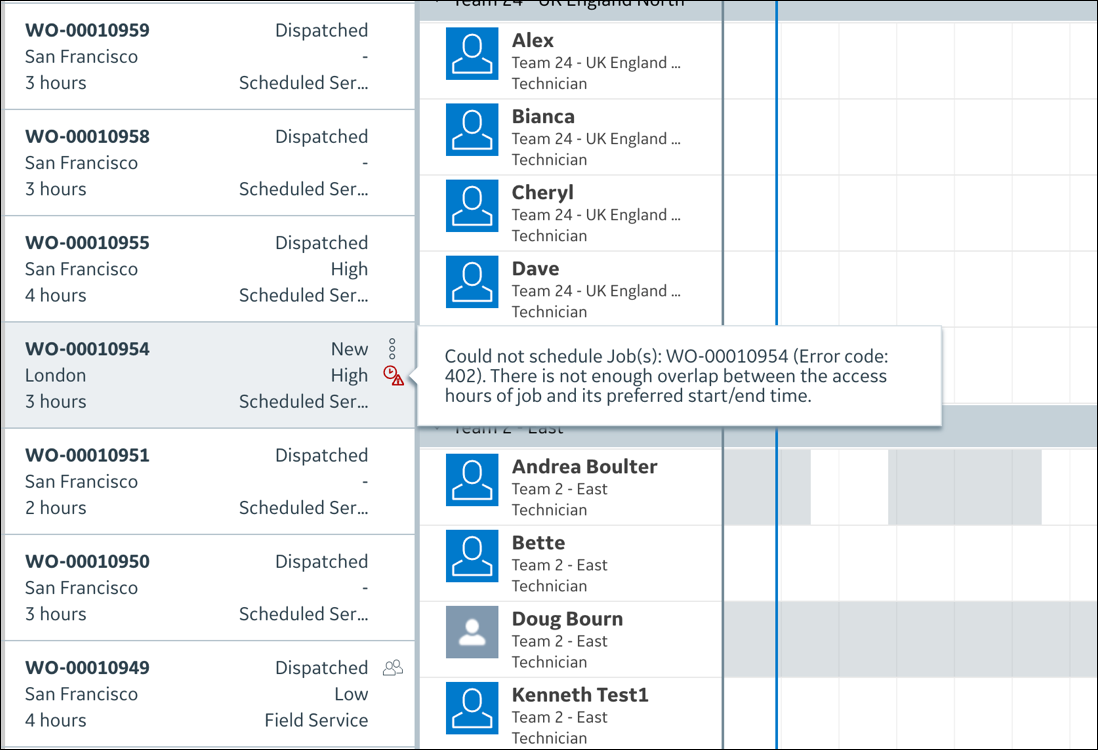
To troubleshoot Current-Day Optimization jobs:
1. On the Job List, hover your mouse pointer over the Failed icon to view the details of the error in a tooltip, and then on the Job Action Menu, click Edit Job.
2. In the Edit Job dialog box, update the fields mentioned in the tooltip, such as any of the following, and then save your changes.
◦ Address
◦ Preferred Business Hours
◦ Dispatch Priority
◦ Priority
◦ Primary Territory
◦ Estimated Service Duration
◦ Preferred Start Tine
◦ Preferred End Time
◦ Installed Product
◦ Lock Appointment Schedule
◦ Preferred Technician
◦ Product
◦ Resource
◦ Skill Set
3. Refresh the Job List, and then re-check the relevant Job Card to confirm that the Failed icon is no longer visible.
4. If the Failed icon still appears, re-check the tooltip and verify that the fields related to the error were correctly updated.
For more information: