Managing Notifications
Android and iOS
The Notification History screen displays all push notifications and local notifications you have received during the last 30 days.
The Go app icon on your device displays a notification indicator with counter 1 when a new notification is received. For the Google Pixel and other stock Android phones, a purple indicator is displayed on the Go app icon without any counter. The notification indicator disappears when you open the app. The notification indicator is displayed only for the remote notifications, not for the local device notifications.
 |
On iOS devices, the badge icon disappears when you clear all notifications manually by swiping or tapping them from your device notification tray only, not from the Go app notification center.
|
For more details, refer to Notification Badge Behavior.
|
Prerequisite
|
|---|
|
• On your Android phone running on Android version 14, you must enable Allow Settings alarms and reminders by navigating to Settings > Apps > Special app access > Alarms & reminders > Go if the Reminder frequency option is enabled for you in the Mobile Console. If the phone setting is not enabled when using the Go app, the Settings screen is displayed automatically on your Android device to enable it.
|
To view the notifications:
1. Log in to the Go app with your valid credentials.
|
|
A badge is displayed on the Notifications icon if there are one or more unread notifications.
|
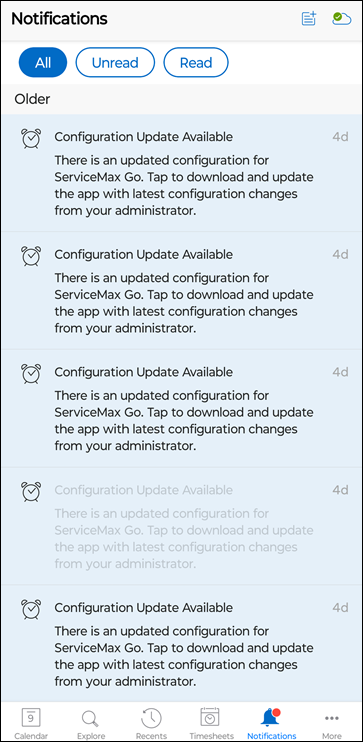
2. From the lower navigation menu, tap Notifications to access the Notification History screen.
|
|
By default, all notifications are displayed. You can change the filter to display the unread and read notification lists.
|
3. Tap on any notification to take action. The unread indicator disappears when you tap on an unread notification.
The Notification Center displays different icons for various types of notifications. Depending on the type of notification, the app navigates directly to the relevant screen or downloads the relevant record and then navigates to the record.
The following types of notifications are displayed:
• General reminder notifications
• Geofence notifications from SFA
• Actions from SFA
• Service Board appointments
• Zinc broadcasts
The Notification center is updated as new notifications are received. If you have been offline for some time and would like to refresh the Notification Center after you have regained network connectivity, pull the screen down to refresh the list.
Windows
The Notification History screen displays all push notifications and local notifications you have received during the last 30 days.
The Go app icon on your Windows device displays a notification badge with counter 1 when a new notification is received. The badge behavior is different on different Windows devices based on the operating system and device type as explained in the following list:
• Windows 10 Laptop — the notification badge appears on the app icon pinned on the task bar and pinned on the Start menu.
• Windows 10 Tablet — the notification badge appears on the pinned tiles. It does not appear on the pinned apps on the Start menu.
• Windows 11 Laptop — the notification badge appears on the app icon pinned on the task bar. It does not appear on the app icon pinned on the Start menu.
To view the notifications:
1. Log in to the Go app with your valid credentials.
|
|
A badge is displayed on the Notifications icon if there are one or more unread notifications.
|
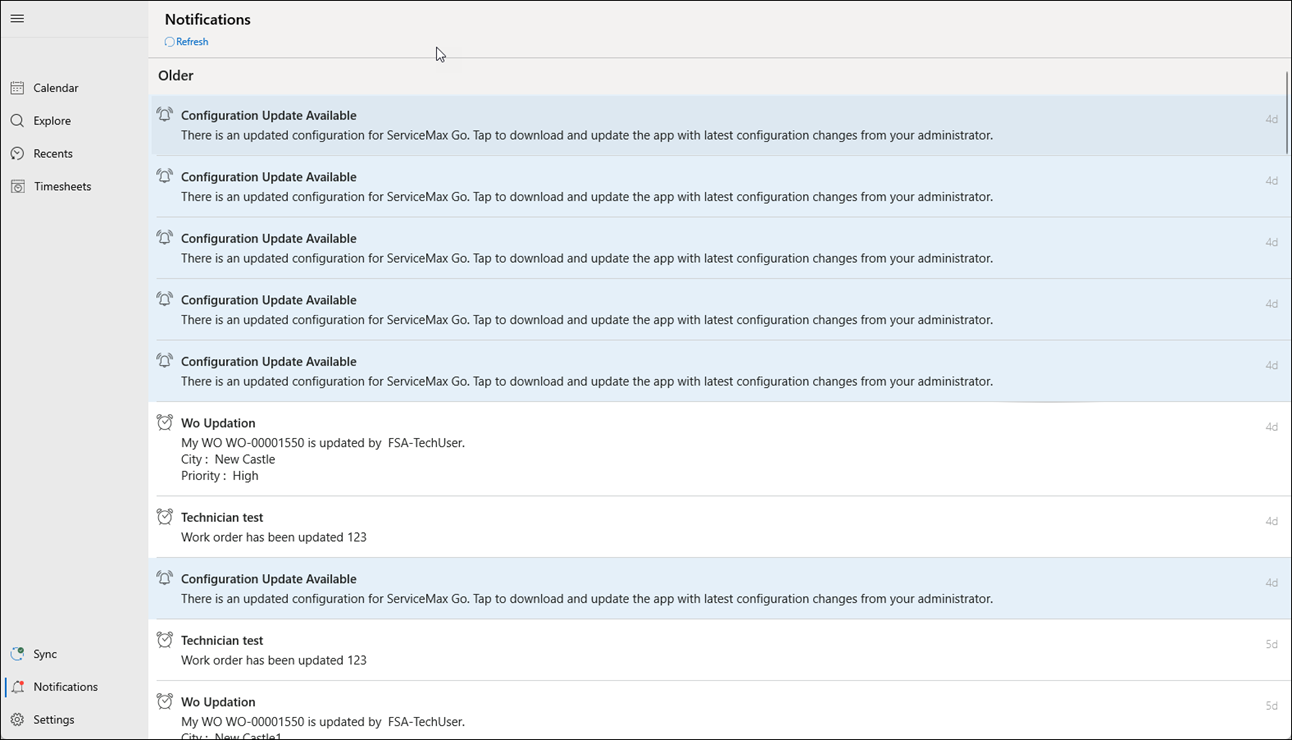
2. Click Notifications from the left navigation pane to access the Notification History screen.
|
|
By default, all notifications are displayed. You can change the filter to display the unread and read notification lists.
|
3. Click any notification to take action. The unread indicator disappears when you tap on an unread notification.
The Notification Center displays different icons for various types of notifications. Depending on the type of notification, the app navigates directly to the relevant screen or downloads the relevant record and then navigates to the record.
The following types of notifications are displayed:
• General reminder notifications
• Actions from SFA
The Notification center is updated as new notifications are received. If you have been offline for some time and like to refresh the Notification Center after you have regained network connectivity, click Refresh to refresh the list.
ServiceMax Go for Windows uses the Windows Notification Services (WNS) to send Push notifications to the app. For this reason, the app registers to the WNS periodically. Additionally, ServiceMax Go for Windows automatically downloads files required to generate Output Documents when the user is offline. Your device must allow the following domains through port 443 for the Push notifications:
• *.notify.windows.com
• *.wns.windows.com
• *.notify.live.net
• login.microsoftonline.com
• login.live.com
• *.servicemax.io
• *.servicemax-api.com
• *.salesforce.com