Configuring Rules to Automatically Pick Work Plan
You can configure auto-assign rules for Work Orders or Service Products to automatically pick and assign a Work Plan that matches the criteria defined in the rules.
In the rule, you can add fields from Work Order or Service Product. If these fields match the field values configured for a Work Plan template, the corresponding Work Plan is automatically assigned to qualified Work Orders or Service Products upon creation.
To automatically pick work plan for qualified Work Orders or Service Products, configure the following:
1. In the rule, define one or more matching fields for Work Orders or Service Products.
2. In the Applies To section of a Work Plan template, configure fields and their corresponding values for specific objects.
When the Perform Auto Assignment field is set to true on a Work Order or Service Product record, the system initiates the work plan auto-assignment process. For more information, see Enabling Auto-Assignment of Work Plans for Work Orders and Enabling Auto-Assignment of Work Plans for Service Products.
This process involves the following steps:
1. Rule Match: Active Rules are executed in sequence until the record qualifies the criteria defined in the rule.
2. Match Fields: Once the rule is qualified, the engine fetches the match field and its value from the Work Order Or Service Product record.
3. Identify Work Plan: Based on the match field conditions, engine finds the relevant work plan(s) that match the field and value retrieved from the Work Order or Service Product record.
4. Work Plan Assignment: The engine assigns the work plan to the Work Order or Service Product if a match is found. If multiple matches are found, either all are applied or assignment is skipped based on the configured rule.
To configure a rule to automatically pick Work Plan:
1. In the Auto-Assigment Rule page for Work Orders or Service Products, select Automatically Pick Work Plan.
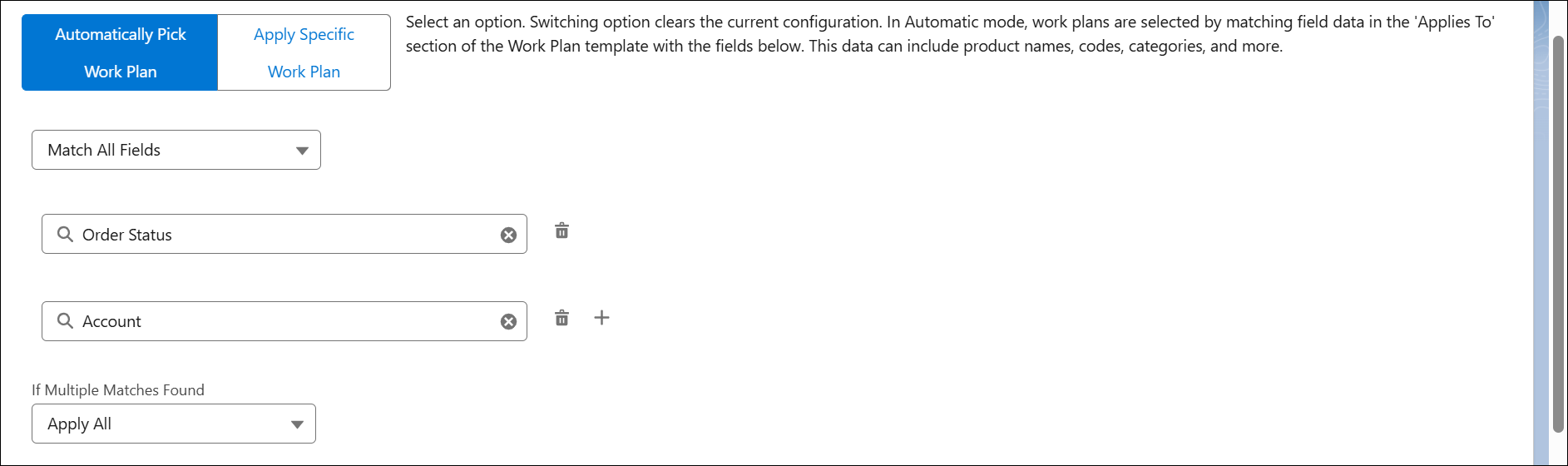
2. From the drop-down, select Match Any Field or Match All Fields.
If Match Any Field is selected, then any one of the fields configured in the rule must match the corresponding fields in the Applies To section of the Work Plan Template for the Work Plan to be assigned.
For example, the rule is set to assign a Work Plan to a Service Product, and the match fields added are Service Product’s Installed Product’s Product and Service Product’s Work Order’s Order Type. When the engine is executed, it reads the Product from the service product and Order Type values from the Work order record, and finds Work Plans that have associations matching either the same Product or Order Type value.
If Match All Fields is selected, then all the fields configured in the rule must match the corresponding fields in the Applies To section of the Work Plan Template for the Work Plan to be assigned.
For example, the rule is set to assign a Work Plan to a Service Product, and the match fields added are Service Product’s Installed Product’s Product and Service Product’s Work Order’s Order Type. When the engine is executed, it reads the Product and Order Type values from the Service Product record and finds Work Plans that have associations matching both the Product or Order Type values.
3. Click the Search bar to select and add a field for Work Order or Service Product. The fields are displayed based on the Work Order or Service Product option selected in the Assign Work Plan To option in the rule.
4. In the Select Field pop-up window, select the required field and click Apply. For example, Contact.
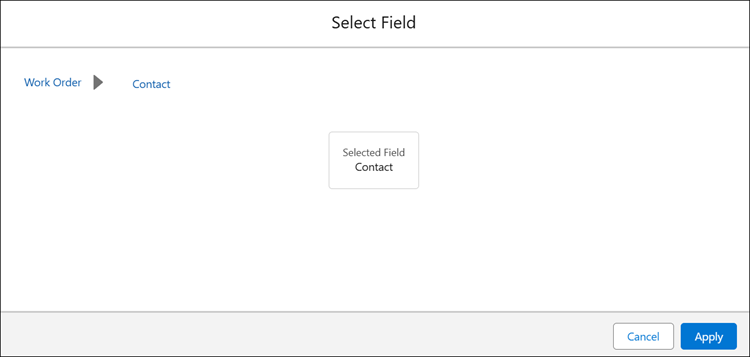
You can click + to add more fields to the rule. The Select Field modal lists fields or object configured in the Assigned Work Plan To. It supports selection of fields at multi-level.
 |
You can add up to 3 fields for a rule.
|
5. In the If Multiple Matches Found, select Apply All or Skip Assignment from the drop-down.
If Apply All is selected, all Work Plans that matches the criteria will be assigned to Work Orders or Service Products.
If Skip Assignment is selected, no Work Plans are assigned to Work Orders or Service Products if more than one match is found. The assignment is skipped to avoid ambiguity. In such cases, the admin can manually select and assign the appropriate Work Plan using the Add Work Plans modal from the Work Order.
6. Click Save.
Related Topics