Using Agent Skills
 |
This feature is currently available as a beta release.
|
Agent skills are designed to perform mathematical calculations and execute database queries. These skills help automate routine tasks, increase efficiency, and ensure consistent and reliable outcomes.
Administrators can utilize the out-of-the-box (OOTB) AI agent skills by using the slash (/) command within the AI Action composer. Additionally, these skills can be integrated into any SFM transaction that has been configured in the AI console. You can configure and install agent skills by specifying their names, types, input parameters, and expected outputs. For more information, see Installing Agent Skills.
Use Cases
The following list represents some use cases for the Agent Skills feature:
• Understands domain-specific language and responds to the query by analyzing service history and documentation when a technician asks queries specific to field service.
• Executes complex calculations and generates accurate results for multi-step tasks such as scheduling, diagnostics, or inventory checks.
• Enhances AI responses based on technician requirements and adheres to customer-specific rules, preferences, and workflows.
|
Prerequisites
|
|---|
|
To enable this feature, ensure the following:
• The Agent Skills are installed and configured in the AI Console. For more information, see Installing AI Agent Skills.
• The Agent Skills must be authored and published in the AI Console with required input parameters and instructions.
• The data sources and records included in the instructions are available and accessible.
|
To use agent skills in AI action, perform the following steps.
1. Open AI Actions. The list of AI Actions is displayed.
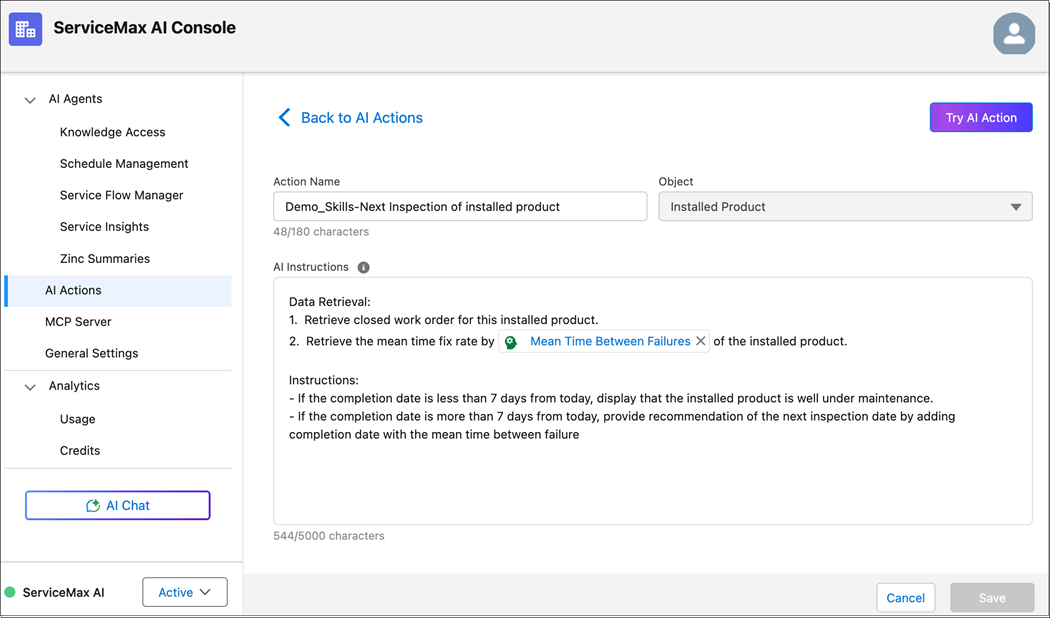
2. Select the AI action in which you want to configure agent skills. For example, select Demo_Skills-Next Inspection of Installed Product. The AI Instructions window is displayed.
3. Enter the instructions for the AI Action.
|
|
You can use a maximum of 5000 characters to write the instructions.
|
4. To insert an agent skill, enter a forward slash (/) in the AI instruction window.
A drop-down of pre-configured agent skills is displayed.
5. From the drop-down, select one or more agent skills. The drop-down closes automatically, and the reference is inserted at the current cursor location or at the end of the text if no cursor is active.
|
|
You can use more than one AI action at a time.
|
6. Click Save.
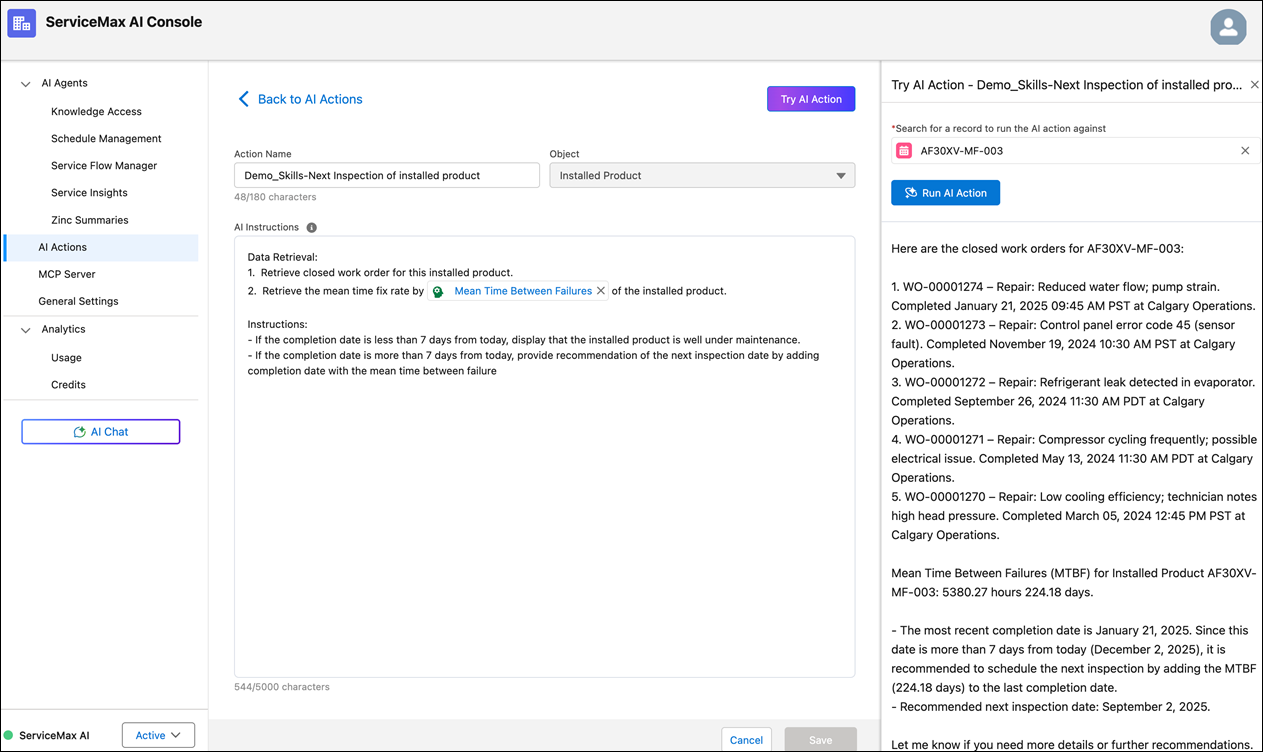
7. Click Try AI Action. The Try AI Action window opens, where you can search for an Installed Product record. For example, select AF30XV-MF-003.
8. Click Run AI Action. This displays the result of the AI Action. For example, it calculates the mean time between failures for the selected installed product.
|
|
To calculate the Mean Time Between Failure, the code executes the following mathematical formula for the relevant work orders. Mean Time = Time from Date of Installed / Number of Closed Repair Work Orders
Mean Time: Time from date of installed / No. of closed repair Work Orders
These details are taken from the Work Orders linked to the Installed Product.
 Closed Work orders: 5
Scheduled Dates:
• 3/5/2024
• 5/13/2024
• 9/26/2024
• 11/19/2024
• 1/21/2025
Completed Dates:
• 3/5/2024, 1:26 PM
• 5/13/2024, 1:15 PM
• 9/26/2024, 11:15 PM
• 11/19/2024, 11:30 PM
• 1/21/2025, 10:14 AM
Installed date: 11/08/2022
Number of days from the time of installation:
• 1079 days, 17 hours, 30 minutes, and 0 second
• 1,079.7292 days
• 25,913.5 hours
• 25,913.5 / 5 = 5,182.7
|
|
|
The AI Action appears in the Skill’s “Where Used” column if an AI Action refers to a skill implying that the skill is marked as “In Use”.
|