Configuring Service Insights Agent
In the Service Insights page, you can configure the access and behavior of the service insights agent of ServiceMax AI.
You can configure the following in this page:
• Enable User Access: Who can access the service insights agent.
• Manage Data Sources: Allow ServiceMax AI to access data records from the ServiceMax objects and generate responses to questions asked by users.
• Add guidelines for the agent: Add instructions for the ServiceMax AI agent to help navigate the data model to obtain the most relevant data for the service insights.
• Manage Agent Skills: View the list of pre-configured skills that are embedded in AI Actions to perform complex calculations or generate responses to a set of queries.
• Enable service insights: You can turn on the service insights agent for ServiceMax AI.
Enabling User Access
To enable user access, perform the following steps.
1. Navigate to > > .
The ServiceMax AI Console is launched.
 |
You can also log in to the ServiceMax AI console directly at https://console.servicemax.io/ai with your Salesforce org credentials.
|
2. Navigate to > > .
The Service Insights page is displayed.
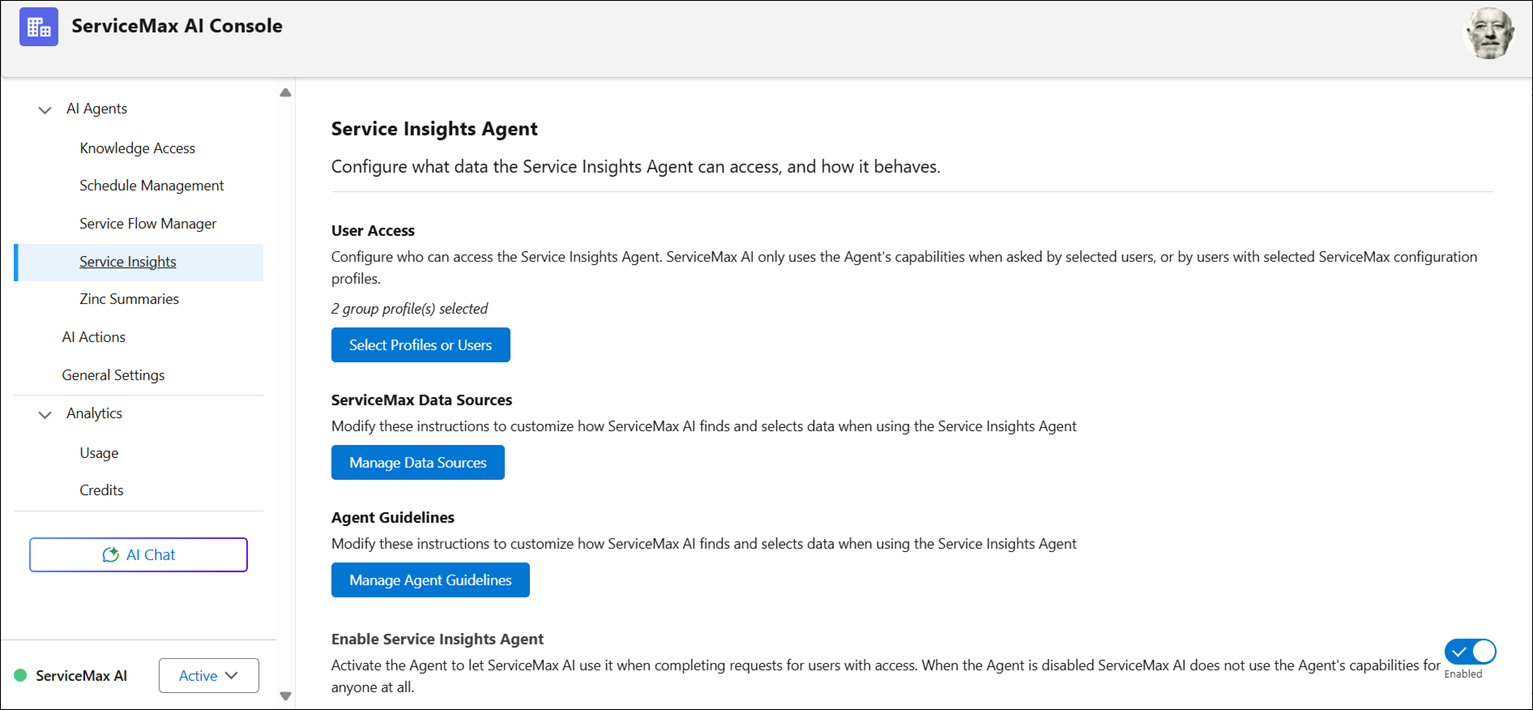
3. Click Select Profiles or Users to select the user profiles or individual users for whom you want to enable user access for service insights.
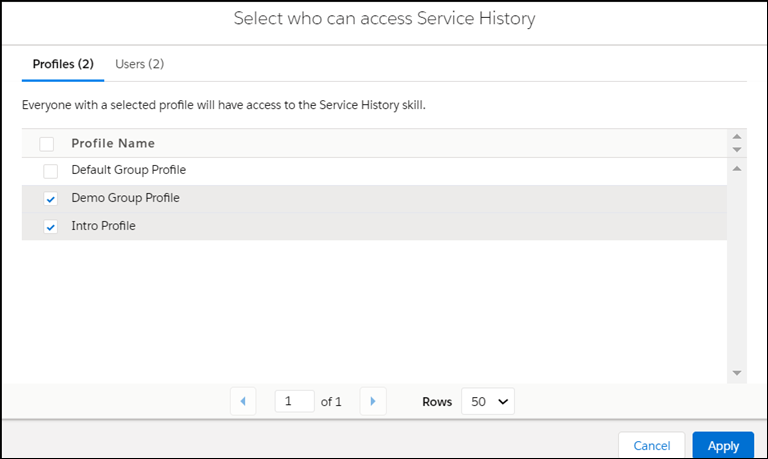
The window is displayed.
◦ Select the user profiles in the Profiles tab of the window.
|
|
• You can scroll through the window to view all the profiles.
• If there are multiple profiles, you can paginate the view. You can define how many rows must display per page.
|
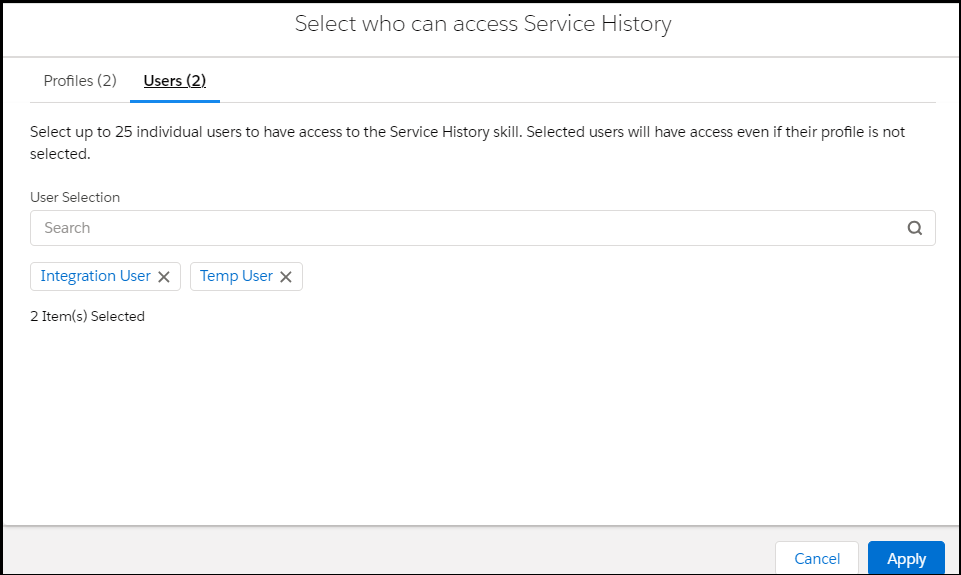
◦ Select the individual users in the Users tab of the window. Use the Search option in the User Selection field to search and select users.
|
|
• You can select up to 25 users.
• Selected users will have access to the service insights even if the user profile of the users is not selected.
|
4. Click Apply to grant access to the Service Insights agent to the selected user profiles and individual users.
The window is closed and the number of user profiles and users you have selected is displayed in the User Access section of the Service Insights page.
5. Click Save.
Managing Data Sources
To manage data sources for the service insights agent, perform the following steps.
1. Navigate to > > .
The ServiceMax AI Console is launched.
|
|
You can also log in to the ServiceMax AI console directly at https://console.servicemax.io/ai with your Salesforce org credentials.
|
2. Navigate to > > .
The Service Insights page is displayed.
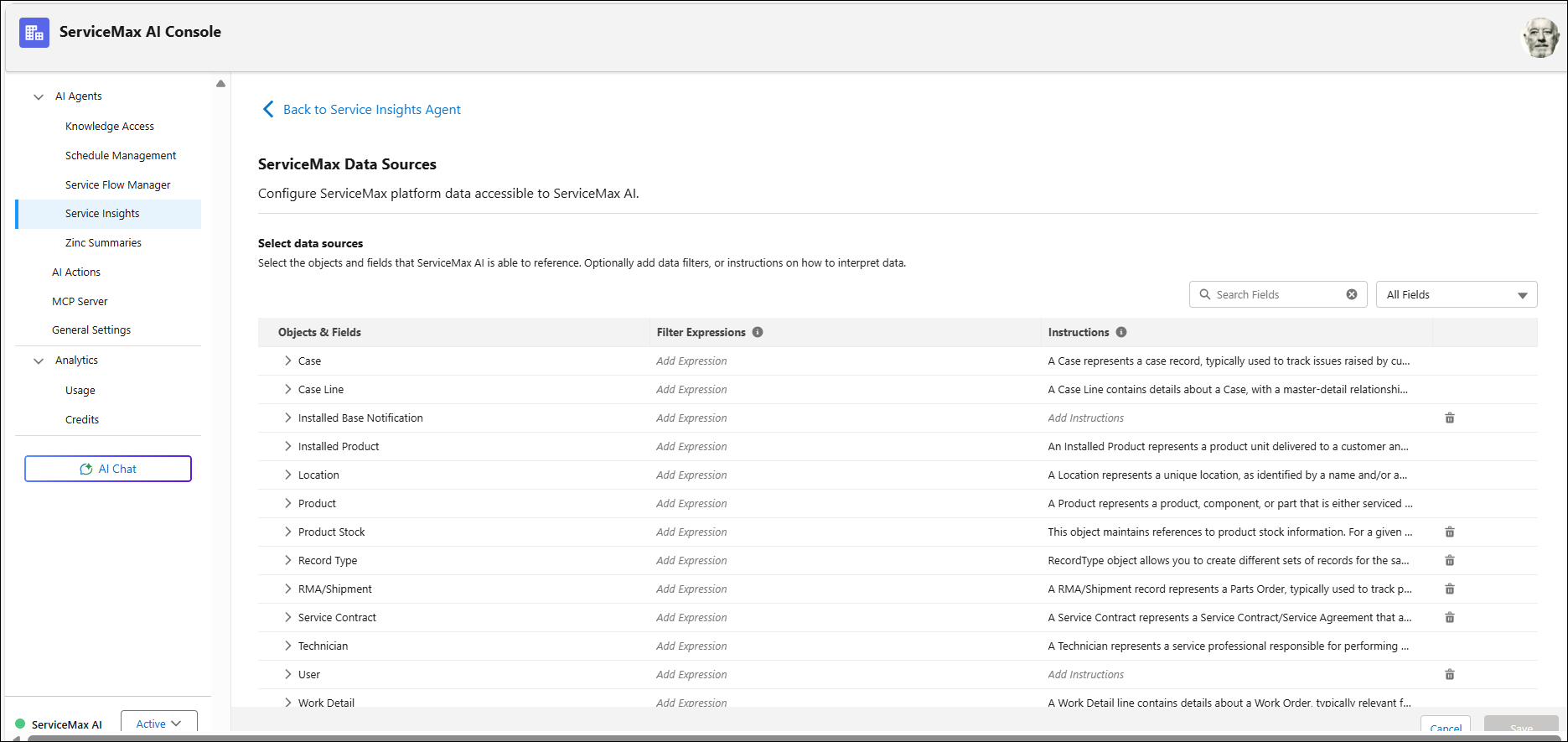
3. Click Manage Data Sources in the ServiceMax Data Sources section.
The ServiceMax Data Sources page is displayed. Already existing Objects and Fields, Filter expressions, and Instructions, if any, are displayed.
Adding Data Guidelines
To add data guidelines for the service insights agent, perform the following steps.
1. Navigate to > > .
The ServiceMax AI Console is launched.
|
|
You can also log in to the ServiceMax AI console directly at https://console.servicemax.io/ai with your Salesforce org credentials.
|
2. Navigate to > > .
The Service Insights page is displayed.
3. Click Edit Agent Guidelines in the Data Guidelines section.
The Edit Service Insights Agent Guidelines window is displayed. Already existing guidelines, if any, are displayed.
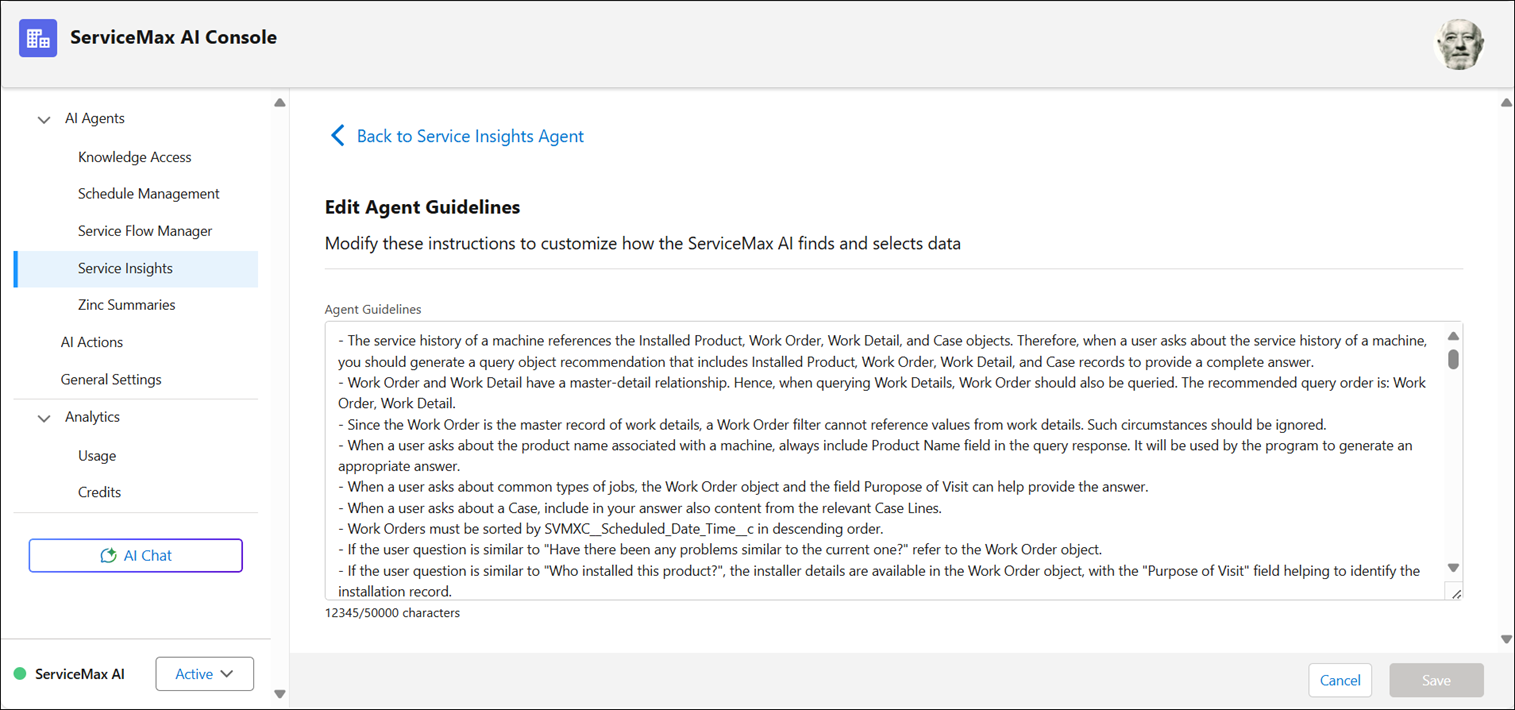
4. Add the agent guidelines.
These instructions help ServiceMax AI navigate through the data model and find better responses. You can add a maximum of 5000 characters.
5. Click Apply to save the agent guidelines.
Manage Agent Skills
To manage agent skills, perform the following steps.
1. Navigate to > > .
The ServiceMax AI Console is launched.
|
|
You can also log in to the ServiceMax AI console directly at https://console.servicemax.io/ai with your Salesforce org credentials.
|
2. Navigate to > > .
The Service Insights page is displayed.
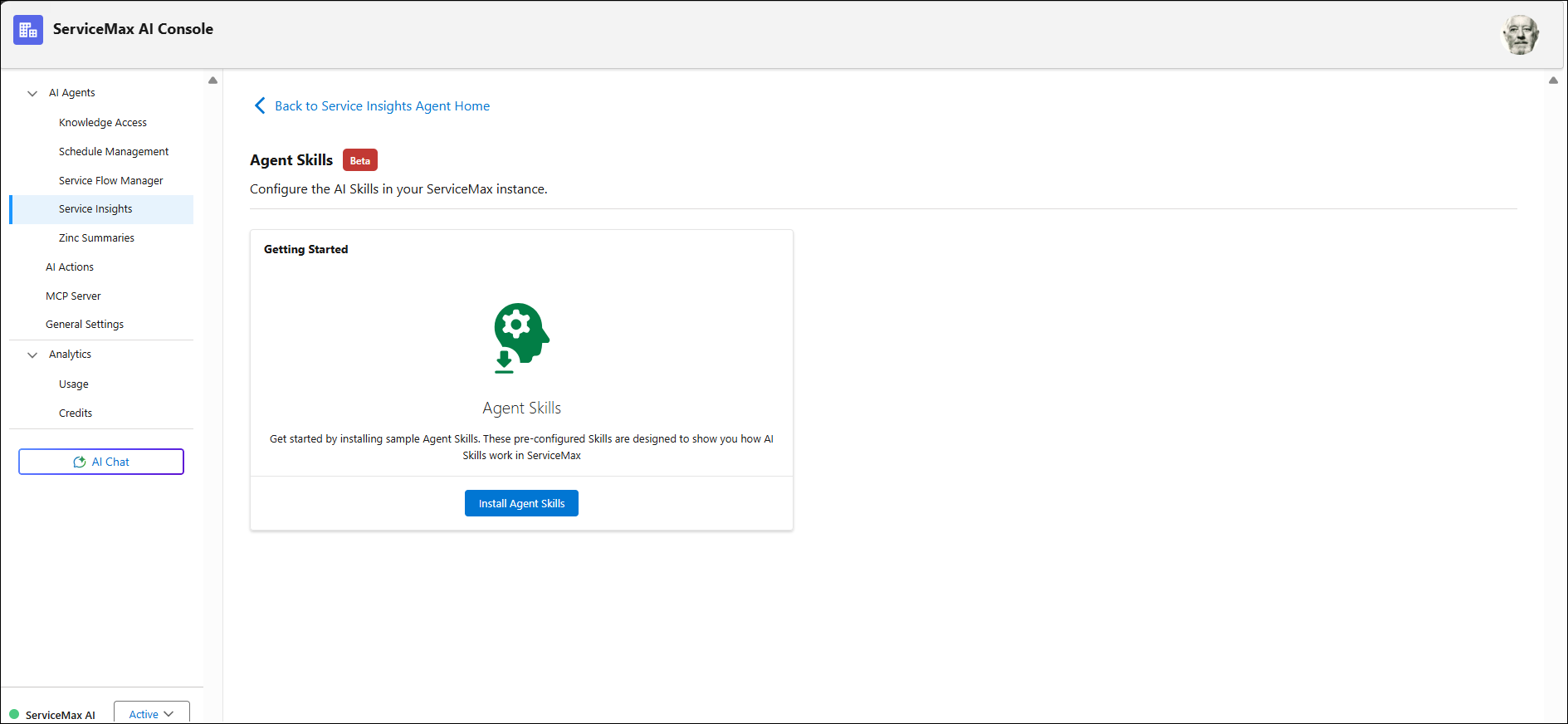
3. Click Manage Agent Skills in the Agent Skills section.
The Agent Skills page is displayed.
4. Click Install Skills.
A list of pre-configured skills is displayed.
Enabling Service Insights
To enable service insights, perform the following steps.
1. Navigate to > > .
The ServiceMax AI Console is launched.
|
|
You can also log in to the ServiceMax AI console directly at https://console.servicemax.io/ai with your Salesforce org credentials.
|
2. Navigate to > > .
The Service Insights page is displayed.
3. Select the toggle button in the Enable Service Insights section.
The button indicates Enabled.
4. Click Save.