Configuring Service Flow Automation for Automated AI Actions
Automated AI actions in Service Flow Automation (SFA) enhance service efficiency by executing intelligent tasks based on defined triggers. To configure these actions, define triggers such as data field updates, Work Order changes, or Service Flow Manager (SFM) events. As part of the setup, you need to specify Properties and Event Service fields to control how and when the automation runs.
Once triggered, the ServiceMax AI performs AI-powered tasks such as:
• Generating summaries
• Updating records
• Sending notifications
• Launching follow-up actions
These capabilities are available in both the Salesforce Web and Go mobile applications.
Use Cases
The following list represents some use cases for the Automated AI actions feature:
• Generate a summary when a technician arrives on-site, including the site location, customer contact, and key tasks.
• Create a customer-facing summary when a Work Order is marked as Closed, using Work Order and Work Detail data.
• Validate data consistency when a Work Order is marked as Completed by checking for mismatches between parts and descriptions.
|
Prerequisites
|
|---|
|
To enable this feature, ensure the Field Sets are configured for each object so that AI actions trigger only when relevant fields change. For more information, see Configuring Field Sets for SFA AI Action Triggers and Configuring SFA for Push Notification..
|
To configure an Automated AI actions in SFA, perform the following steps.
1. Navigate to ServiceMax Setup > Mobile > Service Flow Automation.
The Automation List page is displayed.
2. Click New Automation.
3. Click through the next tabs and provide the details for the fields as described in the following table.
|
Field
|
Description
|
|---|---|
|
Fields marked with * are mandatory.
|
|
|
Event Trigger*
|
Defines the condition that starts the automation, such as a data update or a change in status.
|
|
Object*
|
Specifies the Salesforce object the automation monitors. For example, selecting Work Order ensures the automation responds to changes in Work Orders.
|
|
Filter Criteria*
|
Narrows the trigger conditions. For example, trigger only when a Work Order’s status changes to Completed.
|
|
Action Service*
|
Determines the type of action to perform. For example, ServiceMax AI enables AI actions like summarization or recommendations.
|
|
AI Action*
|
Lists available AI actions. For example, Summarize Work Order generates a summary based on the Work Order’s content.
|
|
Response Output
|
Specifies where to store the AI-generated result, such as a custom or existing field like Corrective Action.
|
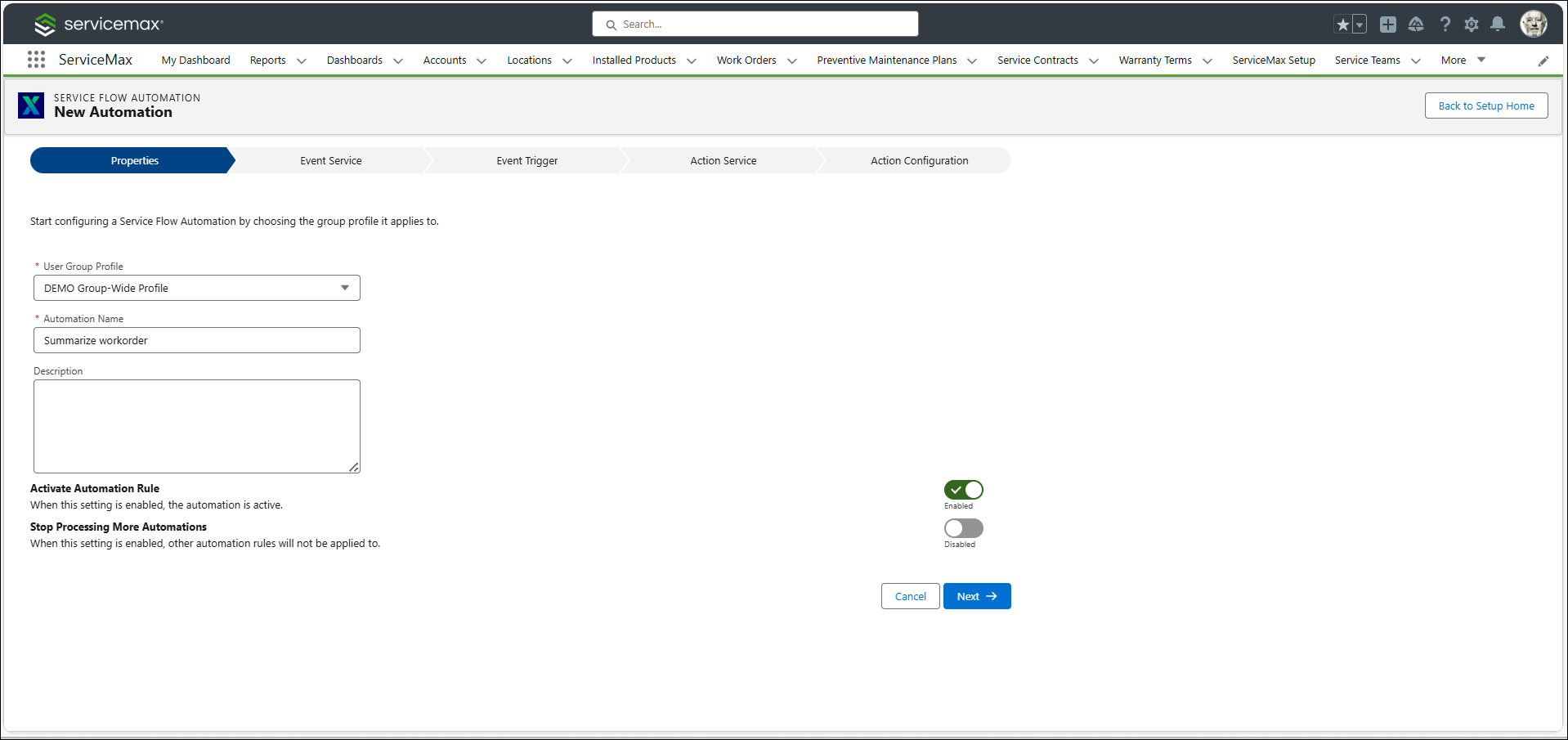
4. In the Properties tab, select Profile from the User Group Profile and enter Automation Name. Click Next.
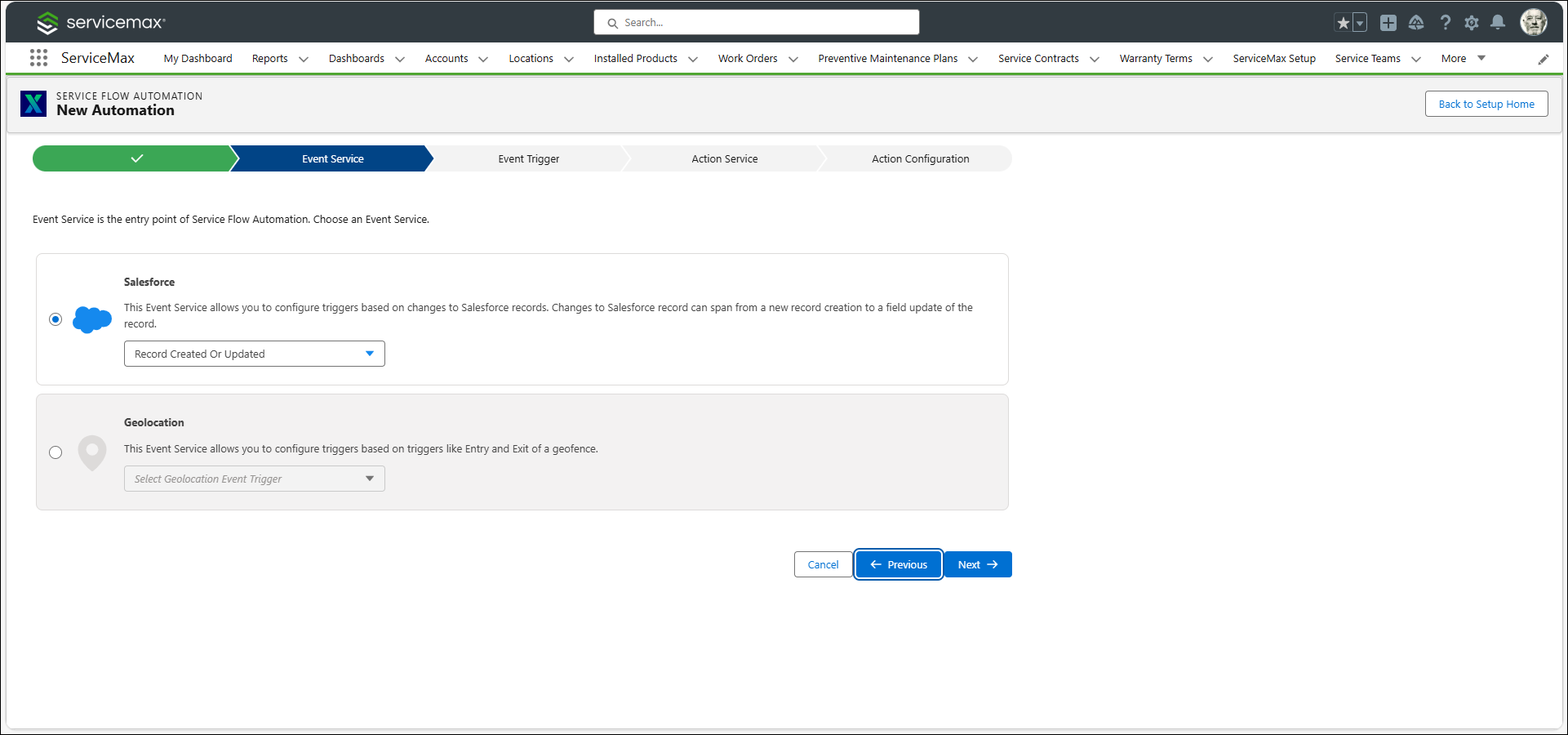
5. In the Event Service tab, in the Salesforce card, select Record Created or Updated. Click Next.
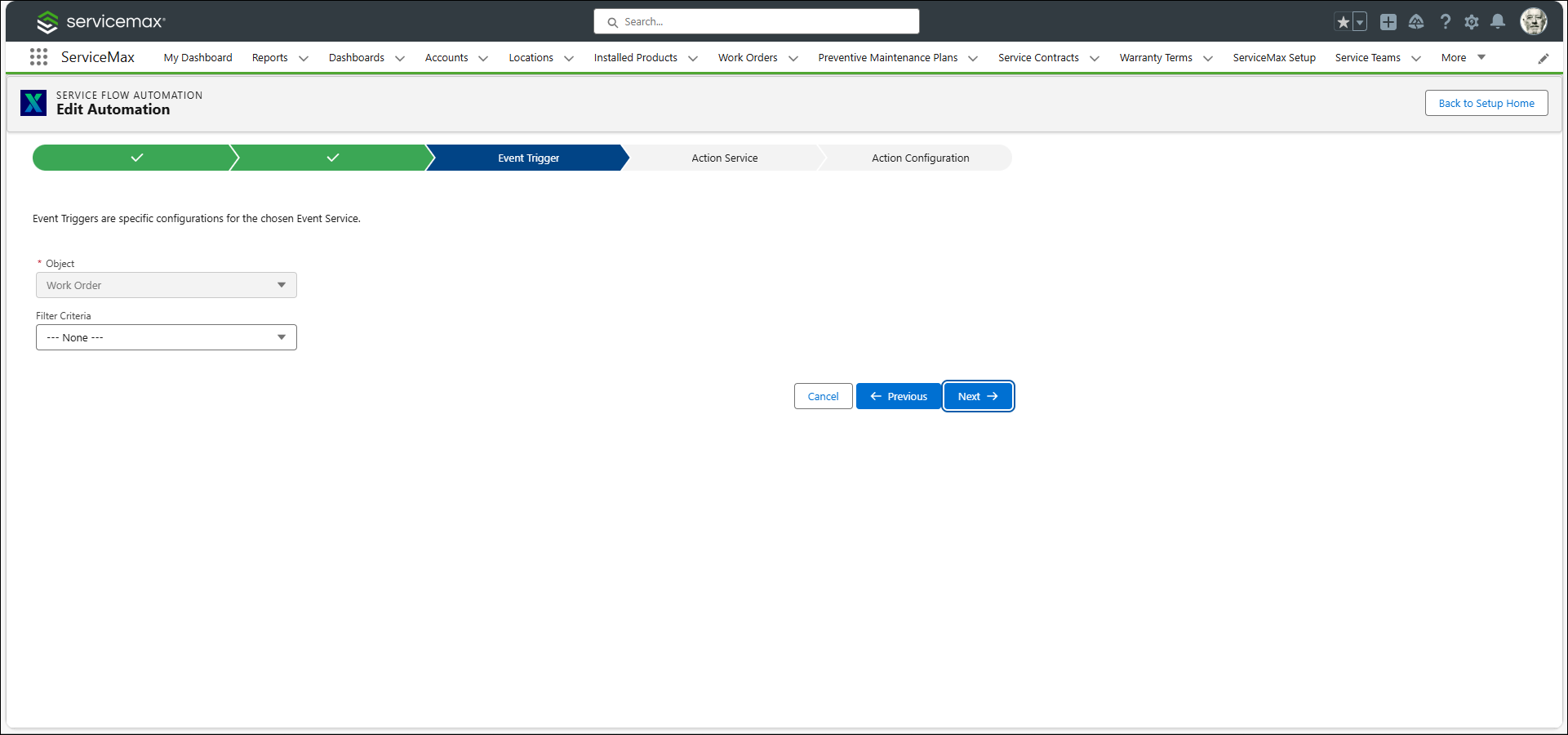
6. In the Event Trigger tab, select Work Order from the Object drop-down. Click Next.
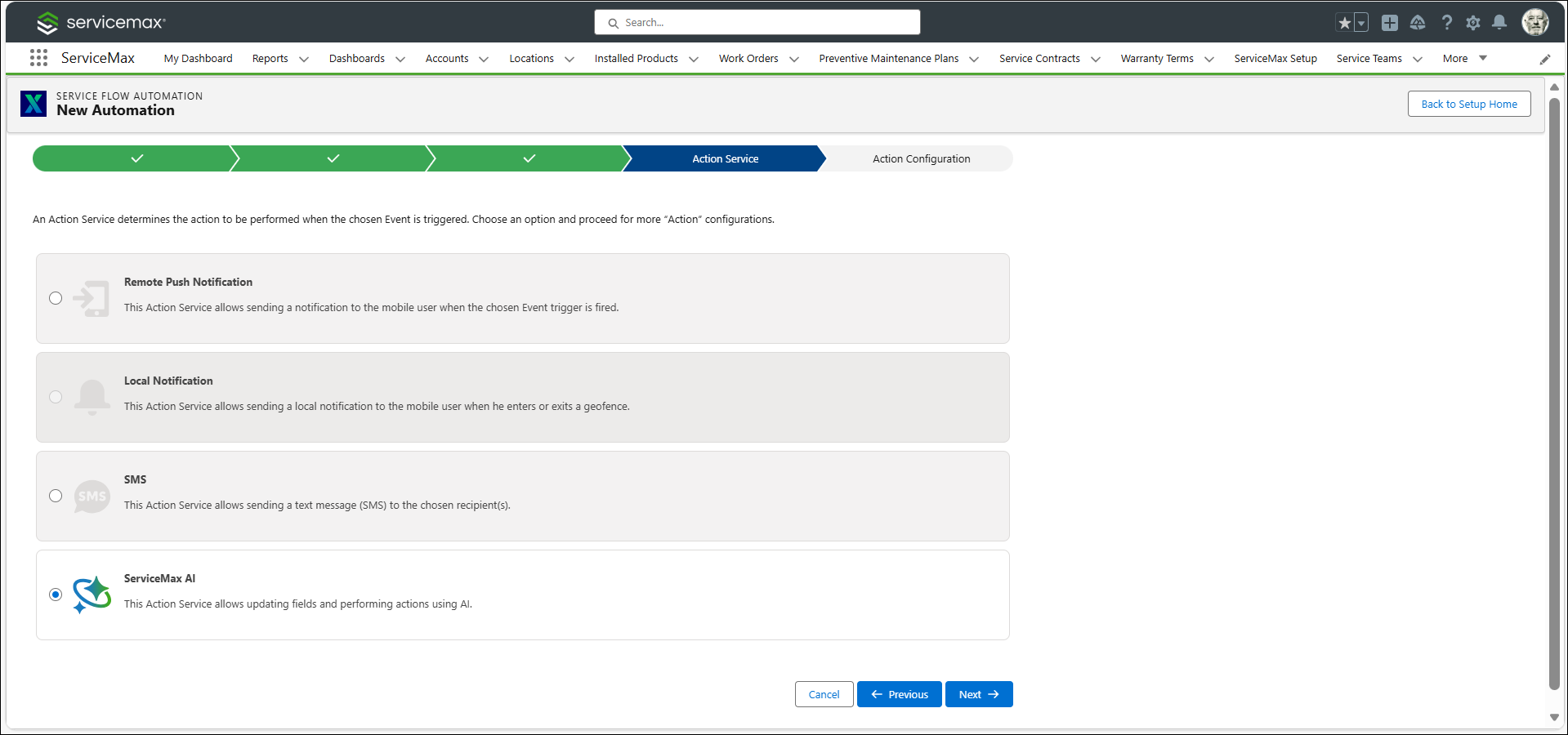
7. In the Action Service tab, select ServiceMax AI. Click Next.
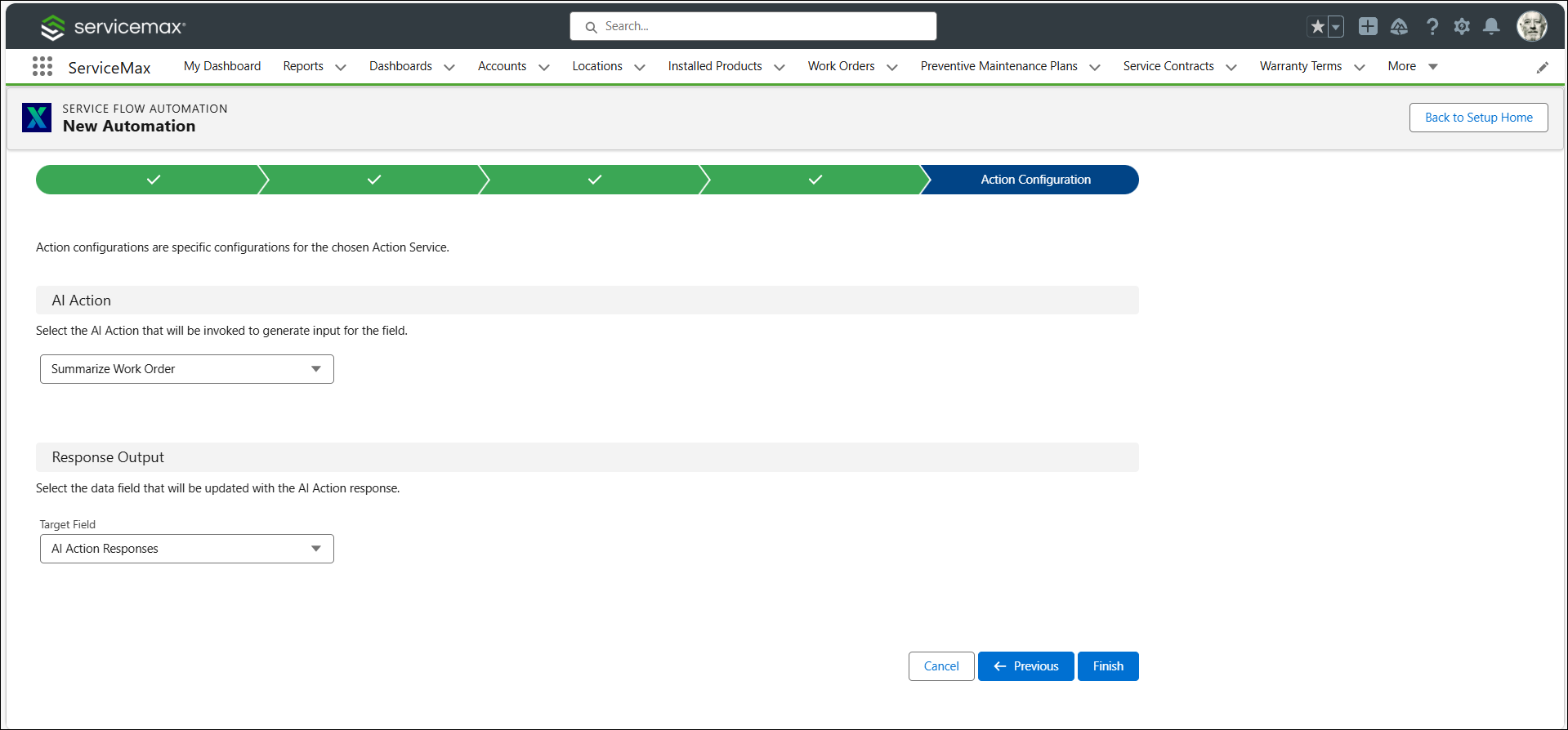
8. In the Action Configuration tab, select Summarize Work Order from the AI Action drop-down and select AI Action Responses from the Target Field drop-down.
9. Click Finish. The new automation is created and displayed in the Automation List.
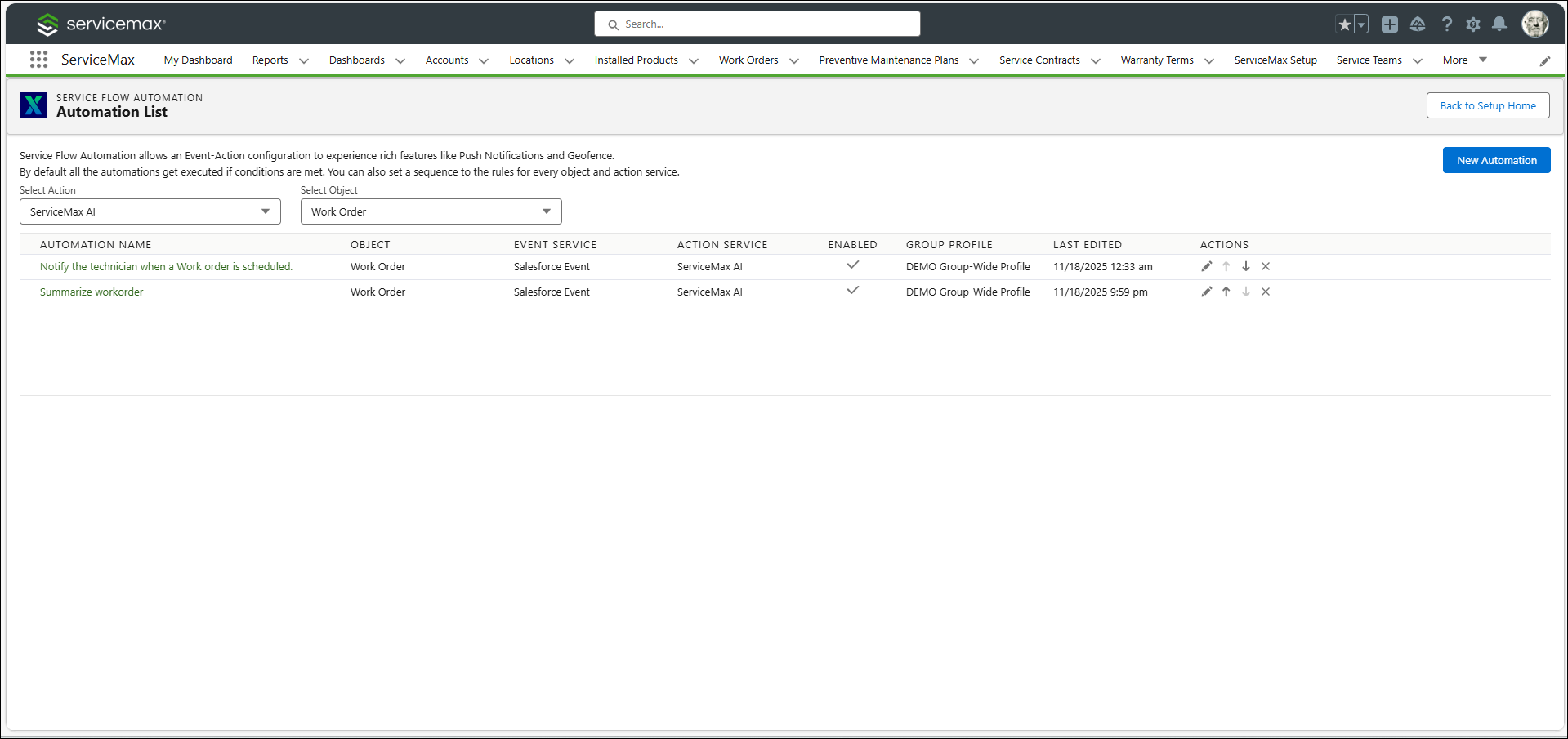
The automation is saved and becomes active. When the trigger conditions are met, ServiceMax AI executes the selected action and updates the specified field. For more information about execution, see Runtime Execution of AI actions.
 |
Use custom fields to store AI-generated content to keep data organized and prevent overwriting existing fields. For more information, see Create Custom Fields.
|