Cloning AI Actions
The Cloning AI Actions feature enables administrators to duplicate existing AI Actions within the AI Console, reducing setup time when similar configurations are needed across different objects or workflows. Admins can modify the object, update instructions, and save the cloned copy without creating a new AI Action.
This capability supports efficient reuse, minimizes manual effort, and ensures consistency. It also allows cloning of unsaved changes, validation before saving, and prevents reuse of context-specific elements such as wizard steps and SFM mappings.
Use Cases
The following list represents some use cases for the Cloning AI Action feature:
• Create a new AI Action for a different object using an existing configuration as a template.
• Duplicate an AI Action with modified instructions to support a new workflow.
• Clone multiple AI Actions in a single session to accelerate setup for similar automation tasks.
• Preserve unsaved changes during cloning to avoid rework.
• Validate cloned AI Actions by running them before saving.
|
Prerequisites
|
|---|
|
To enable this feature, ensure the following:
• Access the AI Console with admin privileges.
• Verify that the AI Action you want to clone exists in the system.
• Populate all required fields, such as AI Instruction, before saving the cloned copy.
|
To clone AI Actions, perform the following steps.
1. Navigate to > > .
The ServiceMax AI Console is launched.
 |
You can also log in to the ServiceMax AI console directly at https://console.servicemax.io/ai with your Salesforce org credentials.
|
2. On the sidebar, click AI Actions.
The AI Actions page appears with a list of all available AI actions. For more information about each field, see Configuring AI Actions.
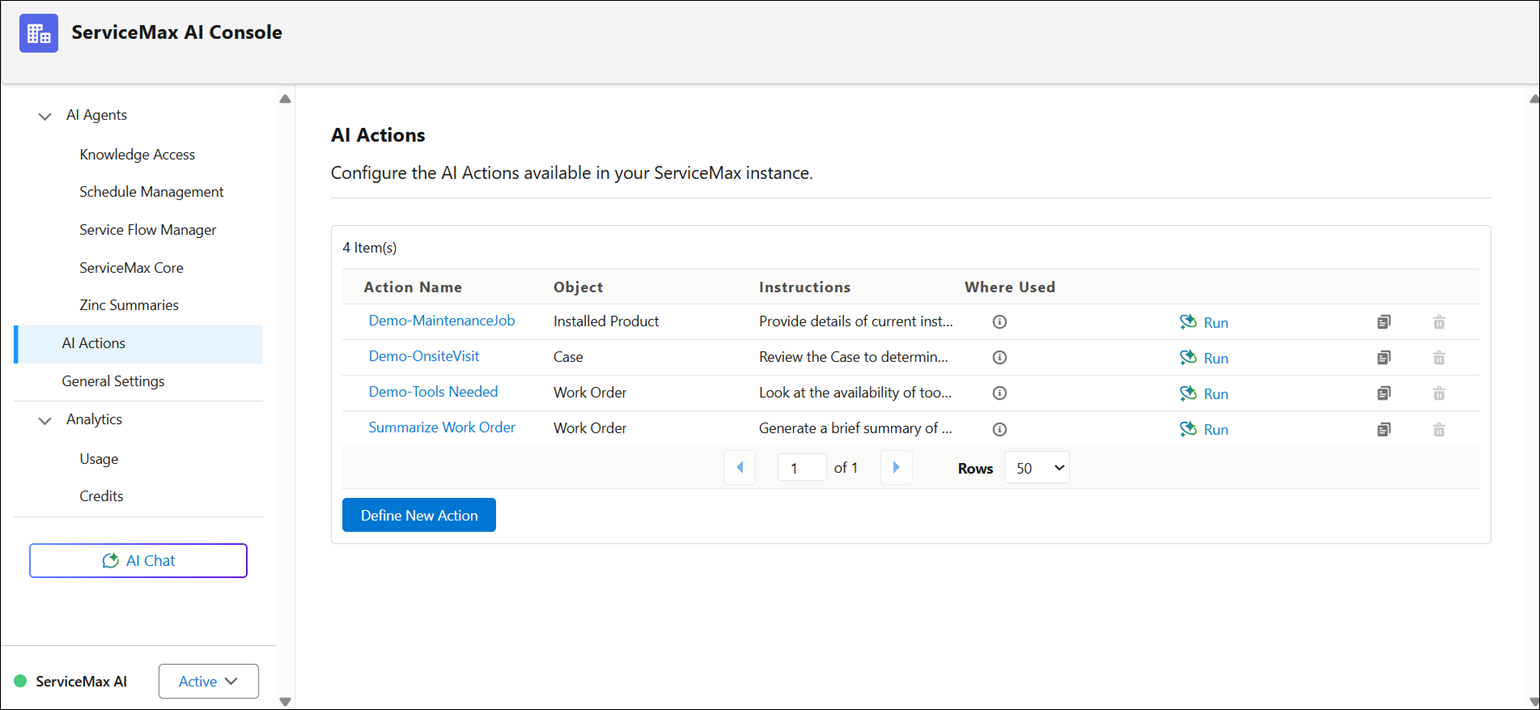
3. Locate the AI Action you want to clone.
4. Click the Clone icon next to the AI Action.
A cloning window is displayed with an appended copy and an auto-populated title, target object, and AI Instruction of the selected AI Action.
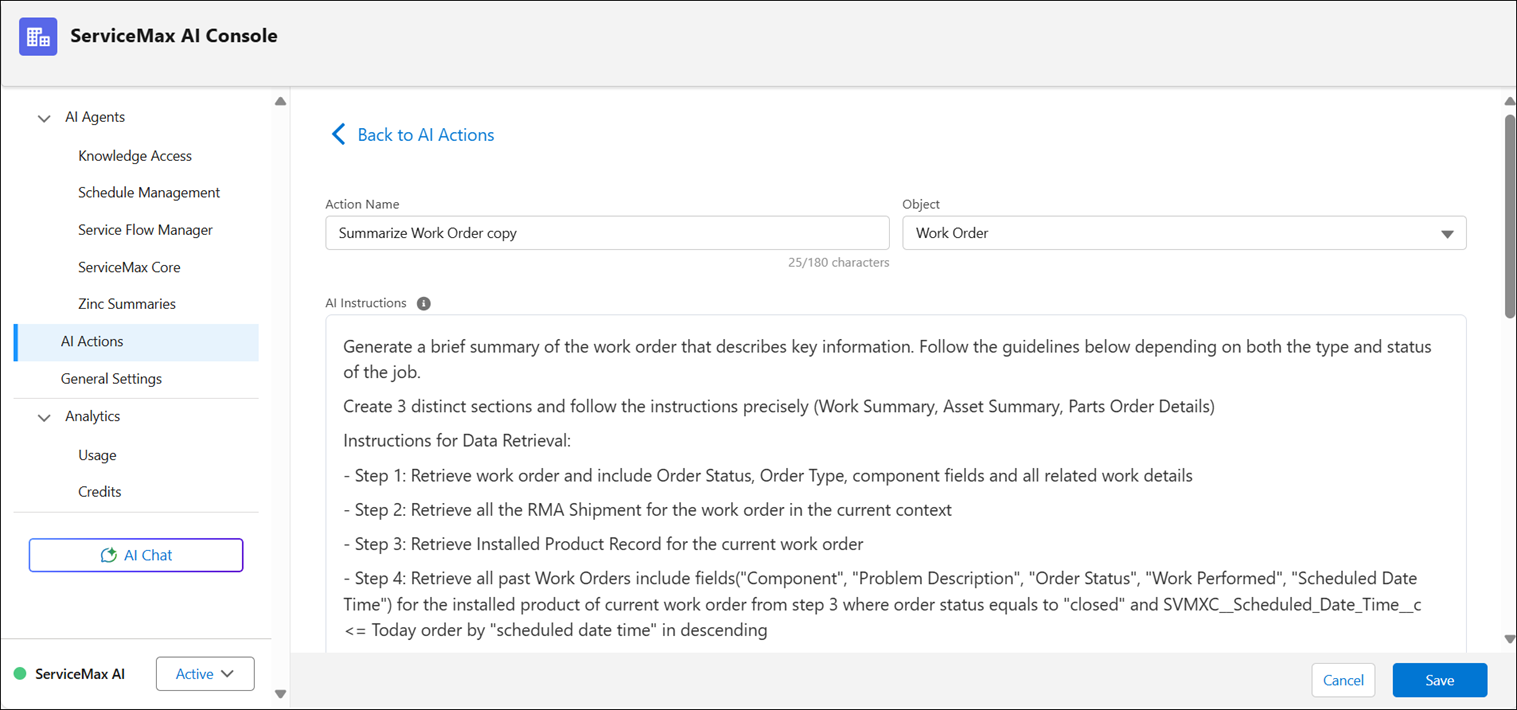
5. Update the Action Name, Object, and AI Instructions as required.
6. Click Save.
A new AI Action appears in the list with the cloned data, a unique name, and the original AI Action remains unchanged.
7. Optionally, run the cloned AI Action to validate its behavior. For more information, see Using Run AI Action.
The Clone AI Action is then used by end users in applications such as Go, SFM Wizard, and Service Board. For more information, see AI Actions.