Configuring Technical Attributes
Technical Attributes can be defined for a Product, a Product Line, or a Product Family, by creating templates from the Installed Base App Setup page. The following screenshot shows the home page of the Technical Attributes Template configuration screen. Using the Previous and Next buttons you can navigate through the list of available Technical Attributes templates for the selected group profile. By default, ten records are displayed on the screen. Clicking Next displays the next ten records.
The functionality of this page and create or edit template page is explained in the following sections.
Enabling Technical Attributes
Technical Attributes feature can be enabled/disabled for specific profiles. It is disabled by default. To download and use Technical Attribute Templates in the Installed Base app, a Product object must be added to the download criteria.
To enable the Technical Attributes feature:
1. Launch the Installed Base App Setup page.
2. Select the required group profile from the Select a Profile drop-down list.
3. Click Technical Attributes in the left panel.
4. Select the checkbox next to Enable Technical Attributes.
5. Click Save.
When Technical Attribute is enabled for the first time, you must perform configuration sync followed by data sync on the mobile app to download available Technical Attributes templates and apply them on matching installed products. Subsequent data sync downloads new Technical Attributes templates.
 |
Community users can access the Technical Attribute delivery UI from the community portal. The user must have API-enabled permission.
|
Searching Technical Attributes Templates
The home page of the Technical Attributes configuration screen displays all the Technical Attributes templates available. You can use the Search box (  ) to quickly find a specific template. It is a case-insensitive search that looks for the entered keyword anywhere in the template name and template description, and displays the matching templates as shown below:
) to quickly find a specific template. It is a case-insensitive search that looks for the entered keyword anywhere in the template name and template description, and displays the matching templates as shown below: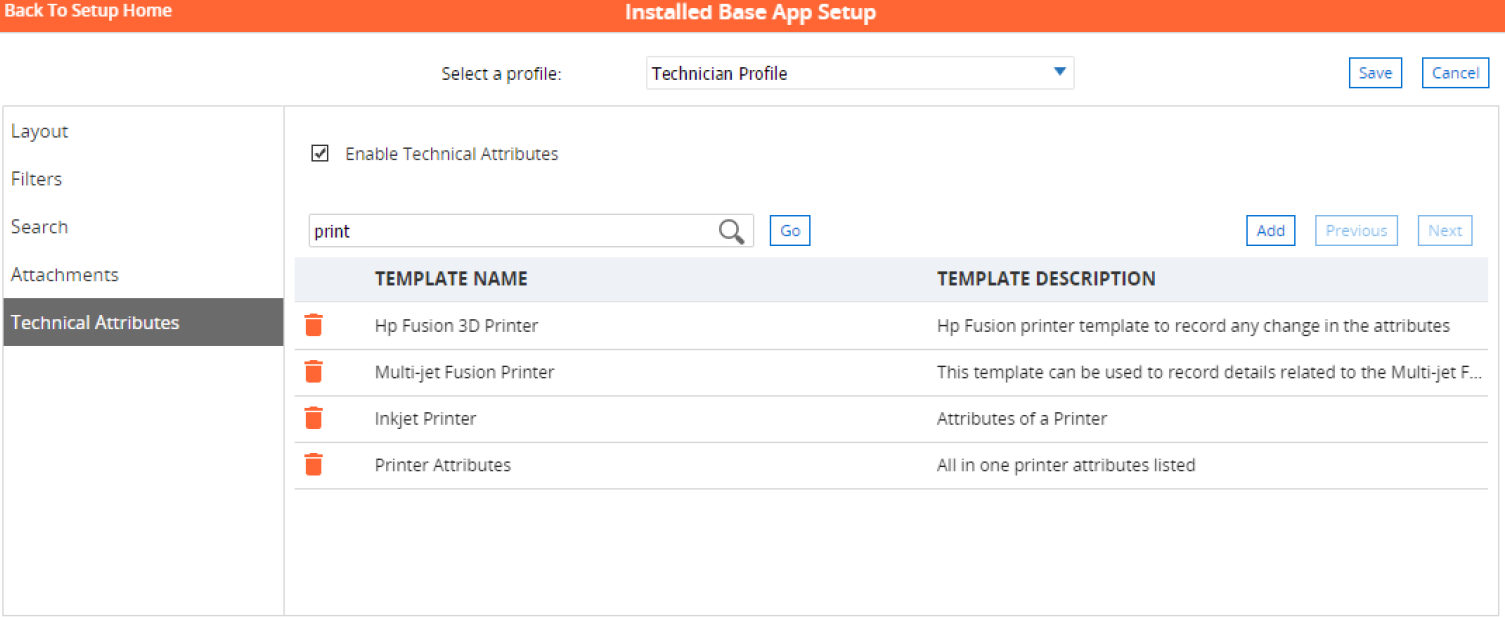
|
|
Special characters such as &, #, \, ', %, _, + are not supported when a keyword search is performed in the Technical Attributes page.
|
Other Actions
You can also perform the following actions in the Technical Attributes configuration screen:
• You can sort the templates on their name or description in either ascending or descending order, by clicking the corresponding column
• Clicking again reverses the sort order. The list of available templates is not sorted by default on load
• You can also hide / show any of the available columns by clicking the blue triangle on any column’s heading and choosing Columns option
Related Sections