Launching Issue Report and Feedback
You can report an issue or incident if you encounter any problems while working on Installed Products and Service Products associated with a Work Order. You can also share product-specific feedback, which can be sent to the Windchill PLM application for further analysis.
To launch the issue report and feedback SFM:
1. Open a Work Order record which has a lookup to the Installed Product or Service Product record. The Work Order record is displayed.
2. Click Issue Report/Feedback SFM. The Issue Report/Feedback window is displayed.
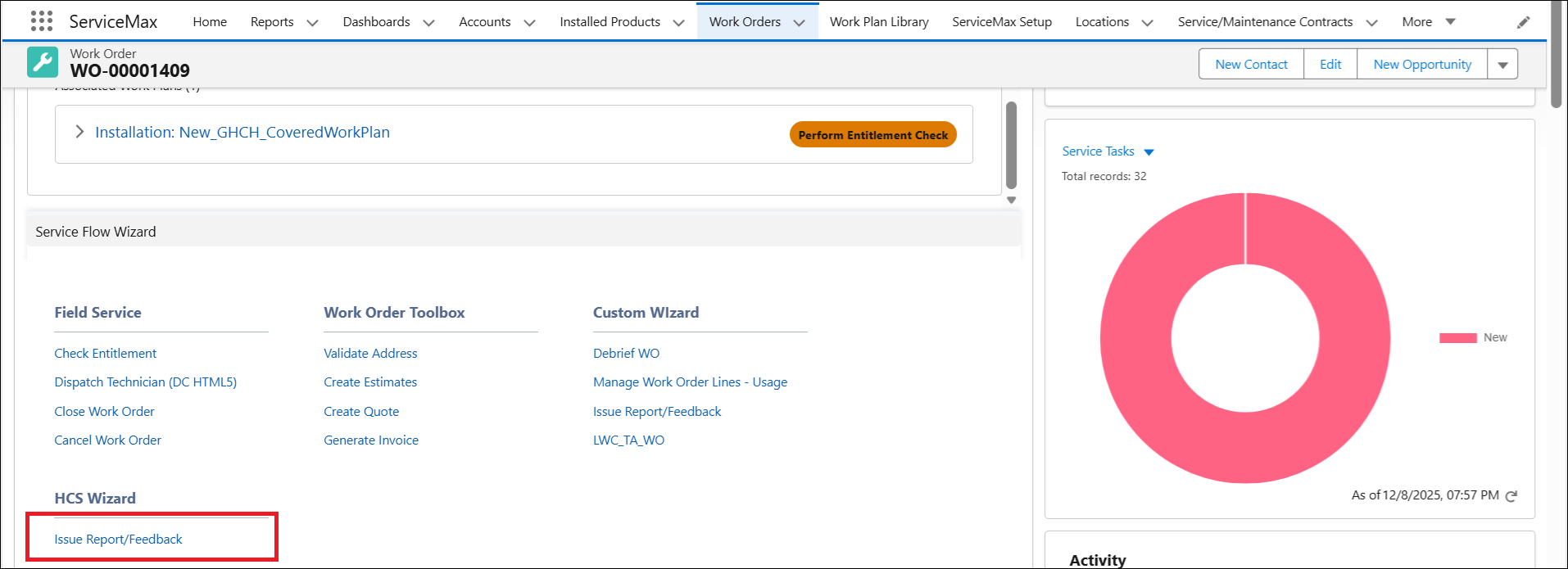
3. Provide the details for the fields asdescribed in the following table:
|
Fields
|
Description
|
|---|---|
|
Mandatory fields are marked with an asterisk (*).
|
|
|
*Installed Product
|
Select an Installed Product or Service Product from the drop-down for which you want to report an issue.
|
|
*Category
|
Select the category that is most relevant to the issue with the product. For example, Design Issue, Product Improvement, Safety Issue, and so on.
|
|
*Description
|
Enter details of the issue.
|
4. Click Upload Files and select the files to be uploaded. You can also drag and drop your files.
 |
A maximum of 10 files can be uploaded using the Lightning mode. For more information, see Uploading Attachments to Issue Report and Feedback
|
5. Click Done.
|
|
You cannot modify an issue report once submitted.
|
A new connected service tip record is created when you submit an issue report or feedback for an installed product. This record displays Top-level Installed Product and Top-level Product along with Installed Product and Product fields to facilitate top-level product linkage. The Account, Location, and Work Order fields are mapped from the source record. For more information, see Viewing Populated Top-Level Fields on Connected Service Tip Record.