Go App Configuration and Usage Sequence
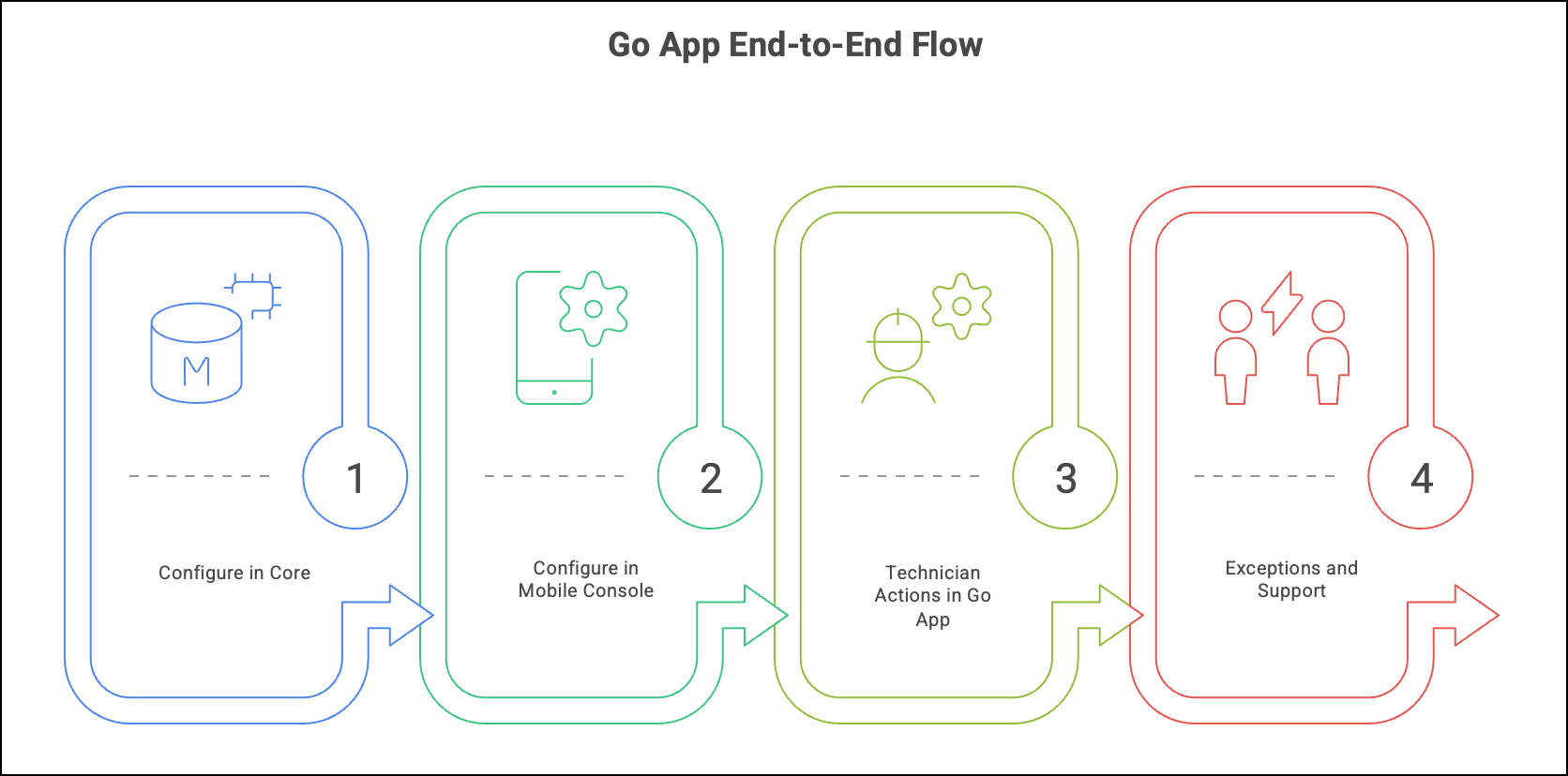
This topic covers the end-to-end workflow to enable the Go app for field technicians. It covers configuration of SFMs for the Go app, customizing the Go app from the Mobile Console, and then installing and logging in to the Go app to perform field activities.
The following sections cover the complete workflow for the Go app.
The overall flow includes the following areas:
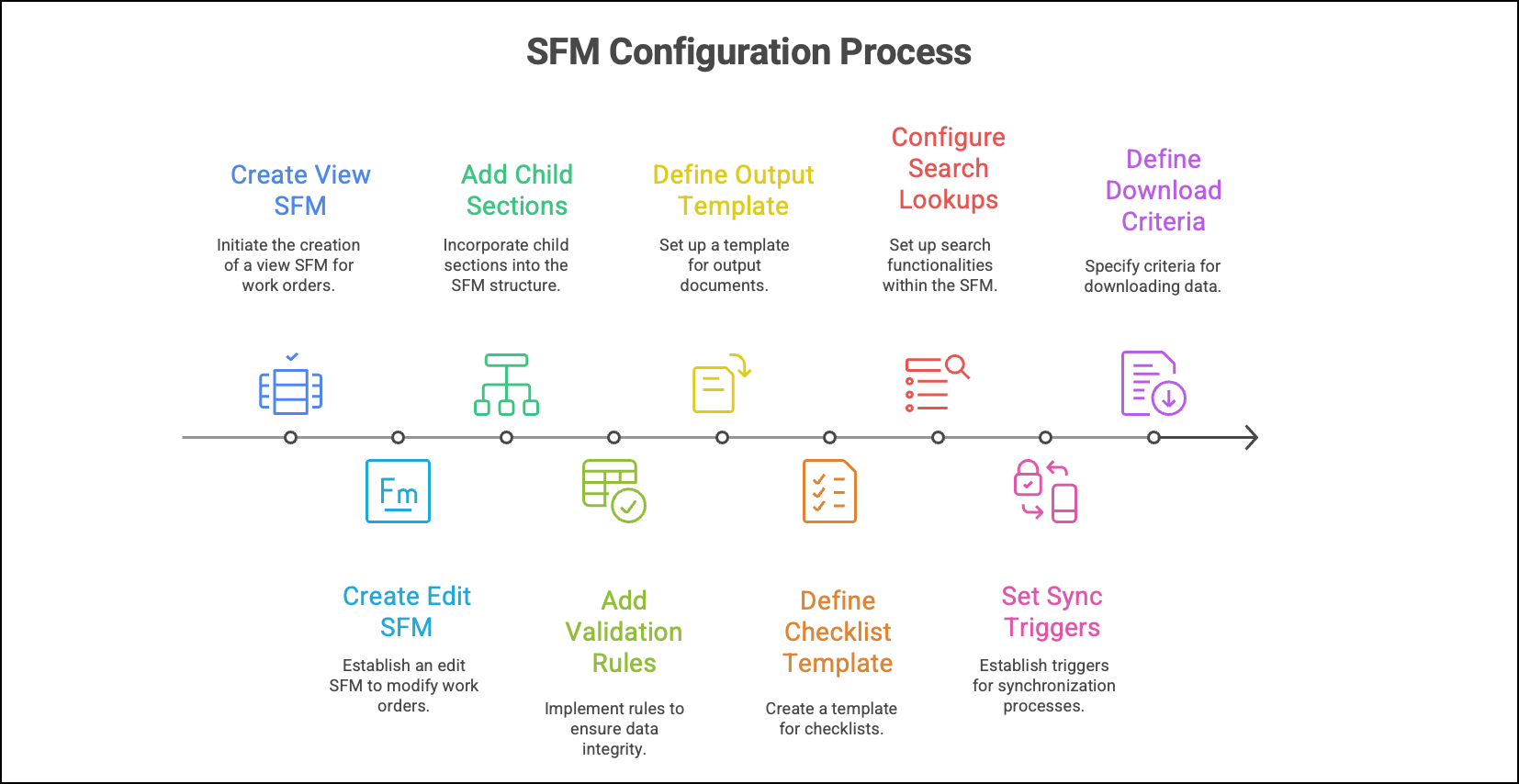
Step-1: Configure Service Flow Manager for the Go app
1. Create View SFM for Work Order: This step will make the Work Order layout available for mobile, allowing technicians to view the details of the Work Order on their mobile devices.
2. Create Edit SFM for Work Order: This will enable technicians to edit Work Order details on their mobile devices.
3. Add child sections (Service Tasks, Labor, Parts, Expenses, Attachments) to the SFM: This ensures that all relevant and associated details are displayed under the Work Order on the Go app.
4. Add Data Validation Rules and Formulas on SFM fields: This will enforce your business rules during edit and submit actions on the app, ensuring data integrity and consistency.
5. Define Output Document template and map fields: This will allow the Go app to generate service reports based on the defined template and field mappings.
6. Define Checklist template and link to Work Order: This will enable technicians to launch checklists directly from the Work Order in the Go app.
7. Configure Search Designer for Installed Base, Product, and Account lookups: This will ensure that mobile searches and lookups return the correct and relevant records.
8. Set Sync on Save/Submit/Finalize per SFM: This will trigger either a smart or full sync after save/submit/finalize actions, ensuring data on the Go app and the server are in sync.
9. Define Download Criteria and Event Window for technicians: This will ensure that the initial and ongoing sync brings the relevant data to the devices based on the defined criteria and event window.
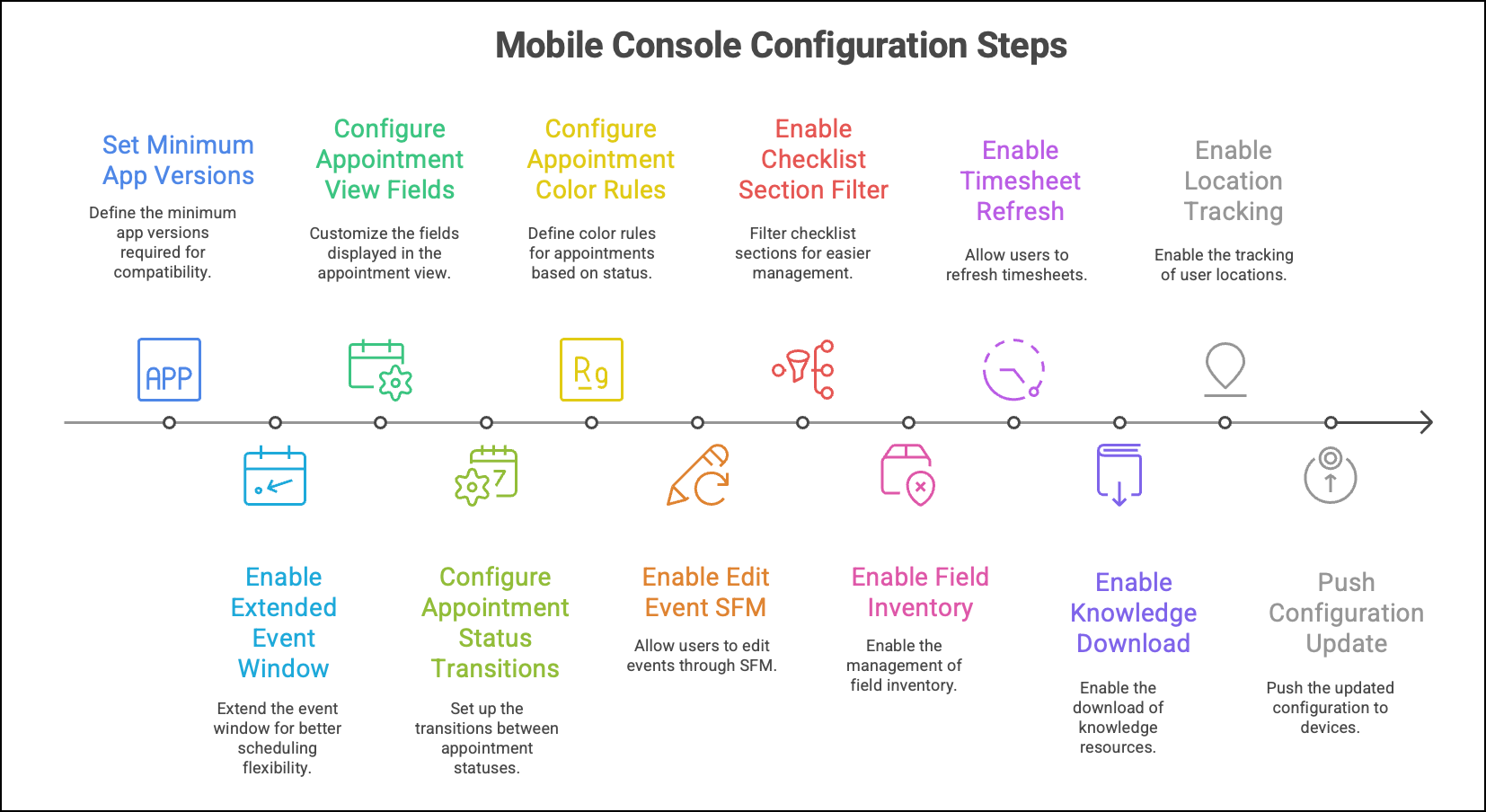
Step-2: Configure Mobile Console to Customize the Go app
1. Set minimum app versions and block public store apps if needed: This ensures that technicians are using compliant builds of the app.
2. Enable Extended Event Window and set extra days: This allows the calendar to show future appointments beyond the default window.
3. Configure Appointment View fields (Event + Work Order fields): This ensures that the appointment detail provides key context to technicians.
4. Configure Appointment Status transitions (From → T0): This ensures that technicians can only update status through allowed steps, keeping the workflow consistent.
5. Configure Appointment Color rules by Work Order expressions: This lets the calendar color reflect business priority, aiding in quick visual assessment.
6. Enable Edit Event SFM (for non‑WO events if used): This enables the Edit Event to open the configured SFM layout.
7. Enable Checklist “Disable sections not required”: This ensures that technicians only see relevant checklist sections, decluttering their view.
8. Enable Field Inventory and set Stock Transfer process (optional): This allows technicians to transfer and consume parts if this feature is used.
9. Enable Timesheet on‑demand refresh (optional): This lets technicians refresh timesheets in the app.
10. Enable Knowledge download and link Connected Service Tip (optional): This allows technicians to open related articles from Work Order, aiding in problem-solving.
11. Enable Location Tracking rules for Engage (optional): This feature allows the app to start/stop live location tracking based on appointment status.
12. Push Configuration Update and set reminder/force window: This ensures that devices receive and apply the latest configuration, keeping all devices up-to-date.
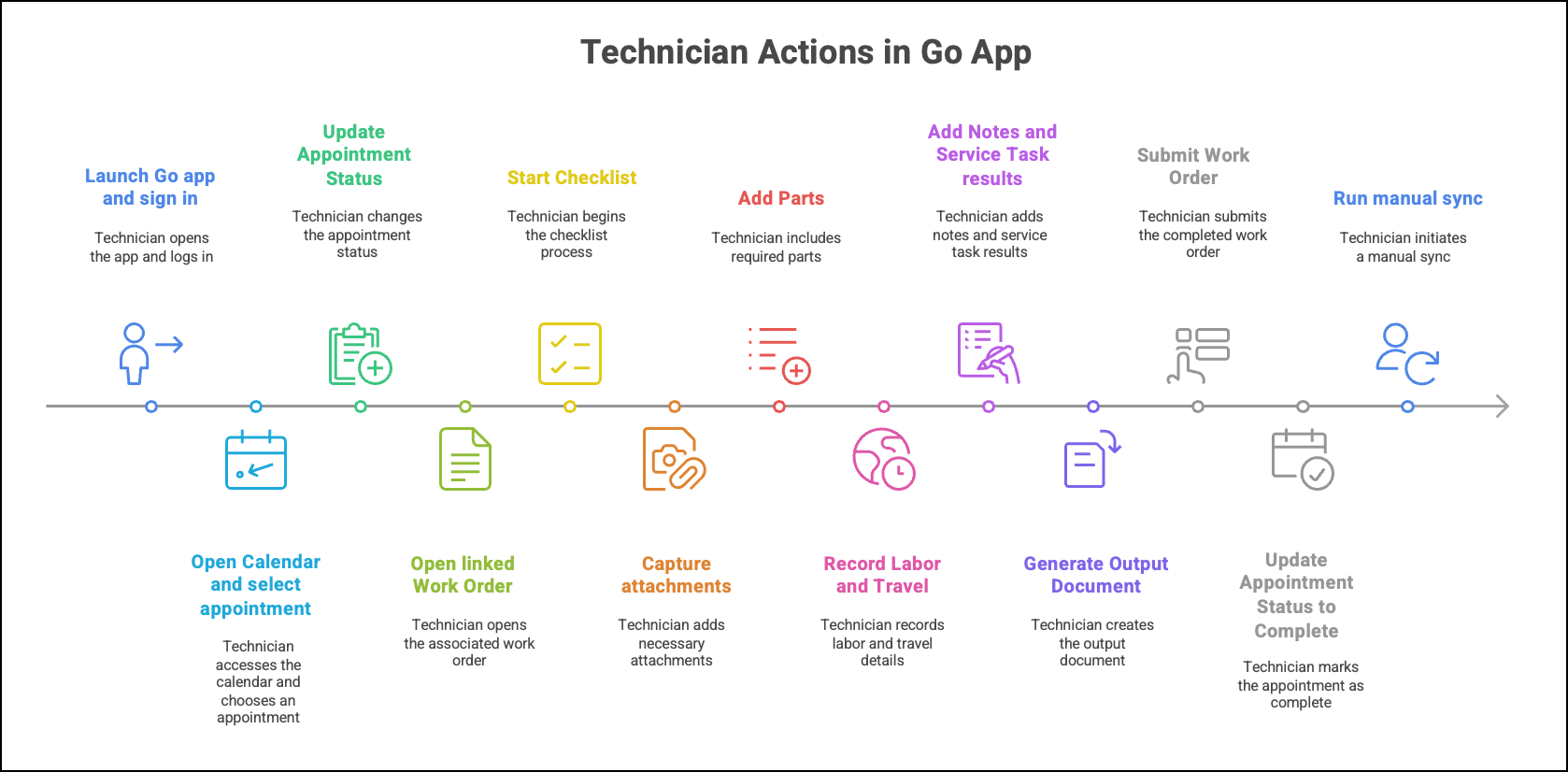
Step-3: Install and Login to the Go app
1. Install Go app from stores: Technicians install the latest version of the Go app from the respective OS stores.
2. Launch Go app and sign in (SSO/MFA): This initiates the configuration sync and initial data sync between the app and server.
3. Open Calendar Day/Week/Agenda and select Appointment: This loads the Appointment View with status, customer, site, and Work Order (WO) link.
4. Update Appointment Status (for example, Accepted → En Route → On Site): This records the status transition in the app and triggers a sync.
5. Open linked Work Order (View SFM): The Work Order header and child sections load offline, allowing technicians to view all relevant details.
6. Start Checklist from Work Order: The app shows only required sections and validates answers, guiding the technician's workflow.
7. Capture photos, videos, and documents in Attachments: Files are stored locally and queued for upload, allowing for documentation of work.
8. Add Parts in Work Detail or Child Lines (scan barcode if enabled): Lines update pricing via Get Price and queue for sync, ensuring accurate inventory management.
9. Record Labor and Travel in Time entries (or use Timesheet UI): Time posts to WO and appears in Timesheet, allowing for accurate tracking of work time.
10. Add Notes and Service Tasks results: The app saves edits and applies Data Validation Rules/Formulas, ensuring data integrity.
11. Generate Output Document (service report) and capture customer signature: A PDF is generated and attached to the Work Order, providing a record of service completion.
12. Submit Work Order (Sync on Submit) and finalize if required: The app pushes changes; the server confirms success, ensuring data synchronization.
13. Update Appointment Status to Complete: The calendar reflects completion and triggers any follow‑ups, keeping everyone updated on the job status.
14. Run manual Sync if needed (More → Sync): The app resolves conflicts or shows errors for fix, ensuring that all data is synced correctly.
Step-4: Handle Exceptions
1. Resolve sync conflicts in Sync Conflict screen: The app applies the chosen version of the data (either from the server or the app) and re-syncs, ensuring data consistency.
2. Reset app and reinitialize (only if directed by admin): This action wipes the cached data on the device and re-downloads the configuration and data from the server. This is typically done to resolve major issues or errors.
3. Send app logs via email from Settings: This allows the admin to receive logs for troubleshooting. The logs can provide valuable insights into any issues or errors occurring in the app.