Viewing Queue Items
The Kanban mode allows technicians to quickly change the status of queue items and supervisors to track the queue items. This view displays queue items that are awaiting actions, workstation details, and on-hold items. This mode offers a drag-and-drop feature to claim workstations and mark items on hold by adding a reason for better visibility.
|
Prerequisite
|
|---|
|
Before performing actions on the Kanban mode page, ensure that:
• You are logged in as a technician at a covered location regardless of supervisor permission. For more information, see Default Queue Overview Modes by User Role.
• You have access to the Kanban mode. For more information, check with your administrator.
|
To view queue items in the Kanban mode:
1. Sign in to your org as a Supervisor or Technician. The Salesforce Home page is displayed.
2. Click the App Launcher icon and search for Depot Console.
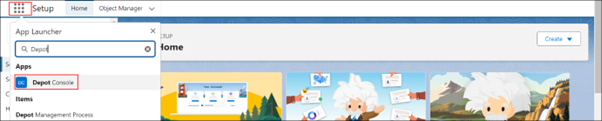
3. Click the Depot Console.
4. Go to the Depot Queue tab. The Depot Queue page is displayed.
5. Select a location from that has queue items from the “Choose depot” drop-down.
The Kanban mode displays the list of queue items for the assigned depot location.
6. Optionally, select a Workstation from the list of workstation under “All Workstations” drop-down.
7. Optionally, select the type of Work Plan (Logistics, Service, or All) from “All Type” drop-down.The Kanban mode displays the list of queue items relevant to your selection.
 |
The search results display the number of queue items that match the selection criteria. For example, “Showing 27 of 27” indicates there are 27 queue items that belong to the selected depot location, workstation, and type of Work Plan.
|
8. Search for and select a workstation that has queue items from the “All Workstations” drop-down. The workstation column lists the workstation, and related details are displayed.
9. Drag and drop assignments from one column to the other. The status of the selected assignment is changed.
|
|
It is recommended to add a reason for marking an assignment on hold as this is helpful for supervisors and technicians to track and manage the assignment status.
|
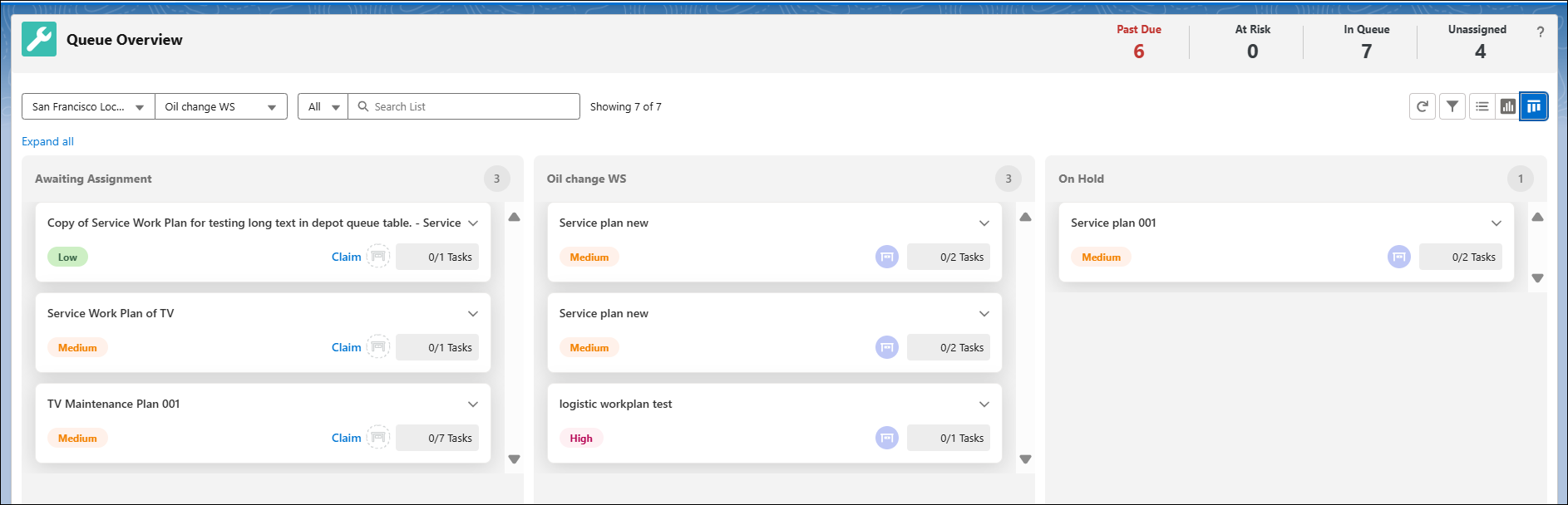
The Kanban mode lists the following details in different columns:
|
Column
|
Description
|
||
|
Awaiting Assignment
|
Indicates the queue items that are not assigned to any technicians yet.
|
||
|
Workstation Column
|
Specifies the details of the workstation selected in the workstation filters.
|
||
|
On Hold
|
Lists the queue items that are marked as “On Hold” whether they are assigned or unassigned.
|
||
|
Claim
|
Assigns workstation to a selected assignment.
|
||
|
Priority
|
Specifies the Work Order’s priority, such as High, Medium, or Low, for the associated queue asset. This allows Supervisors to identify urgent queue items and schedule others for later.
|
||
|
Progress
|
Highlights the progress of the repair process for a Work Order. It also includes the total number of tasks, including completed and cancelled.
For example, 2/14 to display 2 tasks out of 14 tasks are either completed or cancelled.
|
Reference Topics