Tracking Progress of Queue Items
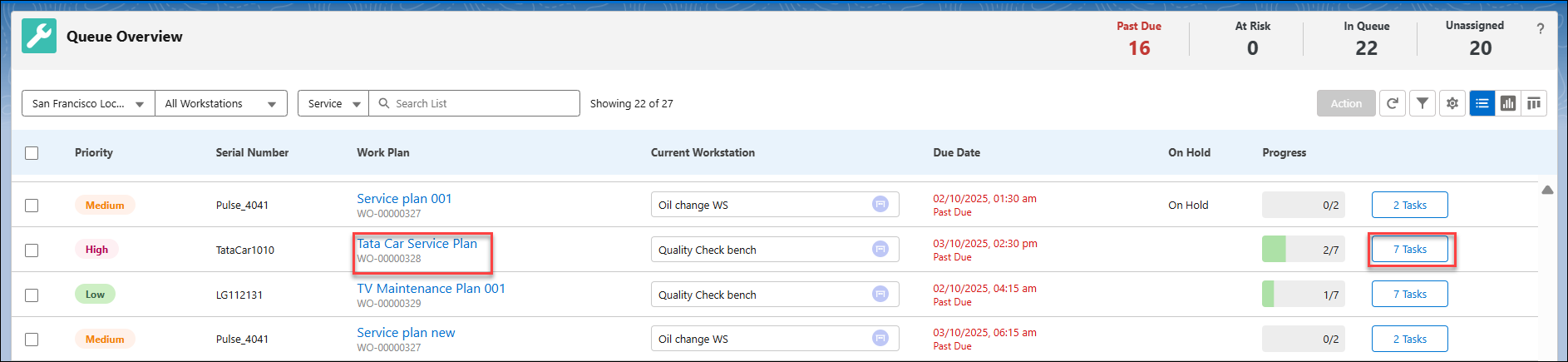
You can track the progress of queue items during the repair process using the progress bar. This indicates the number of tasks completed and the total number of tasks available on the work plan. The progress bar is highlighted in green to indicate the completion status. You can track progress using all the three modes.
To track the progress of the queue item:
2. Click the Work Plan link or the Task button related to the work plan. Both the links redirect to a new pop-up Work Plan drawer.
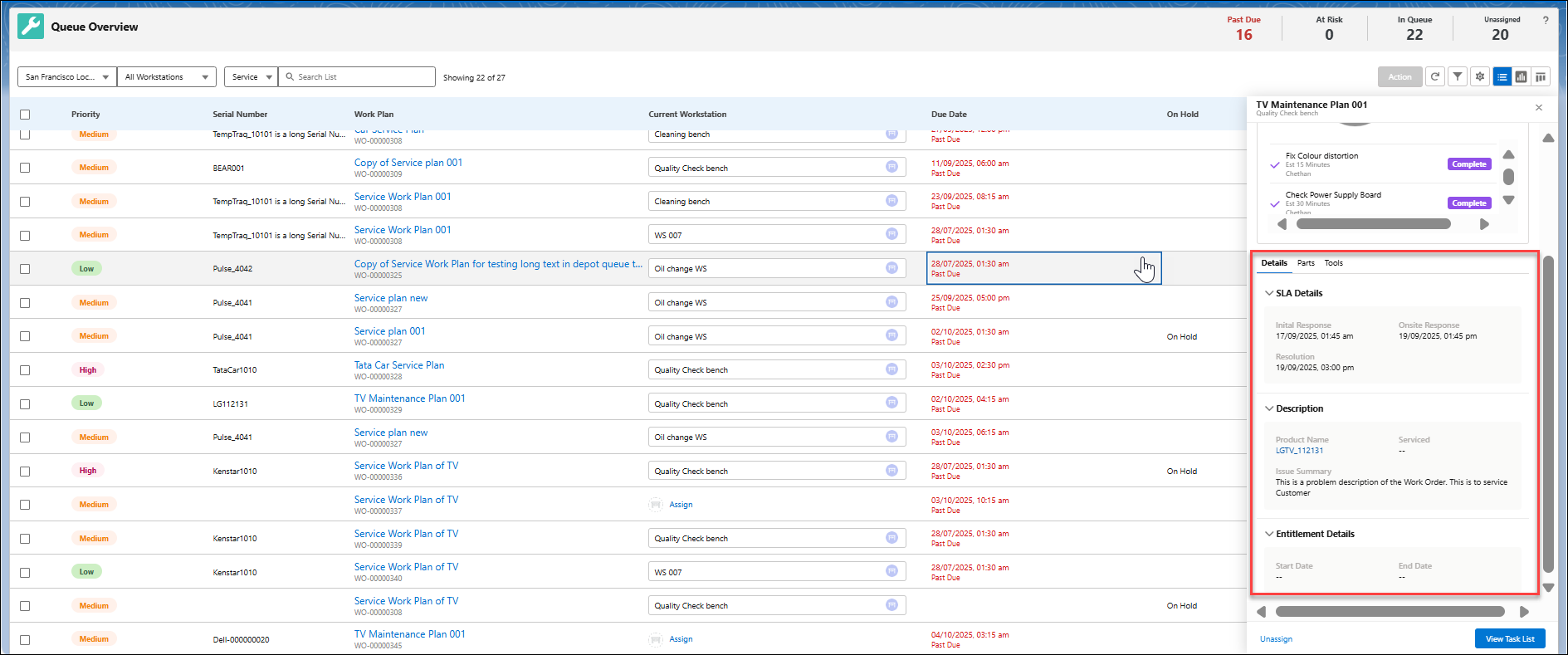
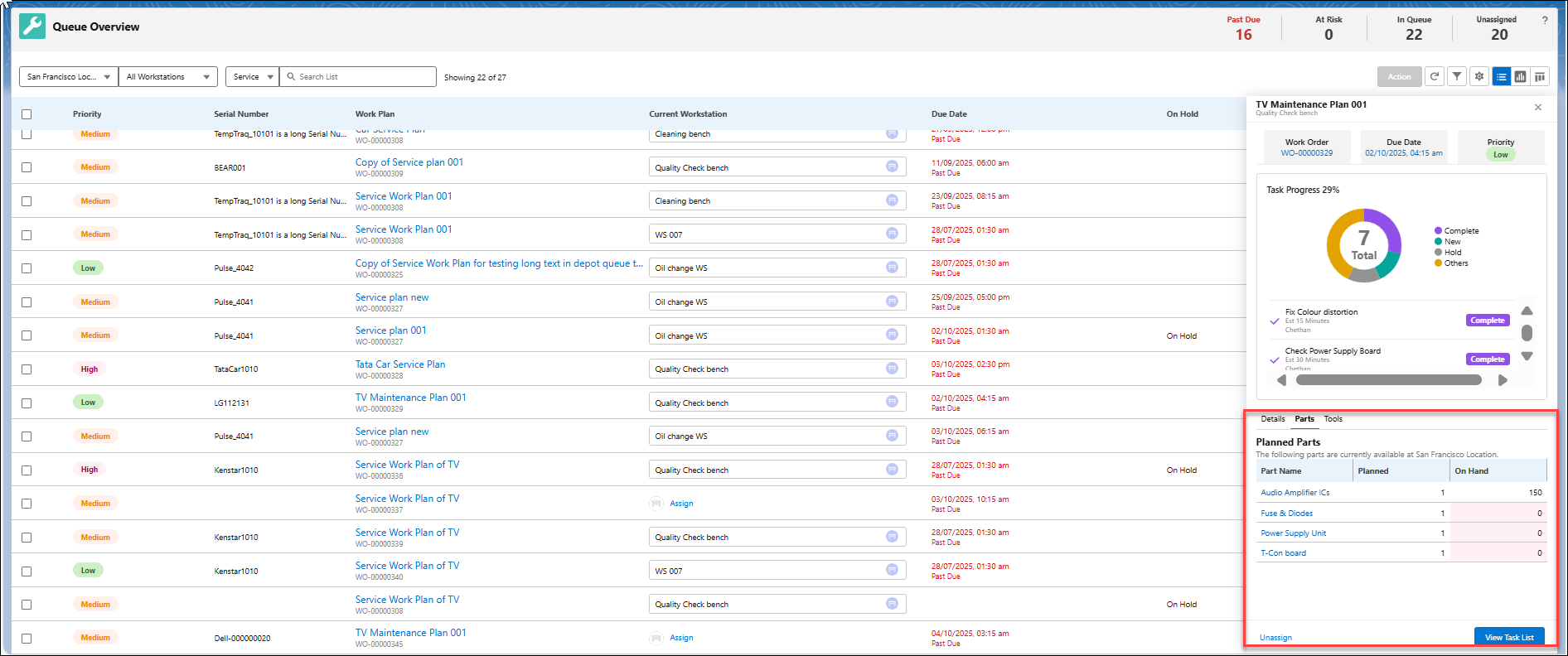
The figure below illustrates the work plan drawer that lists important details related to tasks defined in the work plan.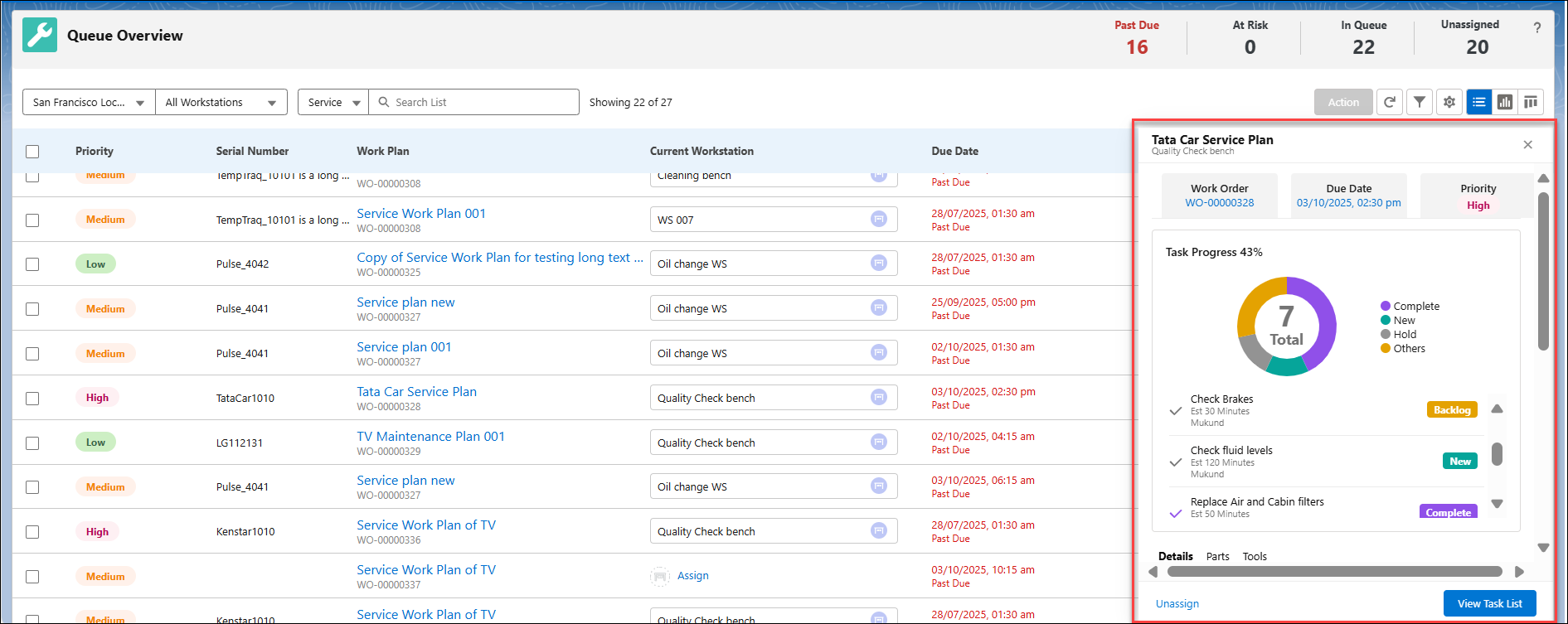
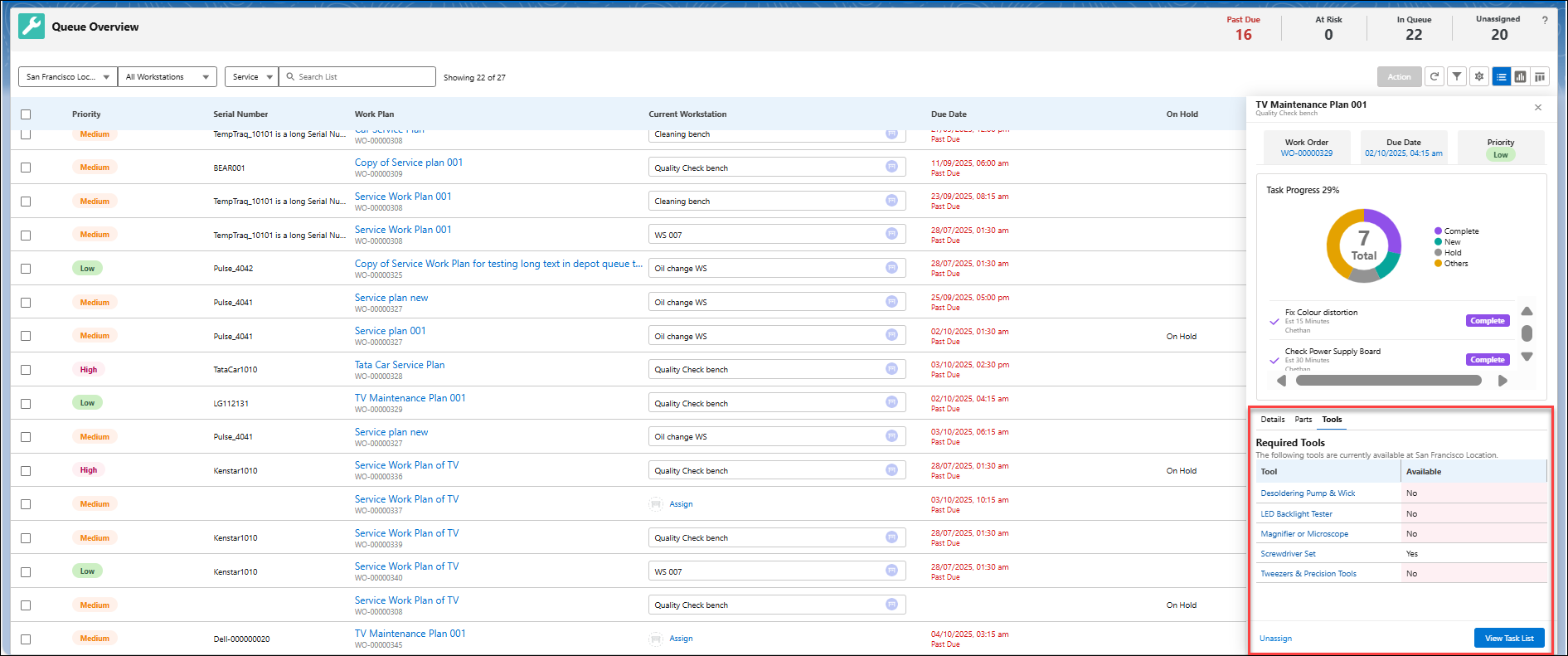
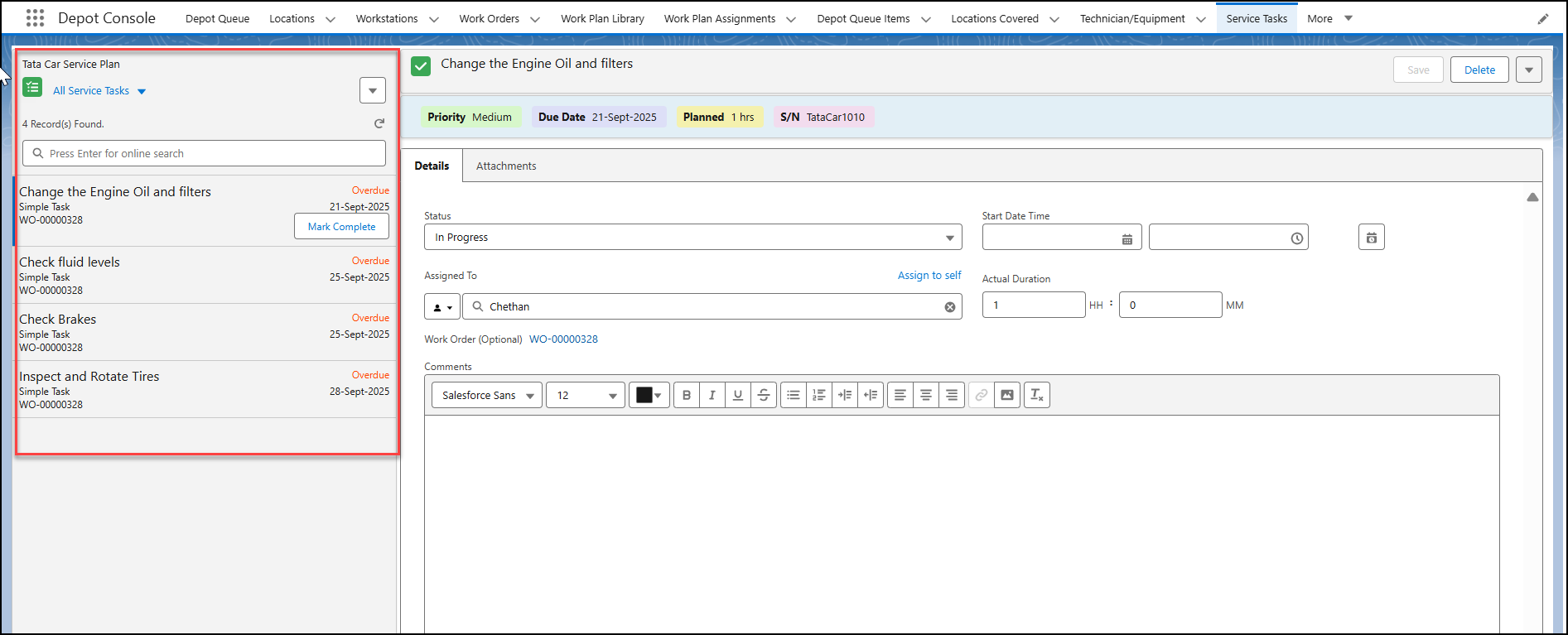
3. Click View Task List to view the list of tasks. The Service Tasks page is displayed with list of tasks.
4. Click Mark Complete to mark the selected task as completed.
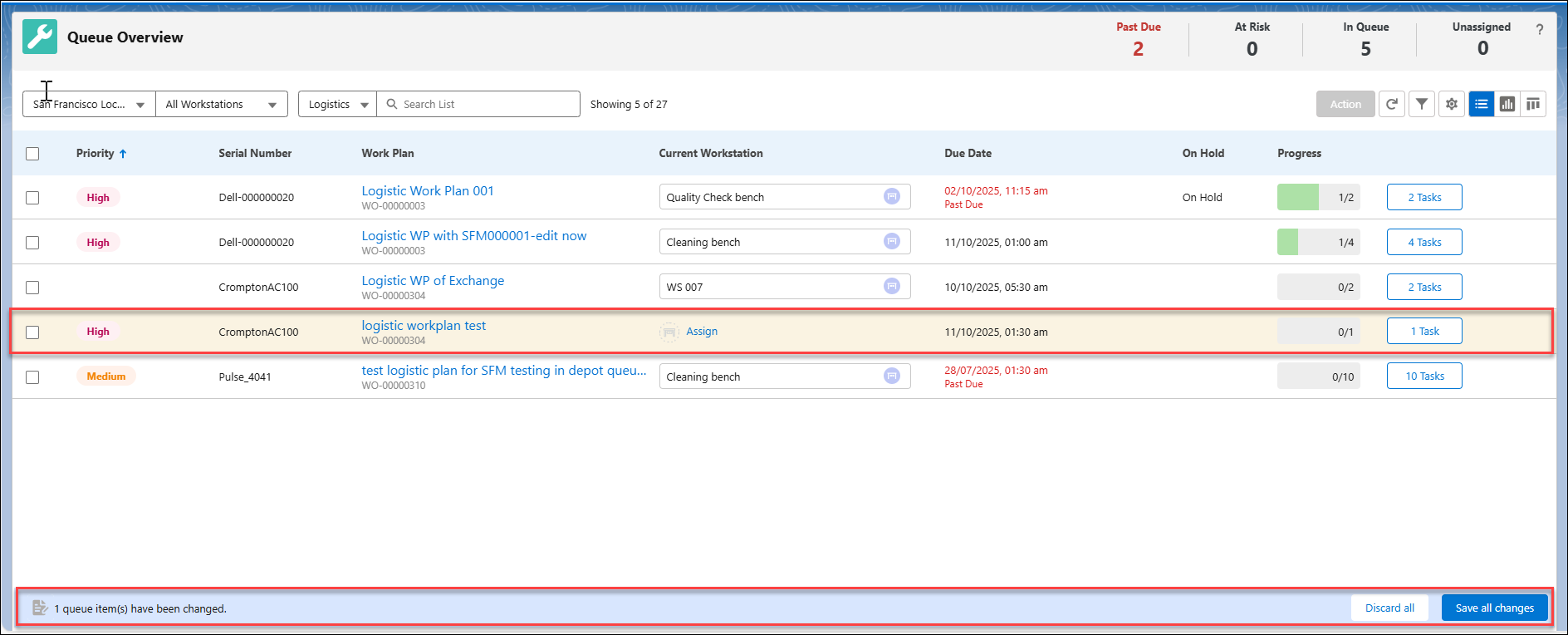
5. Optionally, click Unassign. The cell gets highlighted in yellow. Click Save all changes to apply your changes or click Discard all to open the discard window. Click Confirm Discard to return to previous state.
6. Optionally, if you have moved your cursor away and you click the task button link again; you can click Assign Workstation. The Assign Workstation window opens.
7. Select a workstation. Click Apply. The workstation gets updated.
Metrics Drawer for Work Plan
The Metrics Drawer in the Work Plan provides a comprehensive, at-a-glance view of all key attributes related to a work plan. Below is a structured specification table describing each section, field, and description within the Metrics Drawer for Work Plan.
|
Section
|
Field
|
Description
|
|
|
Overview
|
Work Plan Name & Workstation
|
Displays name of the work plan and the workstation to which it is (or will be) assigned.
|
|
|
Work Order Number
|
Identifier of the work order.
|
||
|
Due Date
|
Due date for completion of tasks in queue.
|
||
|
Priority
|
Priority level of the work plan / work order.
|
||
|
Task Progress %
|
Percentage of tasks completed versus total.
|
||
|
Completed / New / Hold / Others
|
Status breakdown counts.
|
||
|
Time Left
|
Remaining time until due date.
|
||
|
Technician Assigned
|
Name / ID of the technician responsible.
|
||
|
SLA Details
|
Initial Response
|
Timestamp (date and time) of initial response SLA.
|
|
|
Onsite Response
|
Timestamp SLA for onsite arrival.
|
||
|
Resolution
|
Timestamp SLA for resolution deadline.
|
||
|
Description
|
Product Name / Service Product ID
|
Name or ID of the product being serviced.
|
|
|
Issue Summary
|
Short description of the problem from the work order.
|
||
|
Serviced
|
Description of the work done (as captured in the work plan).
|
||
|
Entitlement Details
|
Start Date
|
Start of the entitlement period.
|
|
|
End Date
|
End of the entitlement period.
|
||
|
Entitlement History
|
Display of prior entitlement records or changes.
|
||
|
Parts
|
Part Name
|
Name / identifier of the part.
|
|
|
Planned
|
Quantity planned to be used.
|
||
|
On Hand
|
Quantity available in inventory. If, it is lesser than planned quantity, highlighted in red.
|
||
|
Tools
|
Tool
|
Name / identifier of the tool.
|
|
|
Available
|
Yes / No flag. If “No,” quantity is less than required and indicated in red.
|
||
|
Actions / Controls
|
Unassign
|
Option to unassign the workstation for a depot queue item.
|
|
|
View Task List
|
Navigates to the service task tab to see all tasks under this work plan.
|
||
|
Assign (if no workstation assigned)
|
Button appears when workstation is unassigned; opens the “Assign Workstation” window.
|
||
|
Save all changes/ Discard all
|
Buttons to save or cancel changes made in the drawer.
|

Reference Topics