Checking Stock Availability from a Work Order
After you create a parts request, you can use the Stock Lookup tool to check availability of stock in other locations. After you identify the right location, you can request stock from the location by copying the location from stock lookup into the Work Order parts request line. If the stock is available, you can request the stock from the location. For more information, see Requesting a Stock from a Location.
To check stock availability:
1. From the Home page, go to the Work Order record for which you want to check stock availability.
2. Go to the Related tab, and under the Work Details section, click the Line Number for which you want to perform a Stock Lookup. Ensure that the line’s record type is Request/Receipt.
3. On the top right, click the drop-down icon and select Stock Lookup. The page to check stock availability is displayed.
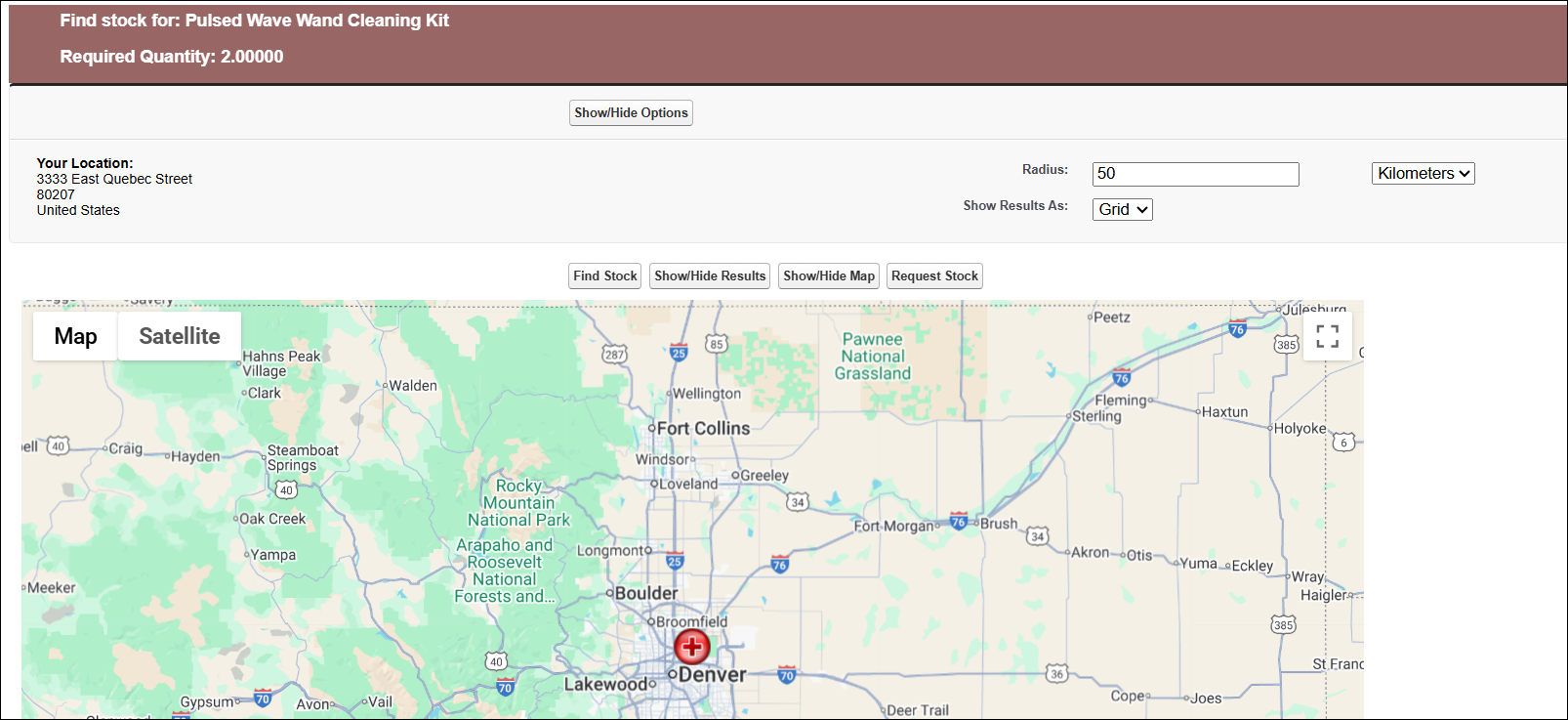
4. Enter the Radius from your location to limit the search to the specified radius. The Radius is defaulted to 50.
5. In the Show Results As, select Map, Grid, or Both.
6. Click Find Stock. Depending on your criteria, the results appear in a grid, map, or both. Clicking a green/red location will show driving directions on the right side.
 |
The Map shows only valid addresses. Locations with required stock are indicated in Green, and locations with less than the required stock are indicated in Red. The grid displays all matching records regardless of whether it is a valid address or not.
|
Requesting a Stock from a Location
You can request a stock using either the Grid or Map view.
To request a stock in the Grid view, Click the Request button in the far-right column for the required row, and click Request Stock.
To request a stock in the Map view, double-click the highlighted flag icon on the map.