Using MCP Server to Invoke AI Actions
 |
This feature is currently available as a beta release.
|
You can use the MCP Server through an MCP client to invoke an AI Action. Once you select AI Actions and make them accessible via the MCP Tool, these tools can be exposed using an external agent.
|
Prerequisites
|
|---|
|
To enable this feature, ensure the following:
• Your ServiceMax AI environment must have the MCP Server enabled and configured.
• Only AI Actions that have been explicitly whitelisted by your administrator are available for invocation via MCP.
• You must have access to the relevant AI Agents, Salesforce objects, and fields required by the AI Action.
• All calls to the MCP server require authentication using a valid Salesforce token.
• The external system must be configured to connect to the ServiceMax MCP server endpoint.
• The MCP client must be able to send authenticated requests and handle responses per the MCP specification.
• The required input parameter can be either the Salesforce record’s 18-digit ID or its Name (or Case Number for Case objects).
|
To use the MCP Server, perform the following steps:
1. Configure your MCP client (e.g., GitHub Copilot, Postman, Agentforce, or Microsoft Platform) with the MCP server endpoint and authentication headers.
2. Pass the Salesforce auth token in the HTTP 'Authorization' header as a bearer token (i.e. the value for the Authorization header must be "Bearer <token>" where <token> is the actual token.
3. Configure the client to include a custom HTTP header called 'X-Client-Token' that has a special value.
|
|
If you do not have the “X-Client-Token”, you must reach out to ServiceMax to get the value.
|
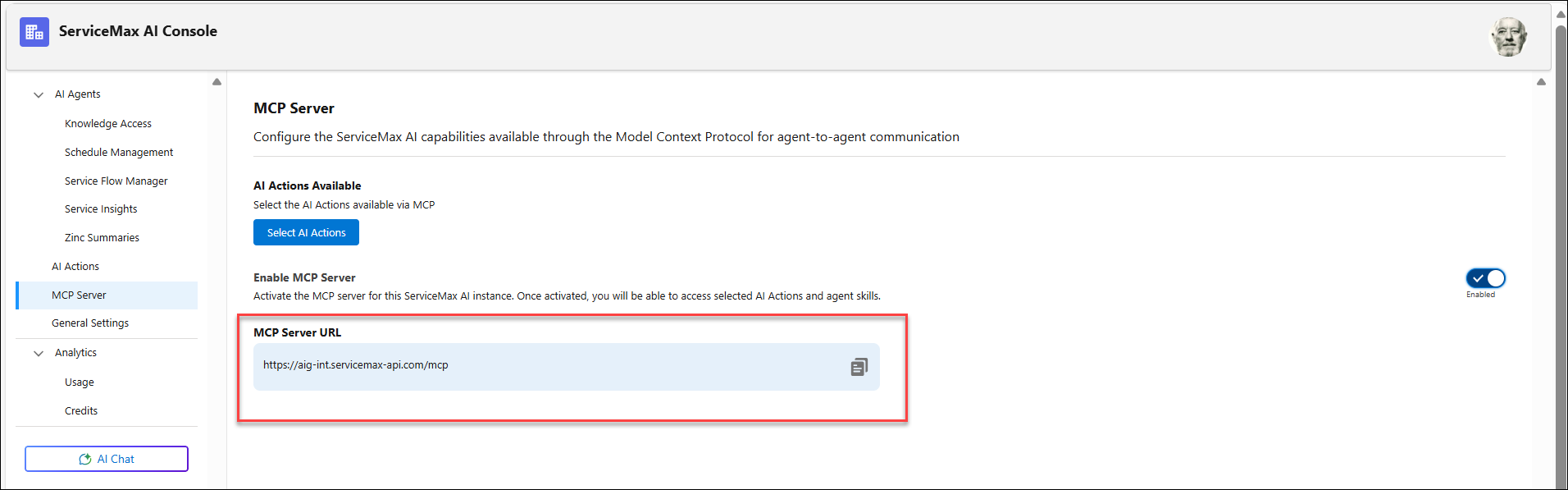
4. Configure the URL.
|
|
The URL is copied from the MCP Server page in the ServiceMax AI Console.
 |
5. Make a request to call the MCP server to get the list of tools or invoke a specific tool.
◦ The MCP Tool (AI Action) name
◦ The required input parameter (Salesforce record ID or Name)
|
|
AI Actions are exposed as tools when an MCP request is sent.
|
The following is an example of JSON-RPC request.
{
  "jsonrpc": "2.0",
  "id": 1,
  "method": "tools/call",
  "params": {
    "name": "MCP-UpdateWorkOrderStatus",
    "arguments": {
      "work_order_id": "a2qD3000000CaQsIAK"
    }
  }
}
The MCP server returns the result of the AI Action, or an error message if the action cannot be completed.
|
|
These asynchronous calls might take time to complete if the action is long running. All AI Actions invoked via MCP are tracked with MCP Server as their origin within the AI Analytics dashboard in the AI Console.
|
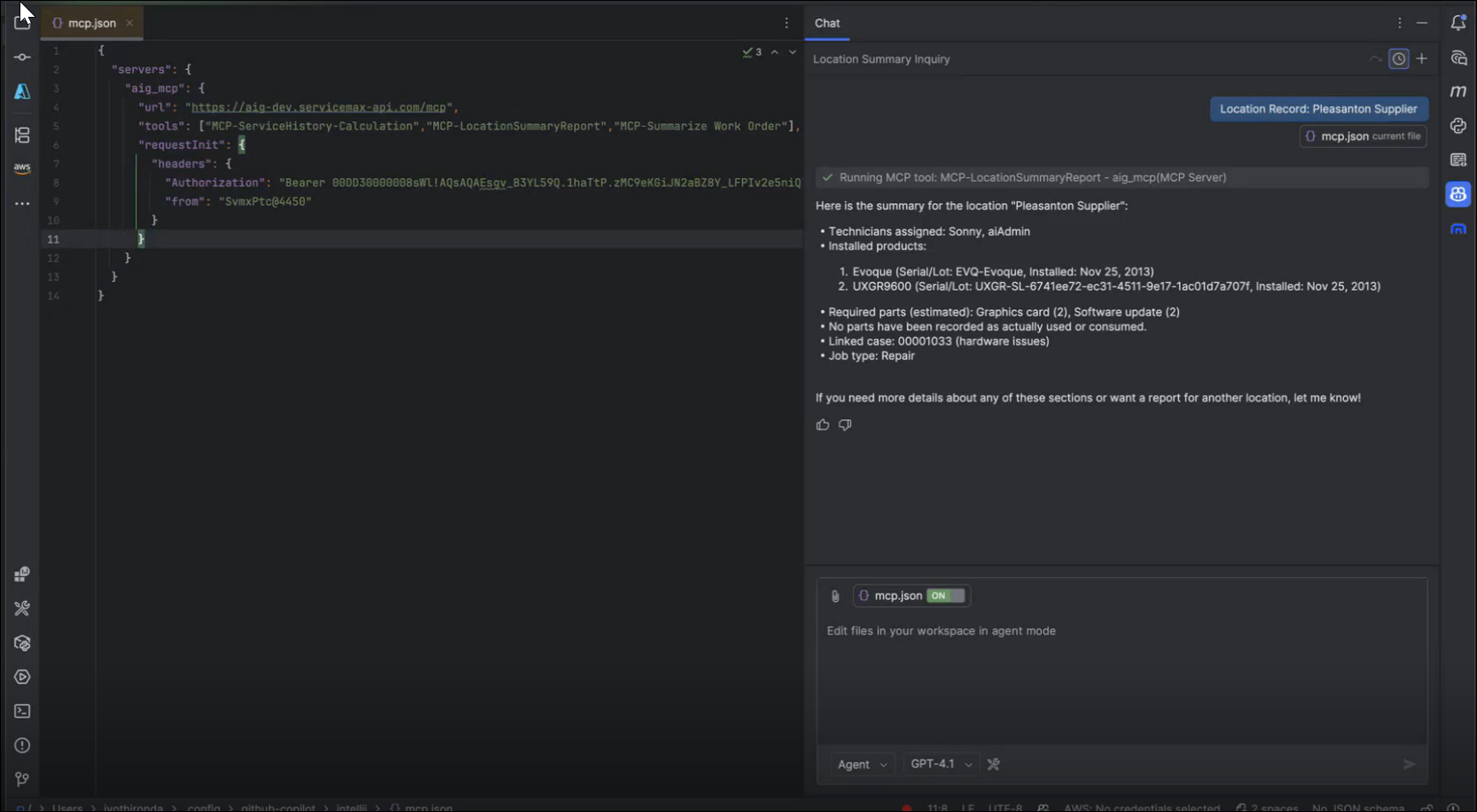
The following is an example configuration for Github Copilot
{
	 "servers": {
	"aig_mcp": {
	 "url": "https://aig-dev.servicemax-api.com/mcp",
	  "tools": ["MCP-Service History-Calculation","MCP-LocationSummaryReport","MCP-Summarize Work Order],
	 "requestInit": {
	 "headers": {
	   "Authorization": "Bearer <Salesforce_Token>",
		"from": "<Your_Email>"
	}
}
}
}
}
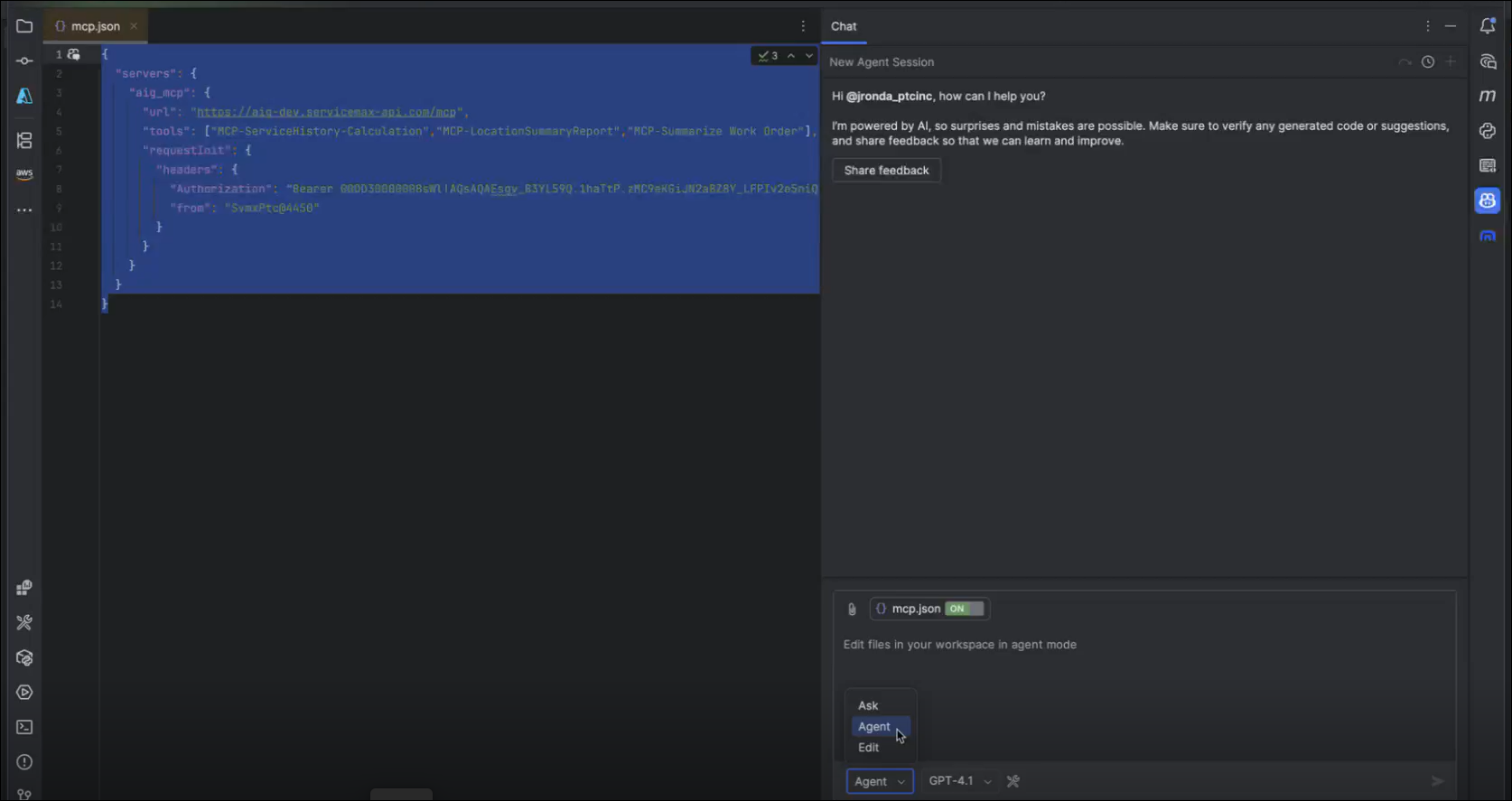
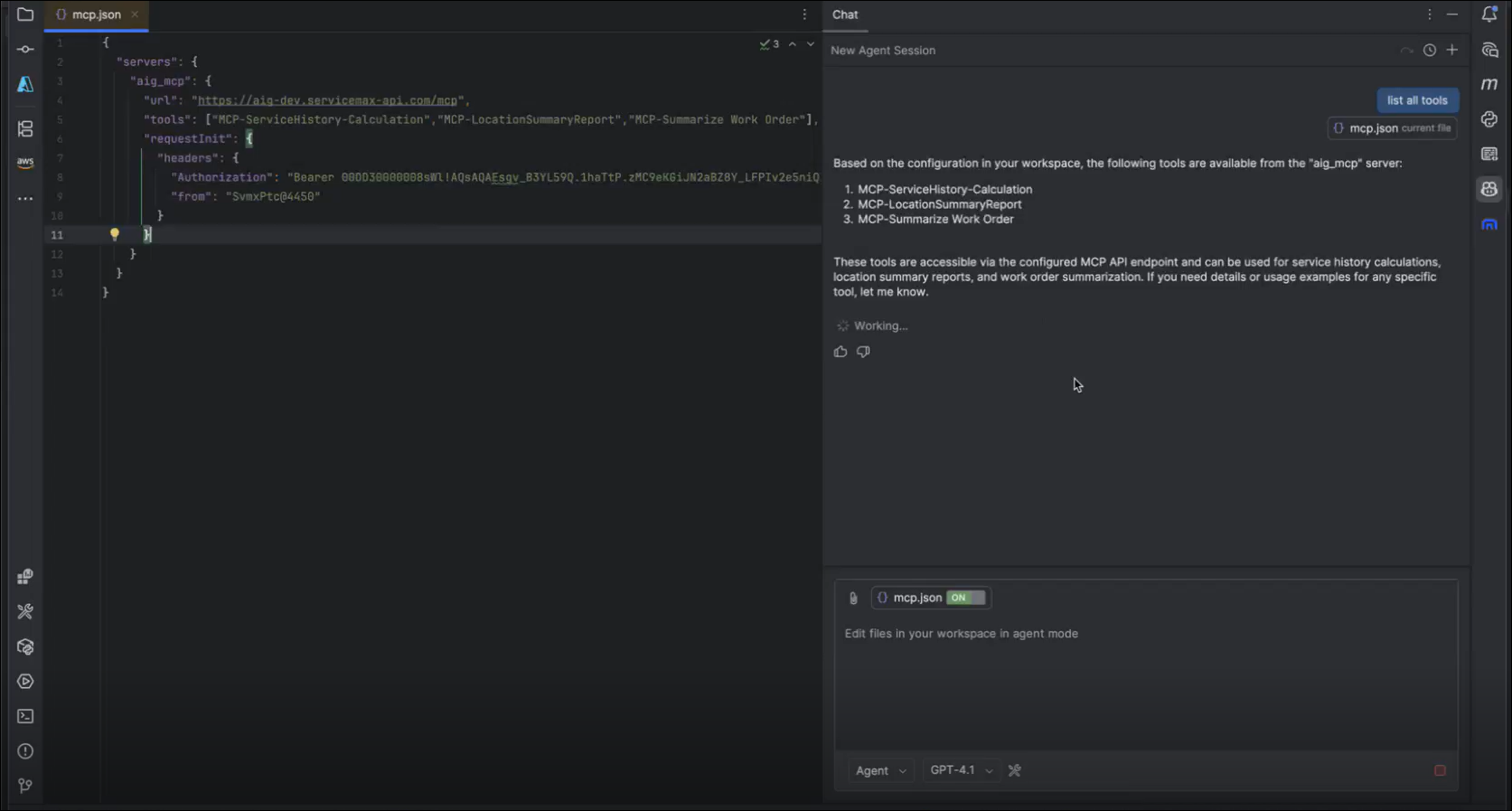
6. Use the MCP Client to fetch the list of available tools (AI Actions) from the MCP server. Each tool has a unique name and description.
◦ Enter list all tools in the input field. This displays the list of tools that are available from the MCP server.
◦ Enter Location Record: Pleasanton Supplier in the input field. When prompted to confirm whether you want to allow the external MCP tool to run, click Continue to fetch details.
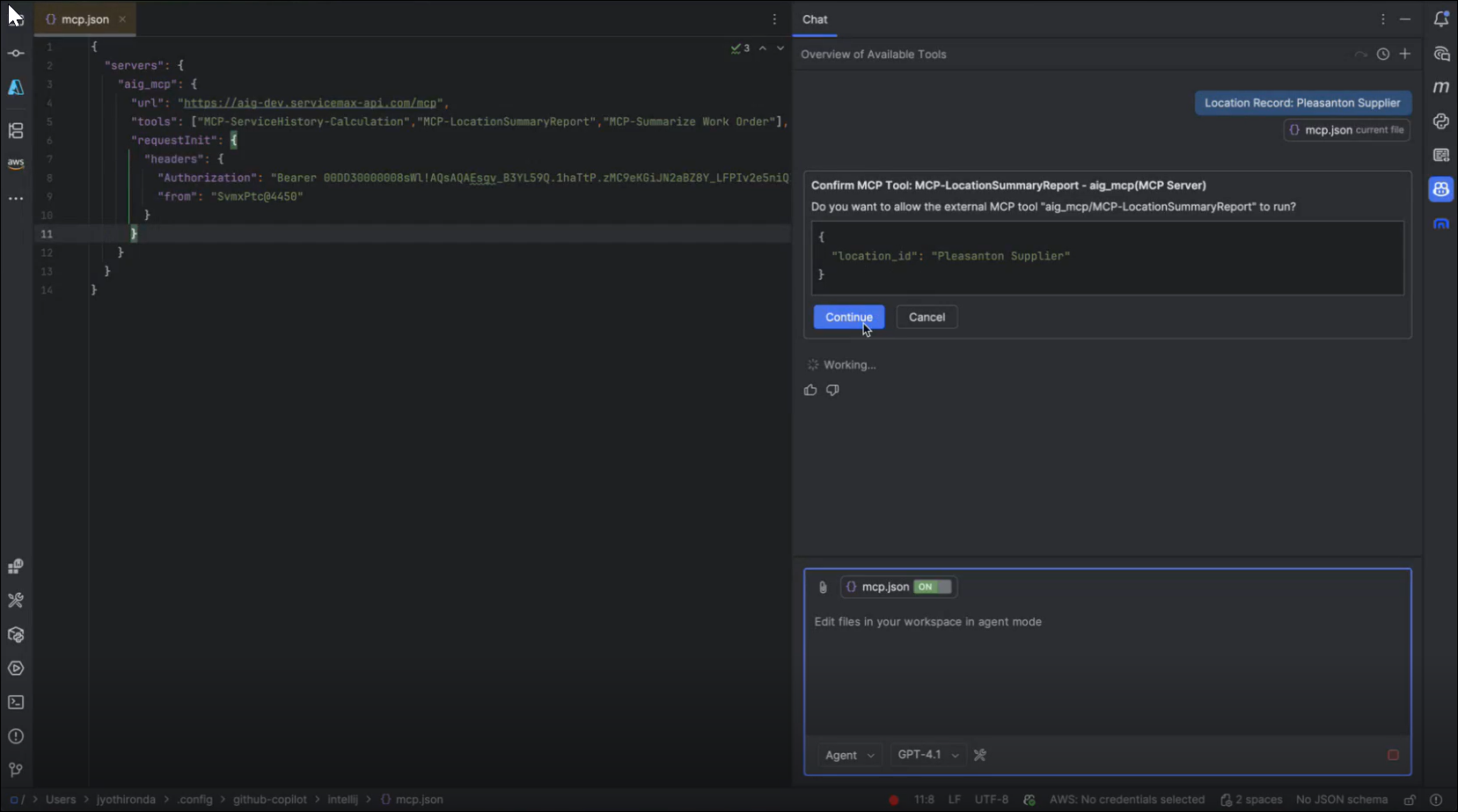
The AI instructions added in the AI Action that corresponds to the selected MCP Tool get executed, and the response is displayed.
|
|
If multiple tools contain the same ServiceMax object (for example, Location), the MCP Server runs both tools and displays a confirmation message.
|