Associating Products
Link documents to specific products to enable AI-powered knowledge retrieval in ServiceMax AI. Product association is required for documents to be processed and made accessible.
 |
Documents without product associations trigger a warning, and are excluded from processing.
|
Use Case
When a technician asks an installation question, the AI retrieves relevant information from images and diagrams in the added documents to assist.
To associate products to documents, perform the following steps.
1. On the sidebar, click > .
The Knowledge Access page is displayed.
2. Click Add Document to upload a document to ServiceMax AI.
The Add Document window is displayed. For more information, see Connecting External Document Sources.
3. From the dropdown menu, select a document source. For example, OneDrive.
4. In the search bar, enter the document name. For example, field.
A table is displayed showing document metadata such as file name, size, source, last modified date, and view options.
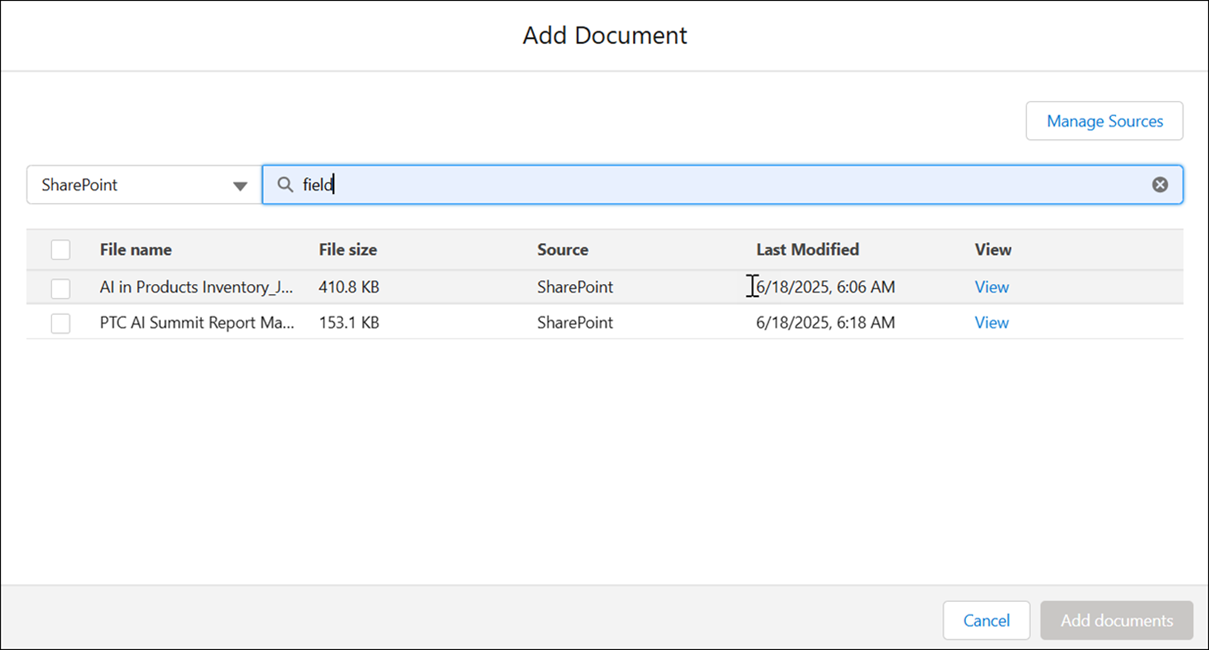
5. Select the checkbox next to the required document and click Add documents.
The AI adds the document to the accessible documents list.
6. Click the document.
The Edit Document window is displayed with the selected document.
7. In the Products related field, enter the name of the product to associate with the document.
8. Select the required product and click Apply.
The AI console displays the document in the Documents accessible to ServiceMax AI section of the Knowledge Access page.
|
|
• A document can be associated with multiple products.
|
9. Click Save to finalize the association.
The AI begins processing the document. During this time, editing, deleting, or disconnecting the source is disabled. After processing, the document becomes available for AI-powered retrieval.