Adding AI Action SFM Wizard Step
You must add the SFM Wizard Step for AI actions in SFM Wizard Designer. When you add the Wizards Step, the end users are enabled to use AI Actions in Go app.
To add the AI Action SFM Wizard Step, perform the following steps.
1. Navigate to > > . Choose to add Wizard Step to the Work Order object, in the AI Action section. For information about adding wizard steps to objects, see Adding Wizard Step for a Wizard.
The Choose Step Type modal window is displayed.
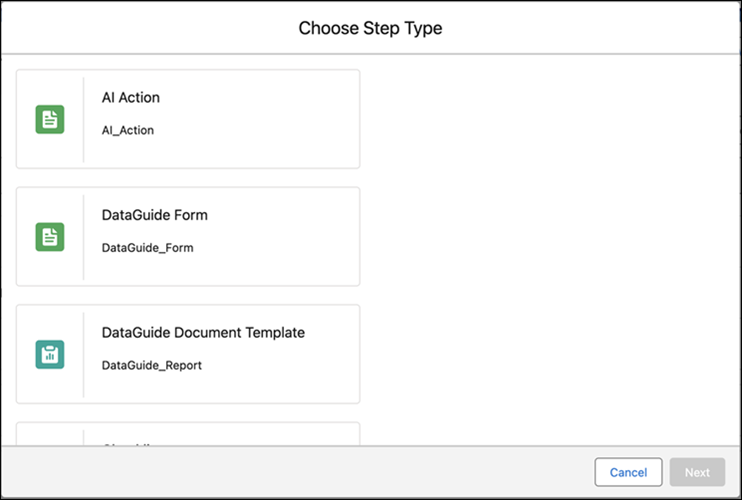
2. Select the AI Action Step type and click Next.
The Step Proprieties - AI Action modal window is displayed.
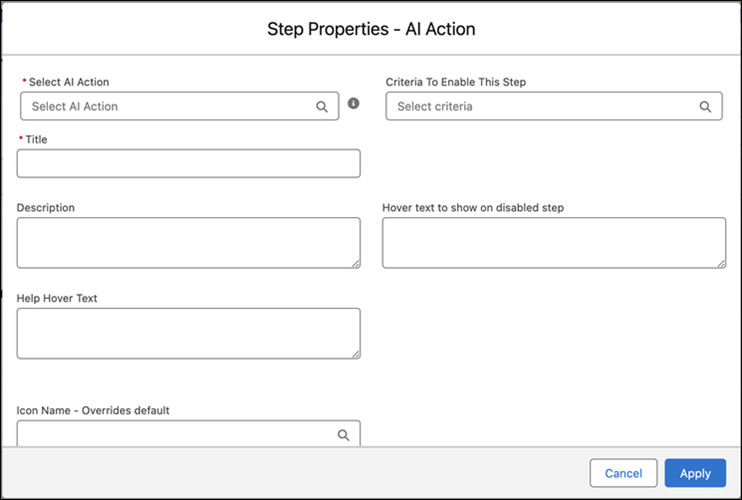
3. Click the Select AI Action field to select the AI Action to add.
The Select Step modal window is displayed.
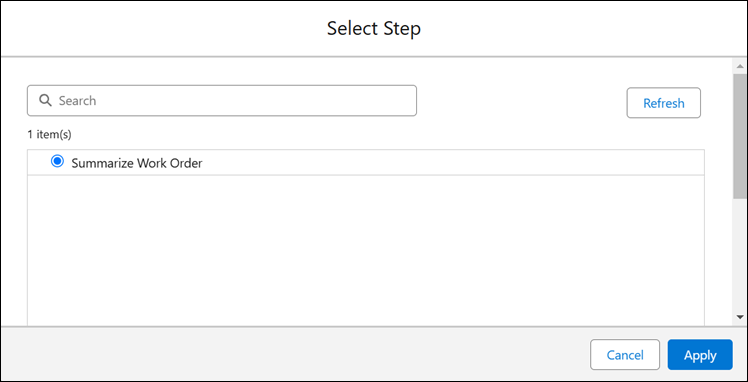
4. Select the Summarize Work Order step to add and click Apply.
The modal window is populated with the Summarize Work Order AI Action details.
 |
Optionally, add the other details for the AI Action Wizard step in the modal.
|
5. Click Apply.
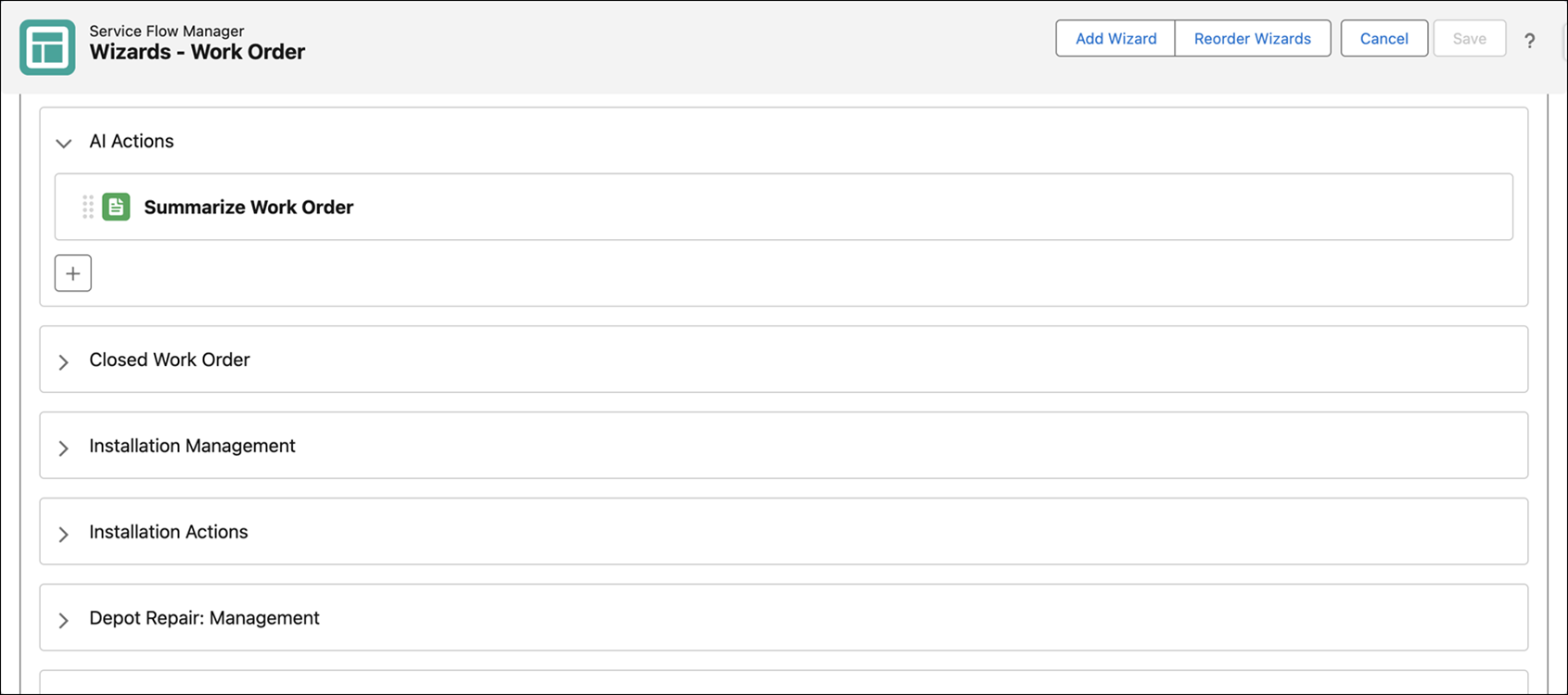
The Summarize Work Order Wizard Step is listed in the AI actions section for the Work Order object.
|
|
After adding AI Wizard and the AI Action Wizard Steps, configure the AI actions.
|