Header Object Section
The Parent/Header Object Sections denote the header objects. You can configure a group of header object fields and rearrange them as per the preference of order.
The following screen displays the General section within Parent Object Section Properties:
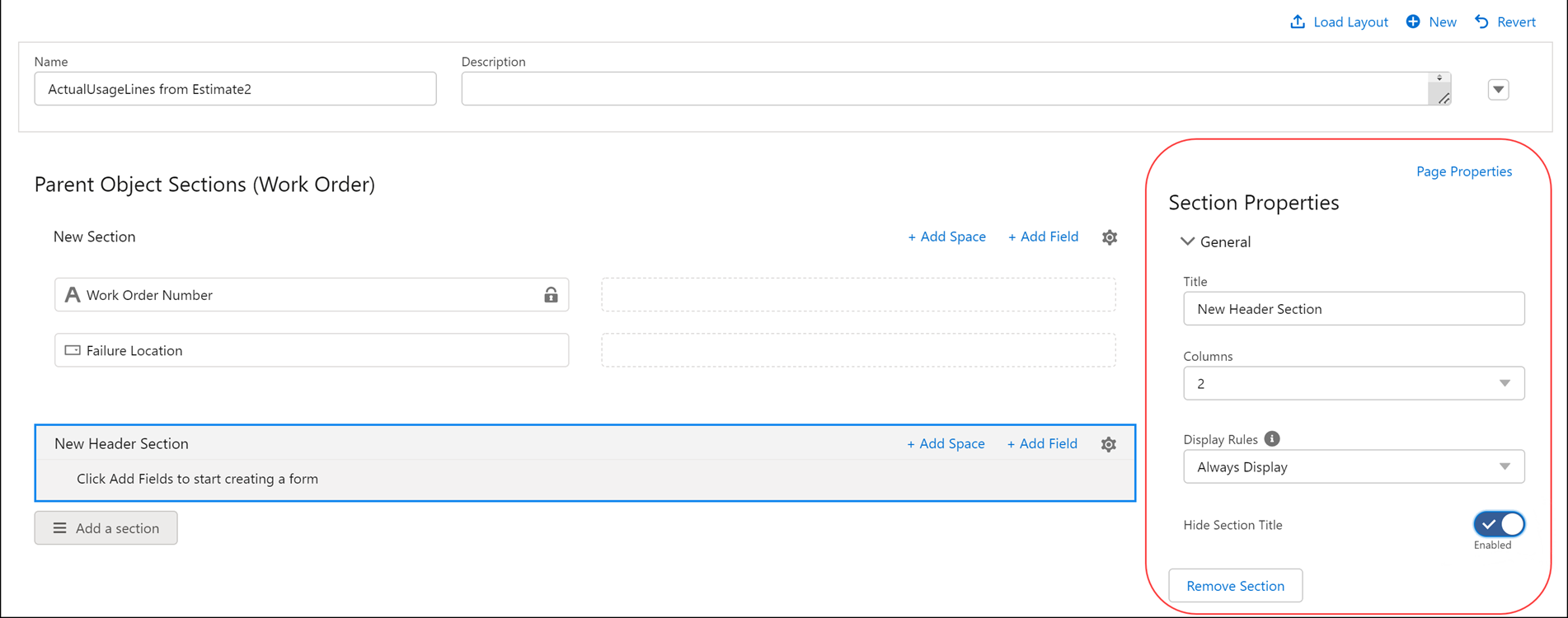
The following table lists the General Section properties within the Parent Object Sections.
|
General Section Properties
|
Description
|
||
|---|---|---|---|
|
Title
|
This displays the name of the section that you can edit.
|
||
|
Columns
|
This column decides the number of columns the section displays.
|
||
|
Display Rules
|
This option helps you decide when the criteria to display or hide the header section must be executed. The values are:
• Always Display (Default): This option displays the section at all times, including empty sections.
• Evaluate Always: This option displays the section in the form based on the Display Criteria configured.
• Evaluate On Load: This option displays the section when the form is loaded, based on the Display Criteria configured.
|
||
|
Display Criteria
|
This option helps define a condition as an expression to show a section. If the condition is met, then the section is displayed. Else not. Use the Configure link to add an expression. You can perform the following actions:
• Add an expression.
• Edit an existing configured expression using Edit Criteria.
• Delete an expression using the Remove Association or Delete button.
For more information on expressions on how to configure expressions, see Expressions Editor.
|
||
|
Hide Section Title
|
Enable this toggle button to hide the section title from the display. Hiding the section title makes the form more compact on the SFM delivery page.
|
||
|
Remove Section
|
This option is visible when there is more than one header section. You can remove any selected section with this option.
|

The following screen displays the Add Field, Add Space, and Add Section icons in Parent Object Sections:
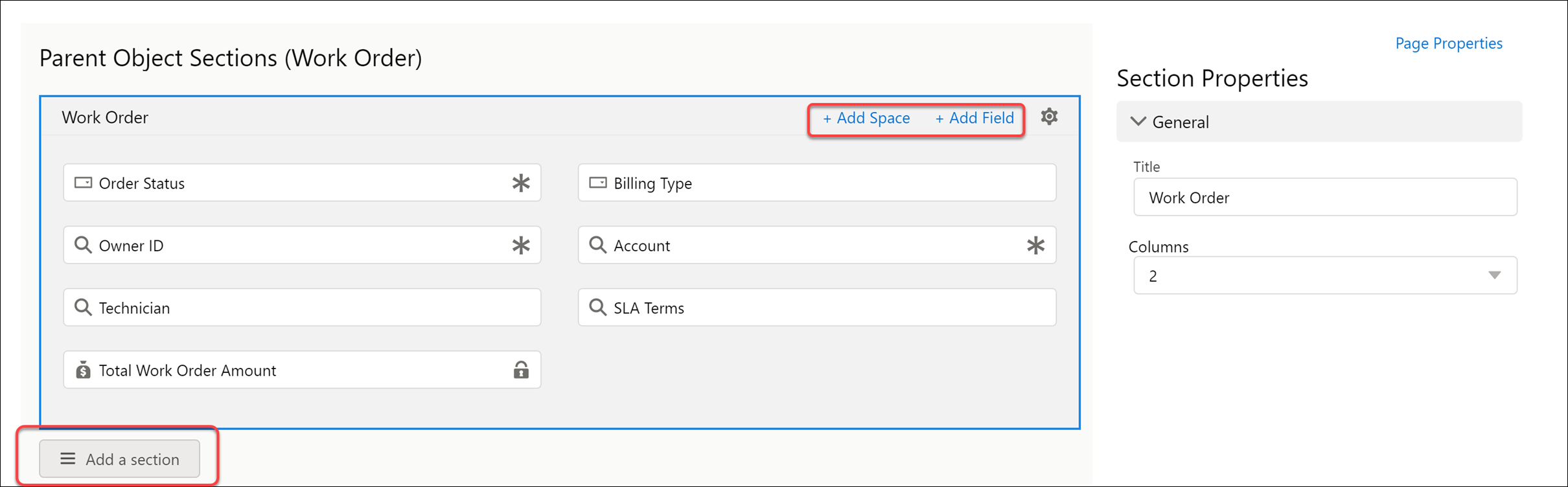
The following table lists the action icons of the Parent Object Sections.
|
Parent Object Sections Action Icons
|
Description
|
|---|---|
|
Add Space
|
This adds space between the fields, and you can click +Add Space to add a blank space.
Click the header of the section or on the Setting icon to get information on the Section properties.
|
|
Add Field
|
This icon displays the list of fields associated with the selected Section Object.
You can select multiple fields from the list. There is an option to map a field to a column, and accordingly, it is added to the section column on confirmation. In the pop-up list displayed, the fields added are disabled. You do not have the option to select a field more than once in any given section.
There are two columns: Column 1 and Column 2. You can choose either of the columns to add a field. The Confirm button adds a field to the selected section, and the Cancel button discards the selection.
|
|
Add a section
|
This enables you to add multiple sections to the parent object. You are only allowed to add a section to the Parent Object Sections.
|