Creating Auto-Entitlement Work Order Rules
To create an auto-entitlement rule for a Work Order:
1. Navigate to > > .
2. Click New Rule in the Configure Auto-Entitlements screen.
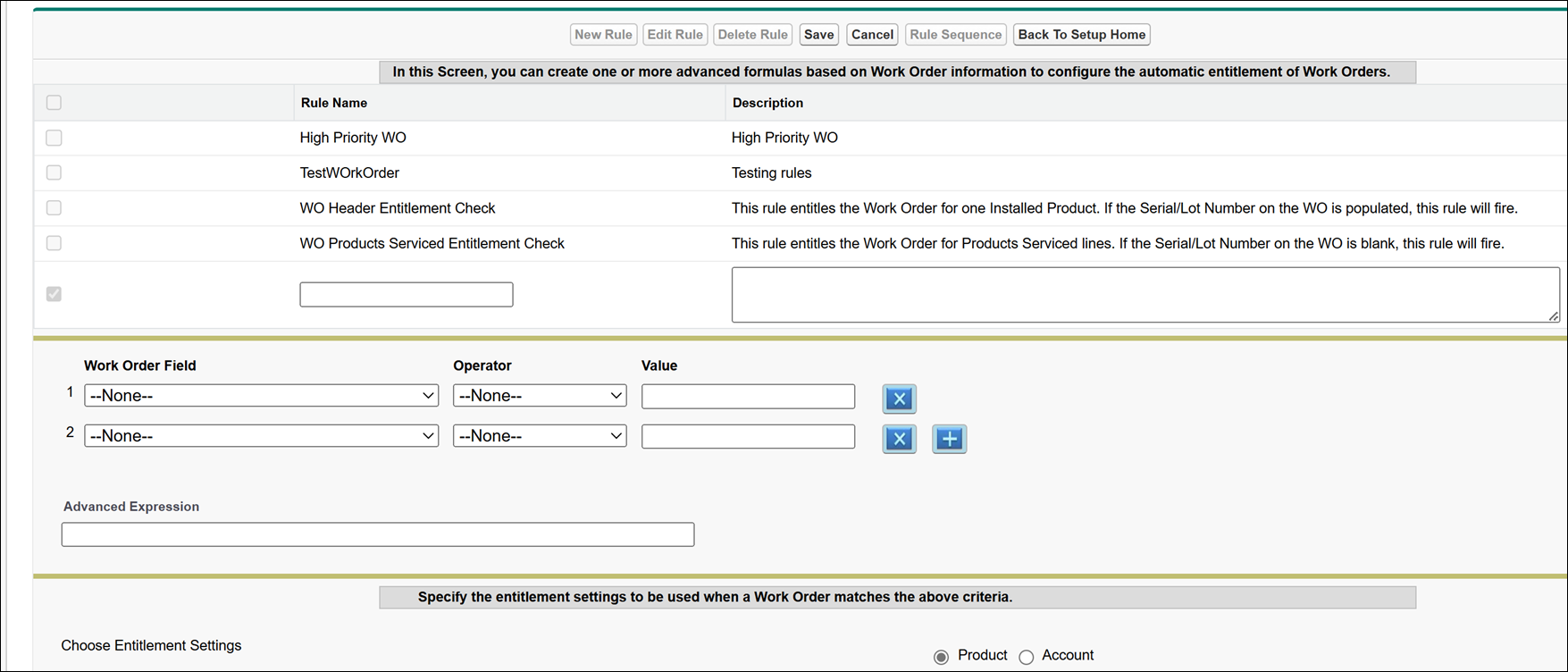
3. In the Configure Auto-Entitlements screen:
◦ Enter the rule name. Make sure this name distinctly identifies the purpose of the rule and is readable. For example “High priority work orders from ABC company.”
◦ Enter a detailed description of the rule.
◦ Using the combination of Work Order field name, operator and value, enter the applicable entry criteria for this rule. Only those Work Orders that match the criteria will be entitled using the rule. Make sure the entry criteria are exclusive to each rule. Use the buttons marked with x and + to remove and add conditions respectively. If required, use the Advanced Expression to enter conditions such as (1 AND 2) OR 3.
◦ For more information related to the relevant Auto-Entitlement fields, see Auto-Entitlement Rule Fields
4. In the Choose Entitlement Settings section, select Product or Account. The auto-entitlement parameters vary based on the level at which you want to do the entitlement. For more information, see Entitlement Settings for Work Order.
5. Specify the settings, then click Save.