Configuring Knowledge Access Settings
 |
|
In the Knowledge Access Settings page, you can configure the access and behavior of the knowledge access of ServiceMax AI.
You can configure the following in this page:
• Enable User Access: Which users can access the knowledge access .
• Documents Accessible to ServiceMax AI: Select the products and the related documents ServiceMax AI can access.
• Enable Knowledge Access: You can turn on the knowledge access for ServiceMax AI.
Enabling User Access
To enable user access:
1. Navigate to > > .
The ServiceMax AI Console is launched.
|
|
You can also log in to the ServiceMax AI console directly at https://console.servicemax.io/ai with your Salesforce org credentials.
|
2. Navigate to > > .
The Knowledge Access page is displayed.
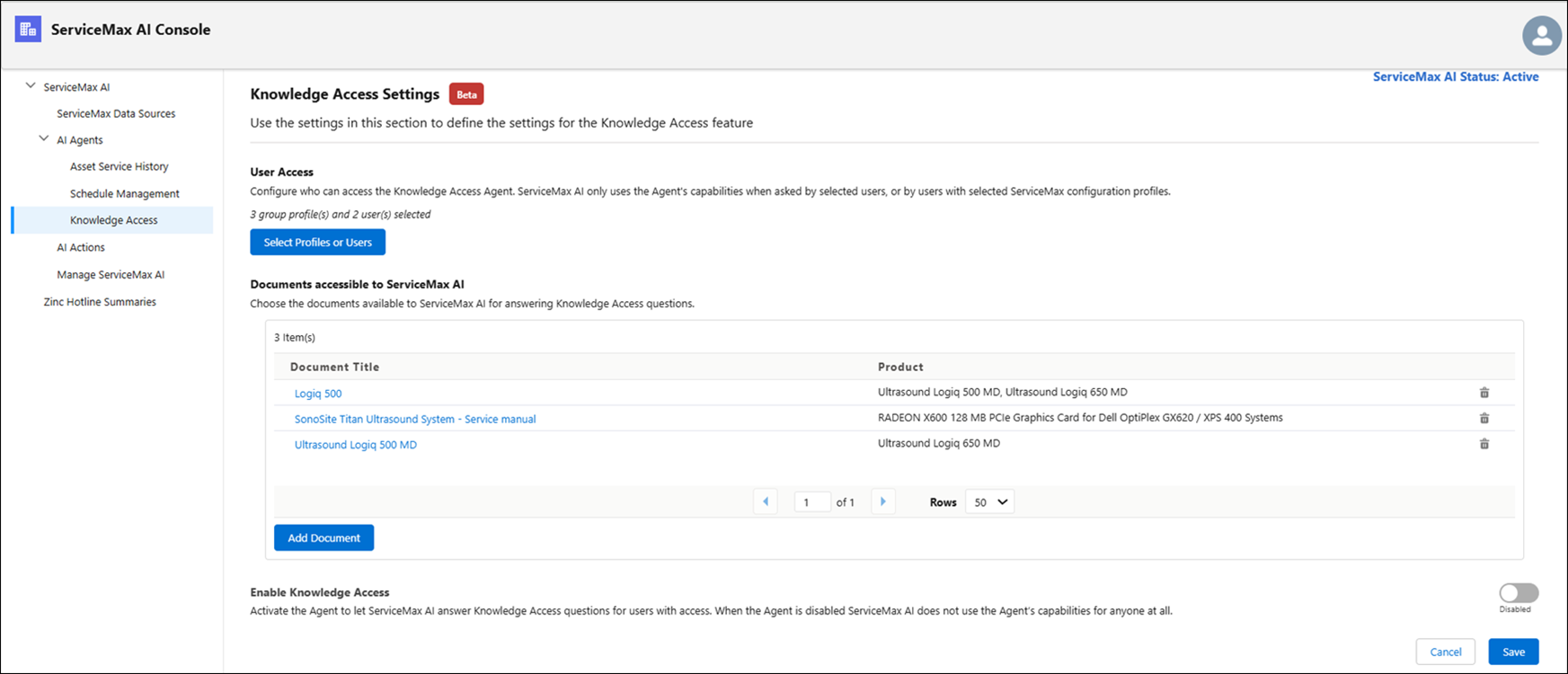
3. Click Select Profiles or Users to select the user profiles or individual users for whom you want to enable user access for knowledge access.
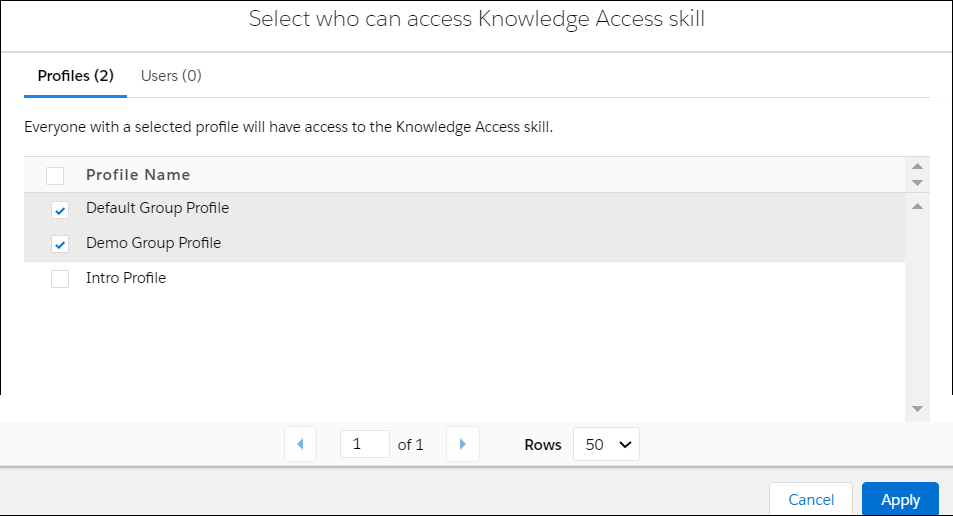
The modal window is displayed.
◦ Select the user profiles in the Profiles tab of the modal window.
|
|
• You can scroll through the modal window to view all the profiles.
• If there are multiple profiles, you can paginate the view. You can define how many rows must display per page.
|
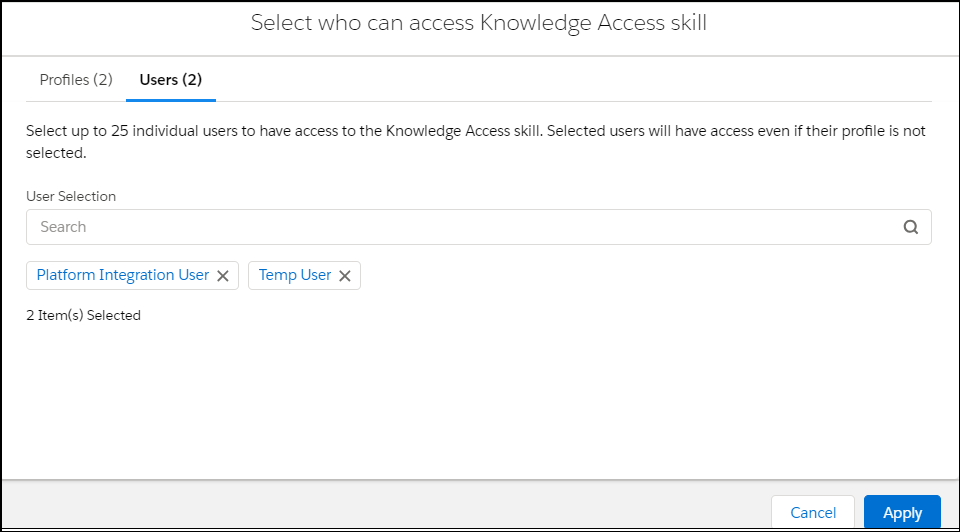
◦ Select the individual users in the Users tab of the modal window. Use the Search option in the User Selection field to search and select users.
|
|
• You can select up to 25 users.
• Selected users will have access to the knowledge access even if the user profile of the users is not selected.
|
4. Click Apply to grant the knowledge access to the selected user profiles and individual users.
The modal window is closed and the number of user profiles and users you have selected is displayed in the User Access section of the knowledge access page.
5. Click Save.
Selecting the Documents Accessible to ServiceMax AI
To select the documents accessible to ServiceMax AI:
1. Navigate to > > .
The ServiceMax AI Console is launched.
|
|
You can also log in to the ServiceMax AI console directly at https://console.servicemax.io/ai with your Salesforce org credentials.
|
2. Navigate to > > .
The Knowledge Access page is displayed.
The selected products and related documents, if any, are displayed in a table in the Documents accessible to ServiceMax AI Section.
3. Click Add Document to add a document to make it accessible for ServiceMax AI.
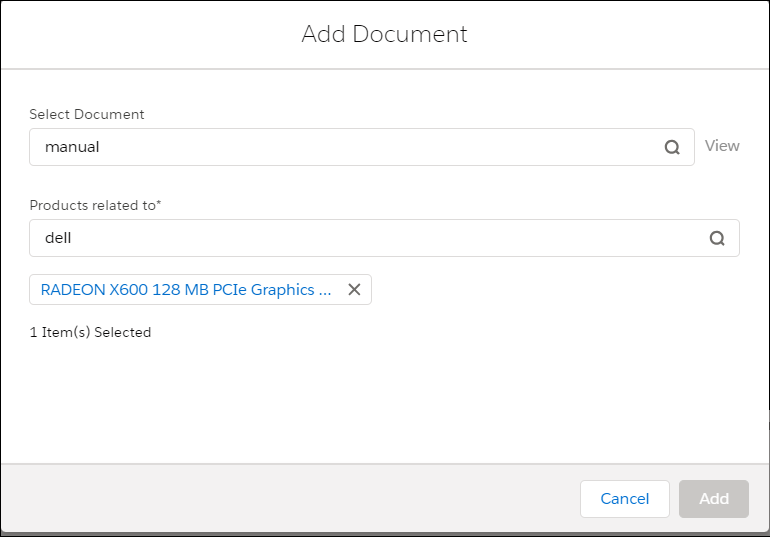
The Add Document modal window is displayed.
4. Select the document and the related product in the respective fields using the Search option.
|
|
• You can associate a document with multiple products.
• The images and diagrams present in added documents are accessed by ServiceMax AI and are used while providing responses. For example, if there is an installation diagram in the Installation Manual you have added for the product, and the technician asks an installation question, ServiceMax AI might access information from the diagram and provide it to the technician.
|
5. Click Add to add the selected document.
The modal window is closed and the documents you have added are displayed in the Documents accessible to ServiceMax AI section of the Knowledge access page.
6. Click Save.
Enabling Knowledge Access
To enable knowledge access:
1. Navigate to > > .
The ServiceMax AI Console is launched.
|
|
You can also log in to the ServiceMax AI console directly at https://console.servicemax.io/ai with your Salesforce org credentials.
|
2. Navigate to > > .
The Knowledge Access page is displayed.
3. Select the toggle button in the Enable Knowledge Access section.
The button indicates Enabled.
4. Click Save.