Configuring PLM Field Mapping
You must configure the PLM field mapping or Product field for integration with the Windchill PLM application. This field is used to reference the product in the Windchill PLM application.
To configure PLM Field Mapping:
1. Go to > > . The Integration page is displayed.
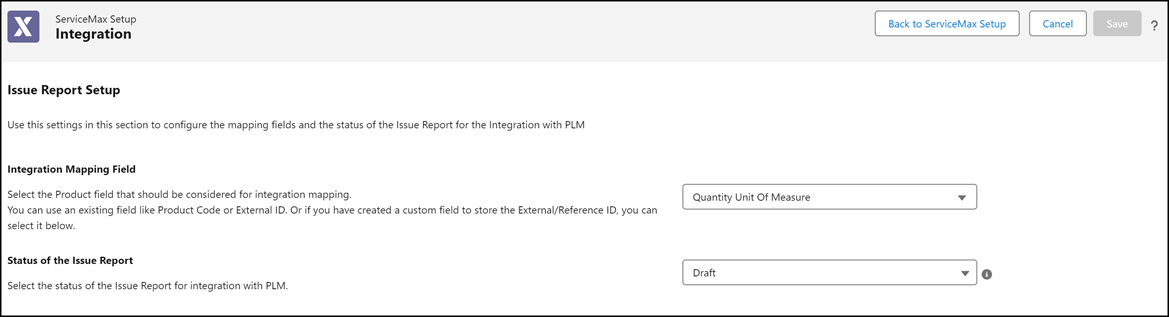
2. Enter the details as described in the following table.
|
Fields
|
Description
|
||
|---|---|---|---|
|
Integration Mapping Field
|
Select the Product field that should be considered for integration mapping. This field is used to reference the product in the Windchill PLM application. The mapping can be:
• Product Code
• External ID
• Custom Field to store the Reference ID or External ID.
|
||
|
Status of the Issue Report
|
Select the status of the Issue Report that is to be picked up by the integration system so that the service business has the flexibility to decide what Issue/Feedback they want to send to the Windchill PLM.
|

3. Click Save.