Working With Resource Utilization Metrics
About Resource Utilization Metrics
You can enable Resource Utilization Metrics to show the percentage of utilized Resource time within the currently selected date range for single Resources or Service Teams and Territories in the current Resource List. Each Resource Card shows a utilization percentage and an emoji based on values configured by your system administrator. You can view detailed utilization information for a single Resource by opening the context menu and selecting the Resource Utilization option. You can view similar information for a Service Team or Territory, by opening the context menu in its title bar and selecting the Group Utilization option.
Resource Utilization Dialog Box
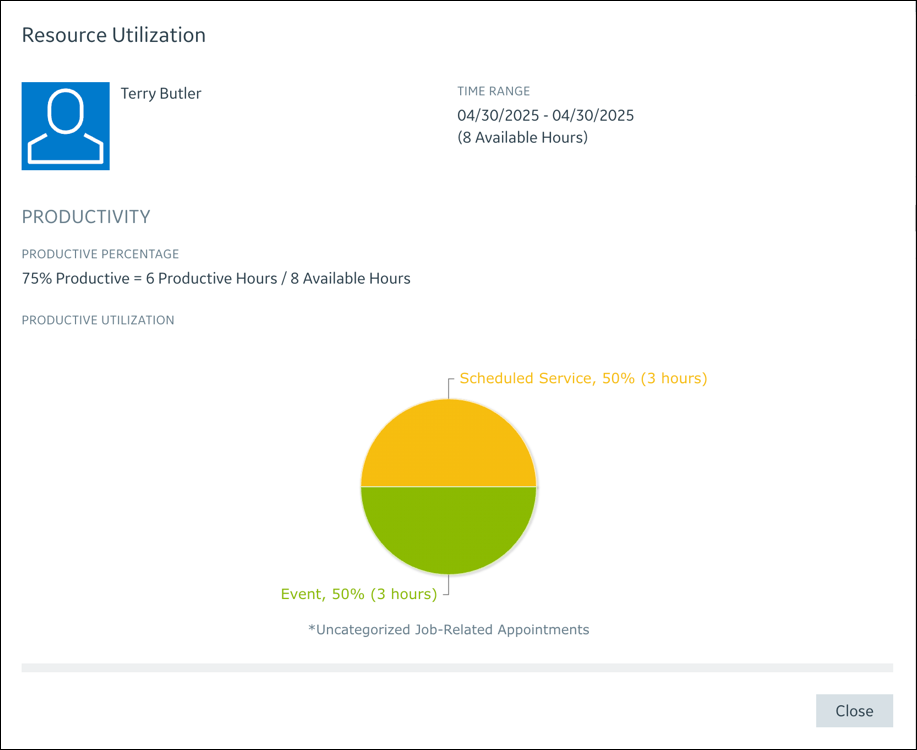
In the Resource Utilization dialog box, you can view the following information for a single Resource, a Service Team, or a Territory:
|
Label
|
Description
|
|---|---|
|
Time Range
|
The time frame for calculating Resource utilization, along with the total hours available for the Resource or Service Team within that period.
|
|
Productive Percentage
|
The productivity percentage of the Resource or Service Team within the specified time range.
|
|
Productive Utilization
|
A chart that illustrates the breakdown of the productivity percentage. When the Productive Percentage value reaches 0, no chart appears.
|
|
Travel Time Percent
|
The percentage of time spent on traveling in relation to the available hours.
|
|
Total Travel Time
|
The total hours dedicated to travel.
|
|
Non-Productive Hours
|
The total hours dedicated to unproductive events, as well as the percentage of these hours compared to the total available hours.
|
|
Uncommitted Percent
|
The total idle hours that are calculated by subtracting the sum of productive hours, non-productive hours, and travel time hours from the total available hours, as well as the percentage of these hours compared to the total available hours.
|
 |
• Resource Utilization data applies exclusively to Technicians, not to Crews, Equipment, or other custom Resource types.
• Resource Utilization data on Resource Cards are recalculated whenever there are Calendar changes, such as assigning or reassigning or rescheduling Appointments and Events, altering the selected date or preset or time zone, or refreshing the Calendar view. However, recalculation is not triggered when infinite scrolling is used.
• Resource Utilization data are calculated exclusively for the Scheduler Calendar, and does not apply to Planning Mode, Recommend Resources mode, or the Multi-Resource Assignment Calendar, among others.
• Resource Utilization data are not calculated when the preset Date Range exceeds six weeks.
• Group Utilization calculations apply equally to Service Teams and Territories, and only the Resources shown on the Calendar are used to calculate data.
|
For more information: