Generating Hierarchy
|
Prerequisites
|
|---|
|
• Ensure that the SMAX - Create Levels for Product Structures package flow is enabled. To enable the flow, see Managing Package Flows.
• Ensure that the Top-Level and the Parent fields are defined in the Product Structure.
• Some or all of Item No. fields must be empty for the respective SBOM.
|
In Product Structures, the SBOM relies on hierarchical level data to accurately represent parent–child relationships between components. However, in certain scenarios—such as data migrations, legacy imports, or incomplete updates, some SBOM records may be missing hierarchy information. When hierarchy data is absent, the Product Structure cannot be displayed fully, leading to confusion and blocking downstream tasks such as part analysis, visibility, or configuration validation.
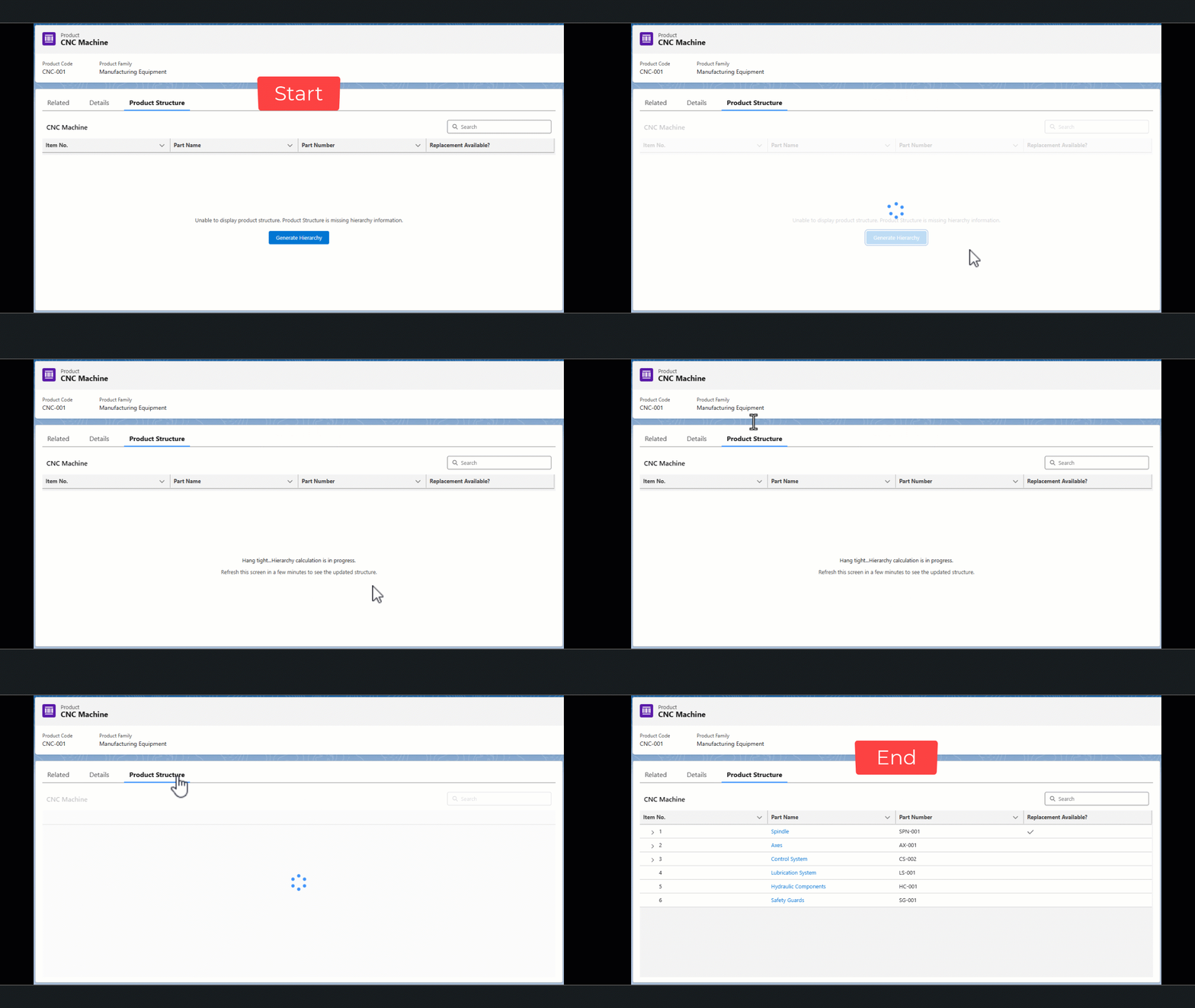
The Generate Hierarchy feature automatically generates the missing hierarchical levels for an SBOM. Once the calculation is executed and the page is refreshed, the full product structure becomes visible with correct hierarchy levels.
This enables administrators and technicians to recover the broken or incomplete SBOM trees without manual intervention.
To generate the hierarchy:
1. Navigate to object page where the administrator has configured the LWC. For example, Products page.
2. Select a Product that is defined as SBOM.
3. Click on the LWC configured by the administrator. For example, if the name of the LWC is Product Structure, click on the tab. The Product Structure is displayed.
 |
Only active Product Structure records are displayed. For more information, see Creating a Structure for a Product.
|
4. Click Generate Hierarch.
The levels are calculated and the Item No. field is populated with the missing hierarchy.