Configuring Appointment View
You can configure the fields to display on the Appointment View screen that helps technicians view all the required information about the appointment. By default, the Appointment detail shows Account Name, Contact Name, and some standard fields. You can enable and configure the Appointment View screen to include fields from Event, Work Order, and Service Task objects.
It is recommended to use the ServiceMax Mobile Console to configure Appointment View.
To configure the Appointment View using fields of Event and Work Order:
1. Navigate to ServiceMax Setup > Mobile > Mobile Console. The Mobile Console screen is displayed.
2. Click Group Settings Manager, then click Manage Configurations from the dropdown menu of a user profile.
3. Navigate to > . The Appointment View configuration screen is displayed.
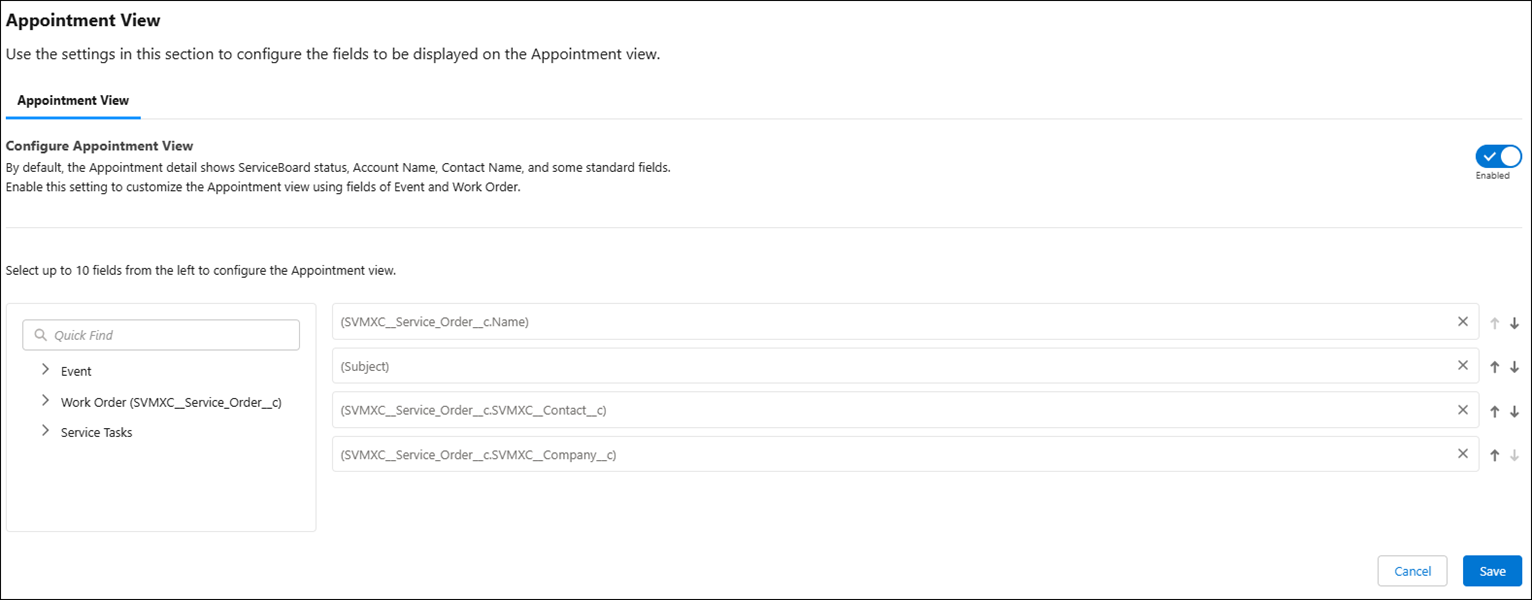
4. Select the Configure Appointment View toggle button to enable it.
5. Select the fields from the objects on the left side list to move them to the right side list to display them on the Appointment View screen.
 |
You can select up to 10 fields to display on the Appointment View screen.
|
6. Click Save.
|
|
• In ServiceMax Go for iOS and Android, if you do not configure the Appointment View in the ServiceMax Mobile Console, then the appointment view is based on the custom settings configured. For information on Custom Setting, see Configuring Appointment View.
• When both configurations, ServiceMax Mobile Console and custom settings, exist, the ServiceMax Mobile Console takes precedence.
• In ServiceMax Go for Windows, if you do not configure the Appointment View in the ServiceMax Mobile Console, then the appointment view is based on the default settings available for the calendar appointment view.
|