Enabling Team Calendar
As an administrator, you can enable the Team Calendar feature from the Mobile Console page.
1. Log in to the org with your valid credentials.
2. Navigate to ServiceMax Setup > Mobile > Mobile Console. The Mobile Console screen is displayed.
3. Click Group Settings Manager, then click Manage Configurations from the drop-down menu of the user profile.
4. Navigate to > . The Team Calendar page is displayed.
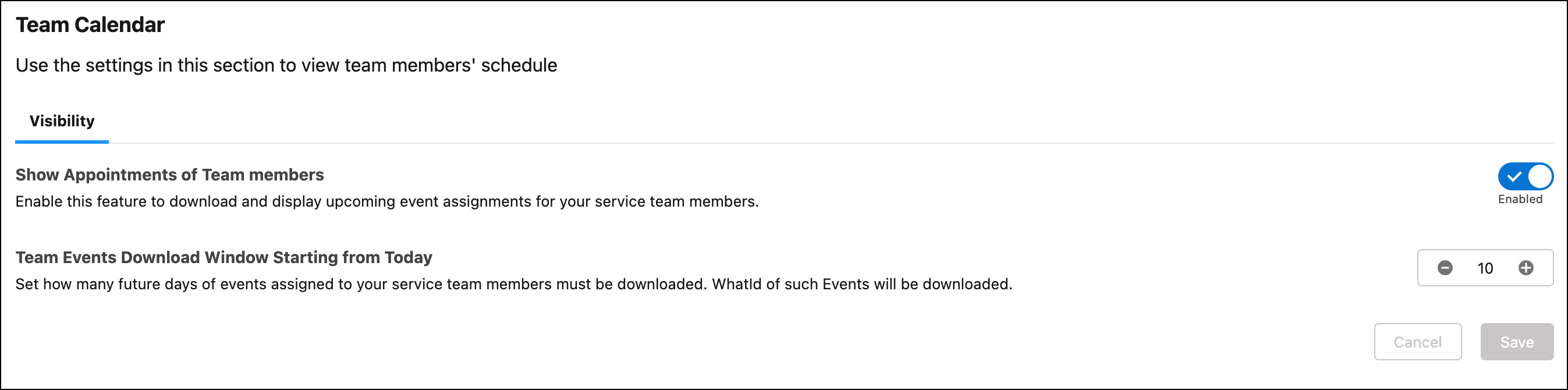
5. In the Visibility tab, click the Show Appointments of Team Members toggle.
The Team Events Download Window Starting from Today field is displayed with the default count of 10 days.
6. Increase or decrease the number of future days of events you need to download that are assigned to your team members.
 |
The selected number of days are the event days starting after today.
|
7. Click Save.
A confirmation banner is displayed after successful validation.
Related Topic