Depot Queue
Depot Queue is a lightning-based ServiceMax application that offers a consolidated view of Work Orders or Service Products assigned to technicians across various depots and workstations.
The Depot Queue is a lightning-based ServiceMax tab within the Depot Queue component, featuring a responsive and intuitive interface with card-based layouts. It comprises three different modes: List View, Summary Mode, and Kanban Mode to manage and analyze queue items during the depot repair process.
This facilitates technicians and supervisors to leverage the capability of dedicated tabs and view or edit information relevant to them. Technicians can filter and self-assign relevant work, focusing on high-priority tasks. Additionally, supervisors can identify delayed queue items, manage assignments, and recognize bottlenecks.
This system enables technicians and supervisors to easily track Open and In Progress depot repair work orders, allowing them to prioritize the tasks based on their requirements. As a result, they can optimize productivity within the targeted timeframe and effectively plan their tasks.
The Work Order with the Order Type as Depot Repair, and associated to specific Depot Location and Work Plan appears in the Depot Queue tab. For more information, see Depot Queue Criteria.
When end users such as call center agents, support team, or customers submits a Depot Service Request, selecting appropriate Depot and Work Plan, Work Orders are automatically created and appears in the Depot Queue tab.
Prerequisite
Ensure that the SET002 (Module: Depot Management, Submodule: Depot Queue) is enabled in your org to activate the Depot Queue application.
Depot Queue for Administrators
Administrators can configure depot management rules to define expressions and field mappings to filter service-specific queue items for a respective Depot. Based on the qualification criteria, the queue items are filtered and mapping will be applied to them. For more information, see Depot Management Rules
Depot Queue for Supervisors
The Depot Queue tab enables users with Supervisor permissions to assign depot repair work orders to technicians and track them within the specific depot location. For more information, see Default Depot Queue Modes by User Role.
As a Supervisor, you can:
• Modify the workstation of a queue item
• Prioritize queue items that are past due or close to past due
• Track the progress and get real time updates from the progress bar
Depot Queue for Technicians
The Depot Queue tab enables technicians to track depot work orders assigned to them within the depot location.
As a technician, you can:
• Modify the workstation of a queue item
• Mark queue items on hold and focus on other priority tasks
 |
Technicians are assigned based on priority and availability at task level of the work plan that is linked to the queue item.
|
Depot Queue Modes
ServiceMax offers three distinct modes to visualize and manage depot repair queue items: List View, Summary Mode, and Kanban Mode. Each mode is tailored to support different operational needs, from detailed task tracking to high-level workload assessment and dynamic status updates. These views empower supervisors and technicians to streamline task management, improve visibility, and enhance overall efficiency across repair workstations. The section below details the description, key capabilities, and use case for each of these views.
List View
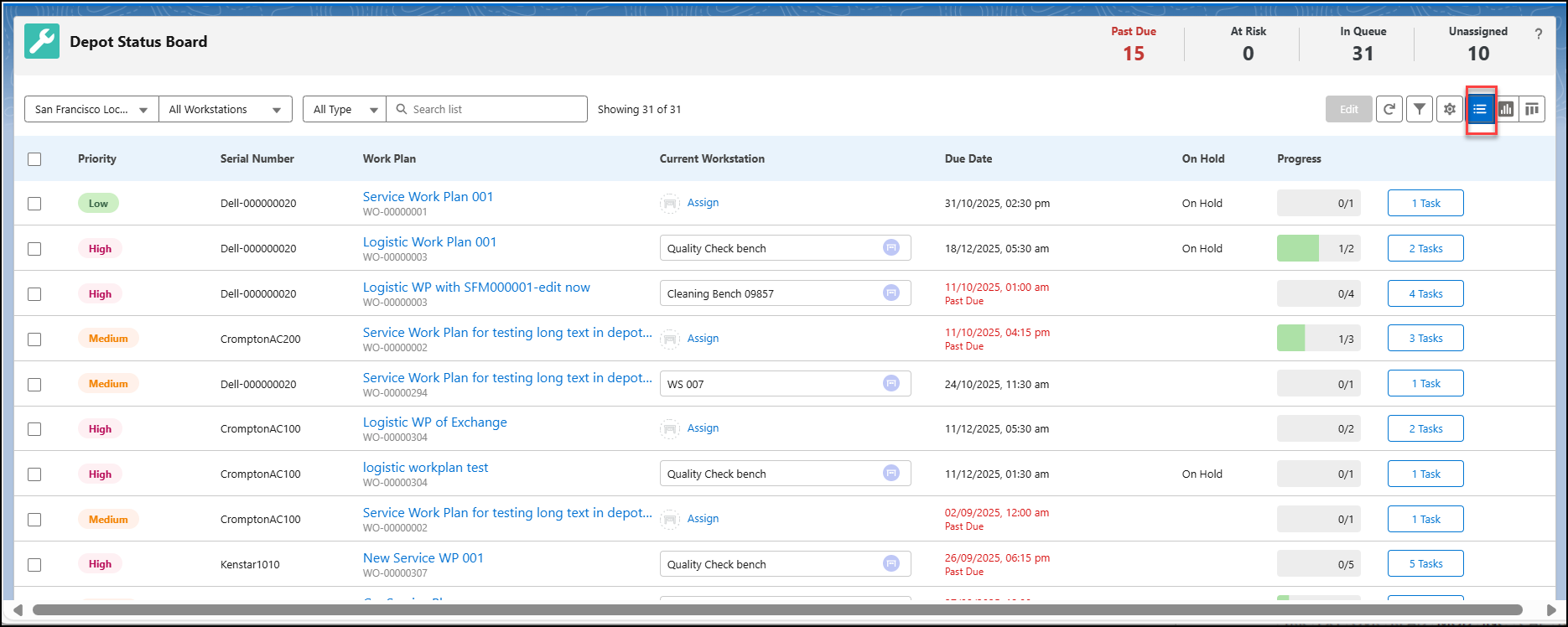
The List View lists queue items in a tabular format, with a link to the associated Work Plan for better visibility. It has a progress bar to indicate the details of the tasks. This view enables supervisors and technicians to efficiently manage their workload by offering the following capabilities:
• Real-Time Updates: Automatically refreshes to reflect the latest status of queue items.
• Self-Assignment: Technicians can claim tasks directly from the queue, promoting faster turnaround.
• Edit and Update: Allows inline and bulk editing of task details and statuses.
• Sort and Filter: Enables technicians to organize tasks by priority, status, or other relevant criteria.
• Progress Tracking: A visual Progress Bar displays the number of completed tasks versus total tasks, helping supervisors monitor throughput.
• On Hold Reasoning: When marking an item as On Hold, technicians can specify a reason, improving transparency and accountability.
• Inventory Status Check: Technicians can view the availability of Parts and Tools linked to the Work Order, ensuring readiness before task execution.
Use Case
A technician at a depot repair workstation starts their shift and logs into ServiceMax to view their assigned tasks. Using the List View page, a technician can perform the following actions:
• Filter tasks by priority and identify high-urgency repairs.
• Self-assign a task and check the inventory status to confirm the required parts are available.
• Update the task status and add notes as they progress through the repair process.
• Mark items On Hold and specify the reason if a task cannot proceed due to missing parts.
• Monitor the Progress Bar to track how many tasks have been completed throughout the day.
This streamlined workflow improves supervisor and technician productivity, reduces downtime, and enhances visibility into repair operations.
Summary Mode
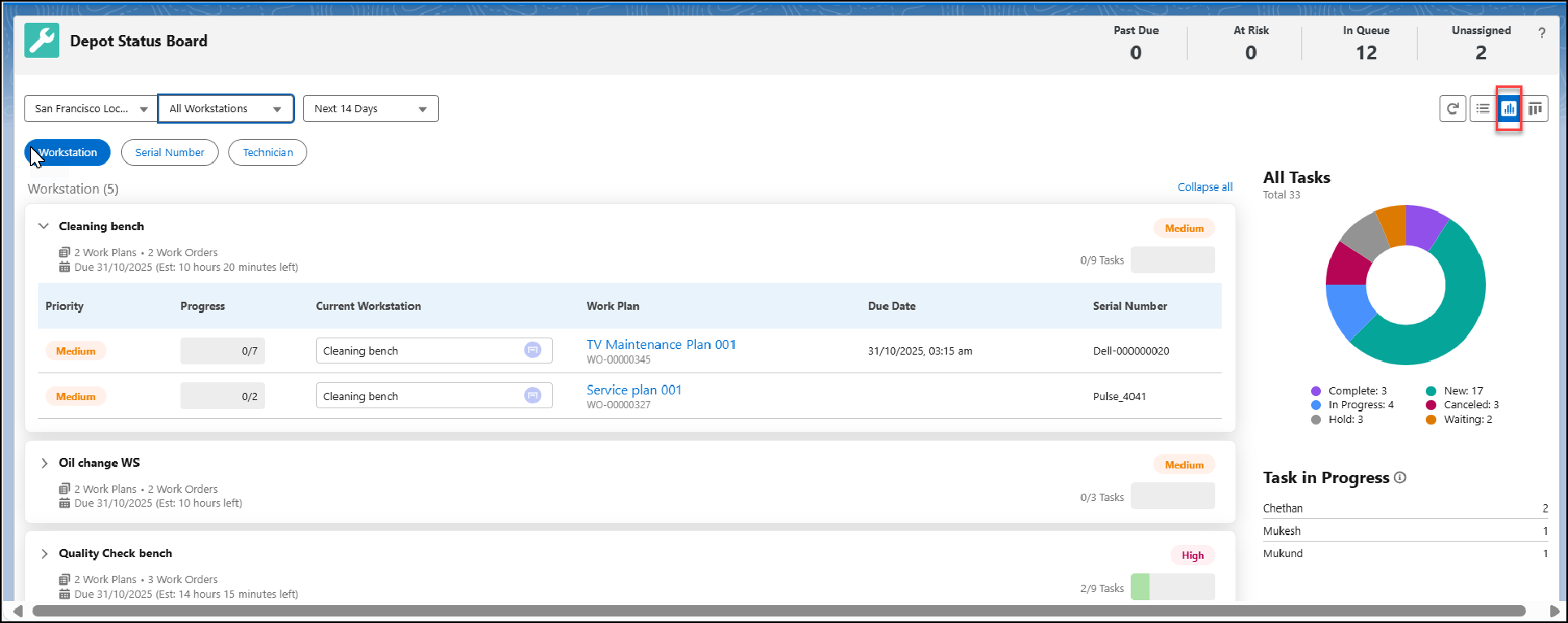
The Summary mode offers a high-level glance of queue items during the Depot Repair process, helping both supervisors and technicians to quickly assess workload distribution and task progress. This view supports multiple layouts for different operational needs:
• Workstation Tab: Displays a summary of all queue items associated with a specific workstation. This helps supervisors and technicians monitor task flow and identify bottlenecks at individual stations.
• Serial Number Tab: Organizes queue items based on serial numbers, useful for tracking repairs or service history of specific assets.
• Technician Tab: Focuses on technician-specific assignments, showing a summary of work allocated to each technician. This view supports filtering by technician name, workload, and task status.
The Summary mode is ideal for quick decision-making, task prioritization, and workload balancing across teams and stations.
Use Case
A depot supervisor begins the day by reviewing the Summary mode for queue items:
• Checking the Workstation Card, they notice that one station has a backlog of queue items. They reassign some tasks to balance the load.
• Switching to the Technician Card, they identify technicians with fewer tasks and assign additional work accordingly.
• Using the Serial Number Card, they track the repair status of a high-priority asset and ensure it’s progressing on schedule.
This approach enables the supervisor to maintain operational efficiency, reduce delays, and ensure technicians are optimally utilized.
Kanban Mode
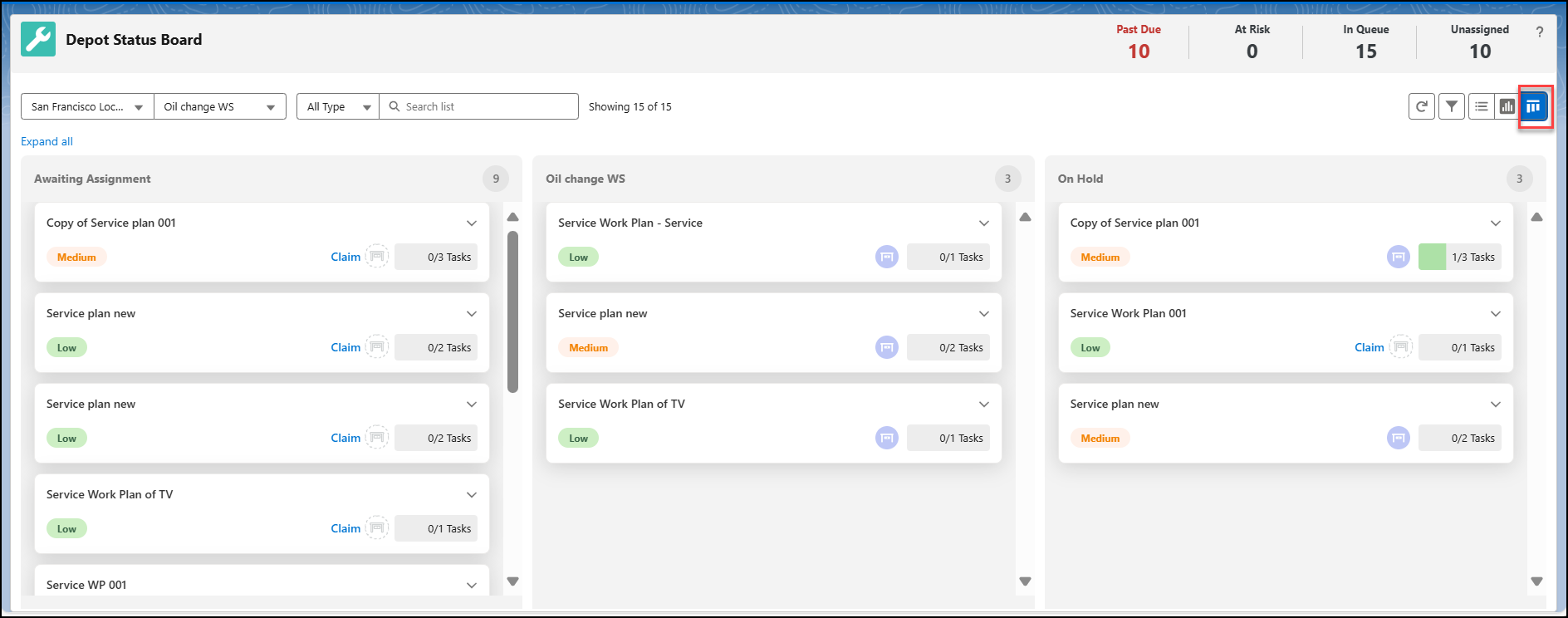
The Kanban mode in ServiceMax provides a way to quickly drag and drop queue items from one status to another during the Depot Repair process. This has primarily three columns to indicate statuses: Awaiting Assignment, Workstation, and On-Hold. This mode is designed to help service technicians and supervisors in the following ways:
• Clear Visualization: Displays a breakdown of activities across workstations, highlighting task distribution and completion status.
• Assignment Oversight: Facilitates tracking of awaiting assignments, ensuring tasks are aligned with technician availability and skill sets.
• Target Date Monitoring: Helps manage the On Hold assignments, deadlines, and ensures timely task execution.
Use Case
A service supervisor and technician use the Kanban mode to review the status of depot repair operations.
• The supervisor identifies this as a bottleneck and reallocates tasks to balance the load.
• They check technician assignments and confirm that those handling high-priority tasks have the required skills and parts.
• Using the target date view, they ensure that critical repairs are on track and adjust schedules where needed.
This proactive approach helps maintain service quality, reduce delays, and improve technician efficiency.
Reference Topics