General Properties within Related Object Sections
The General Properties define the appearance and behaviour of related object sections in an SFM transaction layout.
The following screen displays the General Properties within the Related Object Sections:
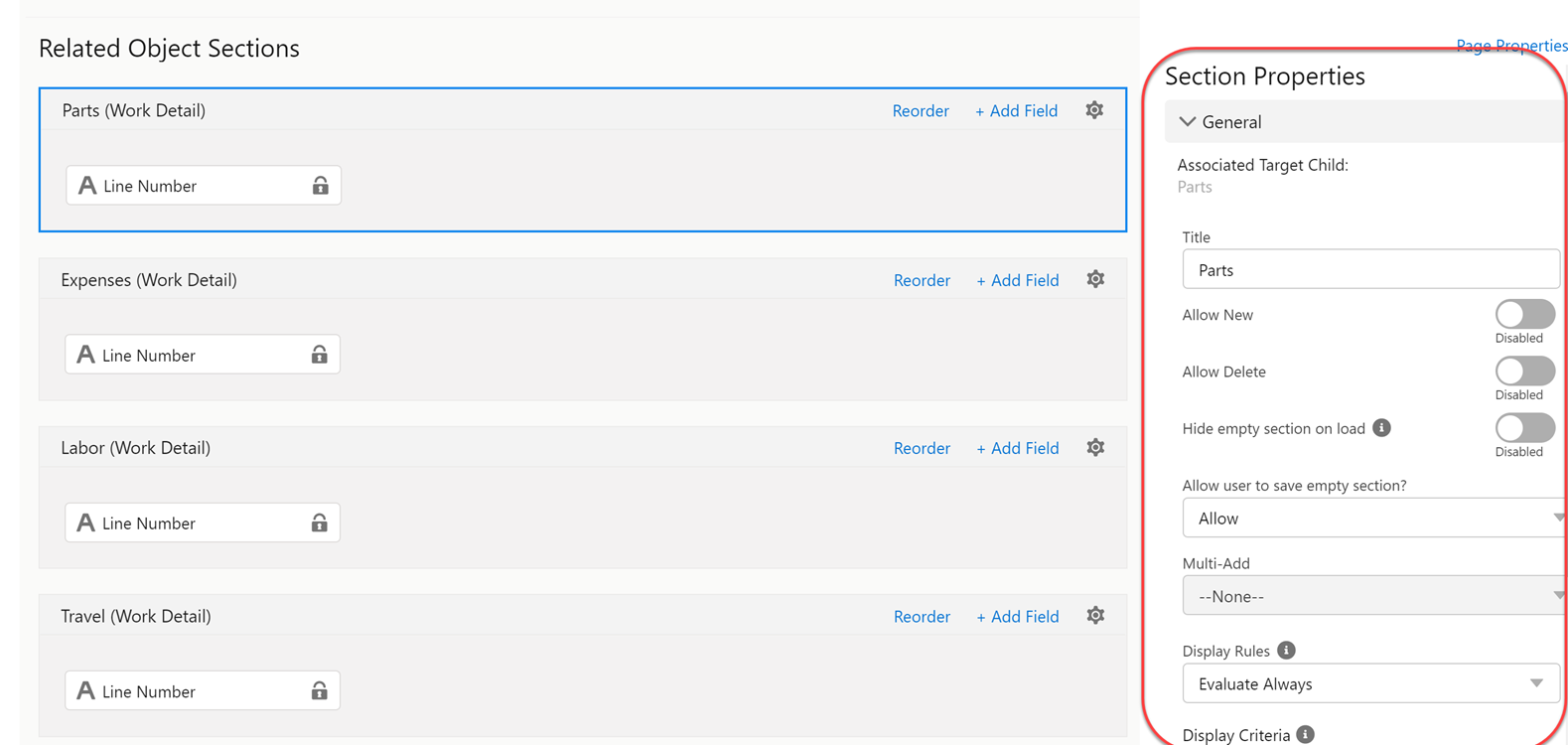
The following table lists the General properties within the Related Object Sections.
|
General Properties
|
Description
|
||
|---|---|---|---|
|
Associated Target Child
|
This displays the selected section of the associated Target Child.
|
||
|
Title
|
This displays the title of the selected section that you can edit.
|
||
|
Allow New
|
This toggle button allows you to add new child lines and clone existing child lines to create a copy of the child line record on the SFM Delivery Grid View.
|
||
|
Default Value Mapping
|
The Default Value Mapping option is displayed when the Allow New property is enabled. You can Set or Edit the mapping based on your preference. The Not Set-Edit button displays a list of mappings (Standard and Custom mappings). The Apply option sets the preferred mappings. You can remove or edit the association.
If the Value Map is associated, an info icon is displayed along with the Default Value Mapping label. In addition, on hovering over the icon, the associated Value Map name is visible.
|
||
|
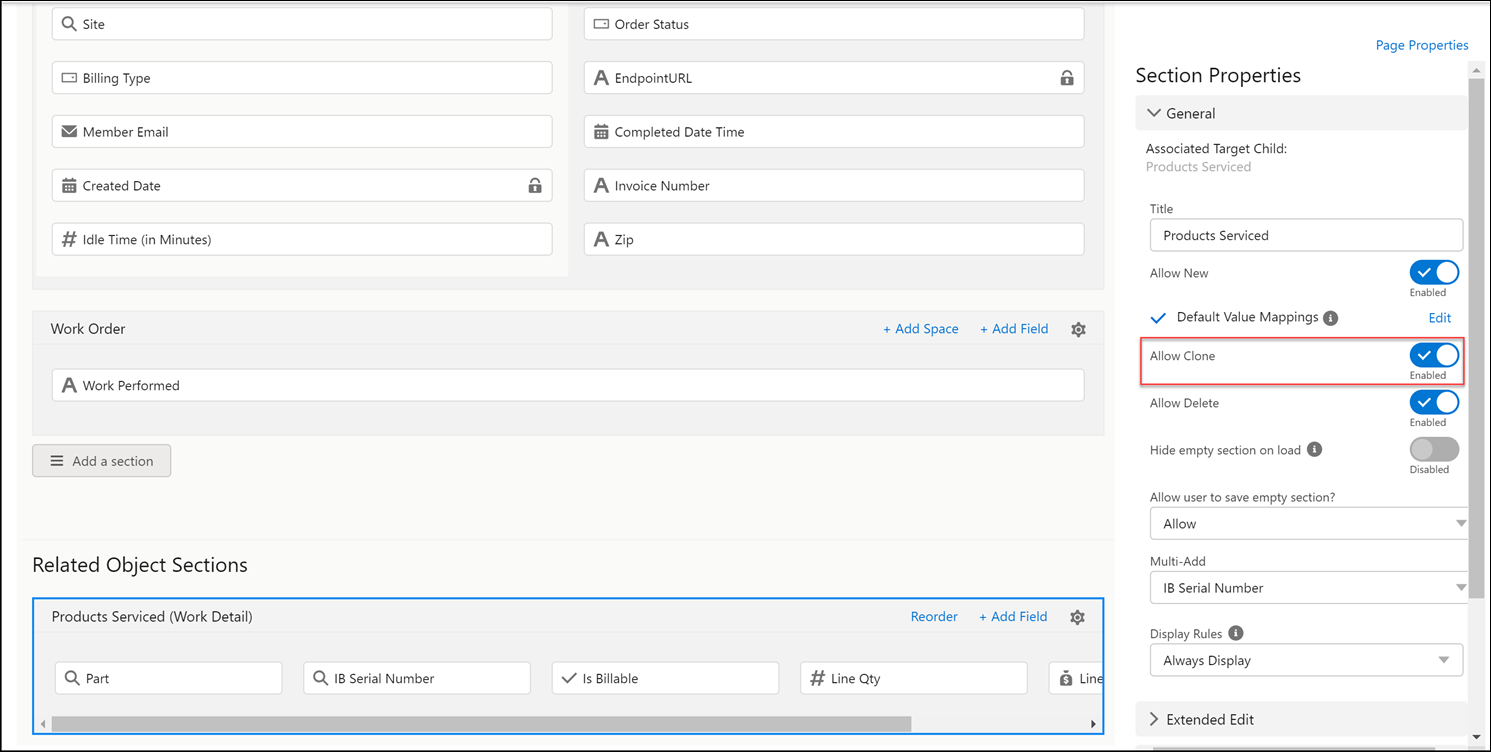
Allow Clone
|
This toggle button allows you to restrict an end user from cloning a child line by disabling the Allow Clone toggle button. The Allow Clone toggle button is enabled, by default.
If the Allow Clone toggle button is enabled, the Clone option is available on the SFM Delivery Grid View and Extended Edit Window. The Allow Clone toggle button is visible only if the Allow New property is enabled on the Section Properties of an SFM page layout.
|
||
|
Allow Delete
|
This toggle button enables you to delete child lines at runtime. This option is disabled by default.
|
||
|
Hide empty section on load
|
Enable this property when:
• You need not add new lines in the section as per your business process.
• You need to add updates only to the existing lines if any are available.
• By default this property is disabled and the child section is always displayed. When enabled, on loading the SFM delivery UI, empty child sections are hidden from the display.
|
||
|
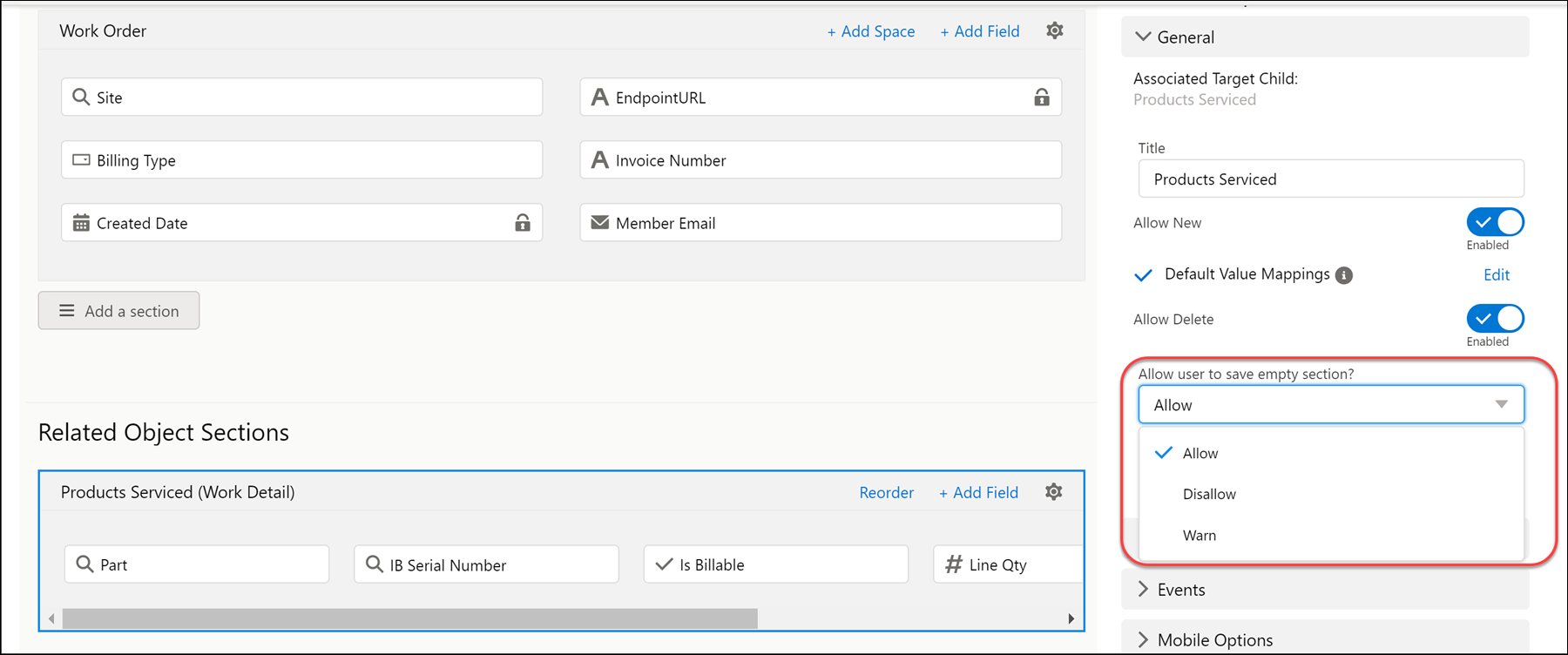
Allow user to save empty section?
|
This property has a drop-down with the following options: Allow, Disallow, and Warn.
• Allow: Enables you to save the SFM transaction with no lines at runtime.
• Disallow: Prompts you to enter at least one line at runtime.
• Warn: Displays a Warning message if you try to save the empty section without lines at runtime.
|
||
|
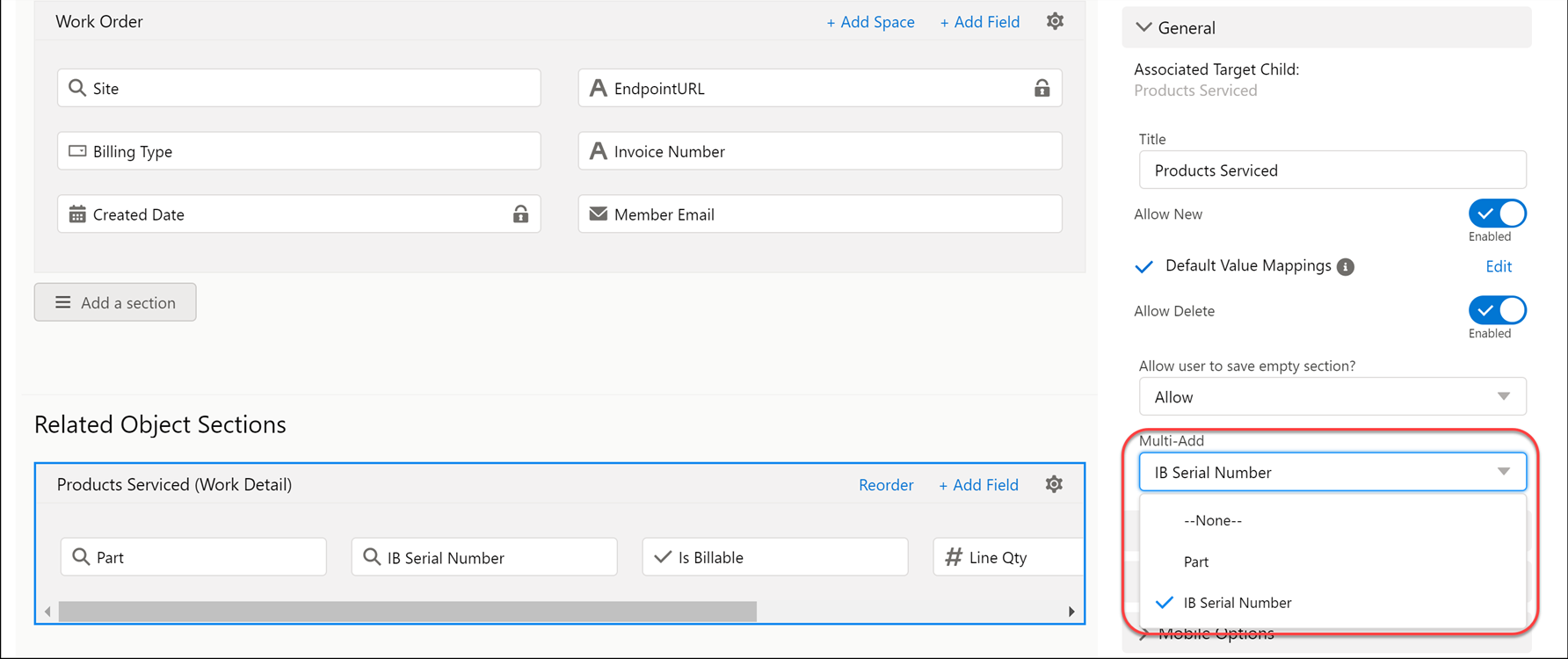
Multi-Add
|
This button is disabled by default and only enabled when the Allow New Button is active. The drop-down displays the list of lookup fields for the selected section. If you add or remove a lookup field, it is reflected in the multi-add drop-down.
This option allows you to multi-select data at runtime.
 |
||
|
Display Rules
|
This option helps you decide when the criteria to display or hide the child section must be executed. The values are:
• Always Display (Default): This option displays the section at all times, including empty sections.
• Evaluate Always: This option displays the section when the form is loaded or when the user edits any field value, based on the Display Criteria configured.
• Evaluate On Load: This option displays the section when the form is loaded, based on the Display Criteria configured.
|
||
|
Display Criteria
|
This option helps to define a condition as an expression, to show a section. This option is visible when the Display Rules is set to either Evaluate Always or Evaluate on Load. The condition to display or hide child sections is based on parent object fields. If the condition is met, then the section is displayed, else not. Use the Configure link to add an expression. Here, you can perform the following actions:
• Add an expression.
• Edit an existing configured expression using Edit Criteria.
• Delete an expression using the Remove Association or Delete button.
For more information on expressions about how to configure expressions, see Expressions Editor.
|
