Creating Condition-Based PM Plans
You can create a Condition-Based PM Plan from an Account, Installed Product, Location, or Service Contract using the appropriate Condition-Based PM Plan Template. The plan includes PM coverages, PM schedule outputs, and PM Schedule Definitions (Condition Rules). Condition-Based PM Plans are commonly used for Installed Product records or Service Contract records that include a covered product. The only valid coverage type for a Condition-based PM Plan is the Product coverage type.
To create a Condition-Based PM Plan:
1. From the Home page, open any record. The record can be Account, Location, Service Contract, or Installed Product.
2. From the SFW Wizard, launch the Create PM Plan custom action. The New Preventive Maintenance Plan page is displayed.
3. In the Plan Details tab, select a condition-based PM Plan Template from the drop-down.
The fields are auto-populated based on information from the source record and the selected PM Plan Template. For more information about fields, see Creating Condition-Based PM Plan Templates.
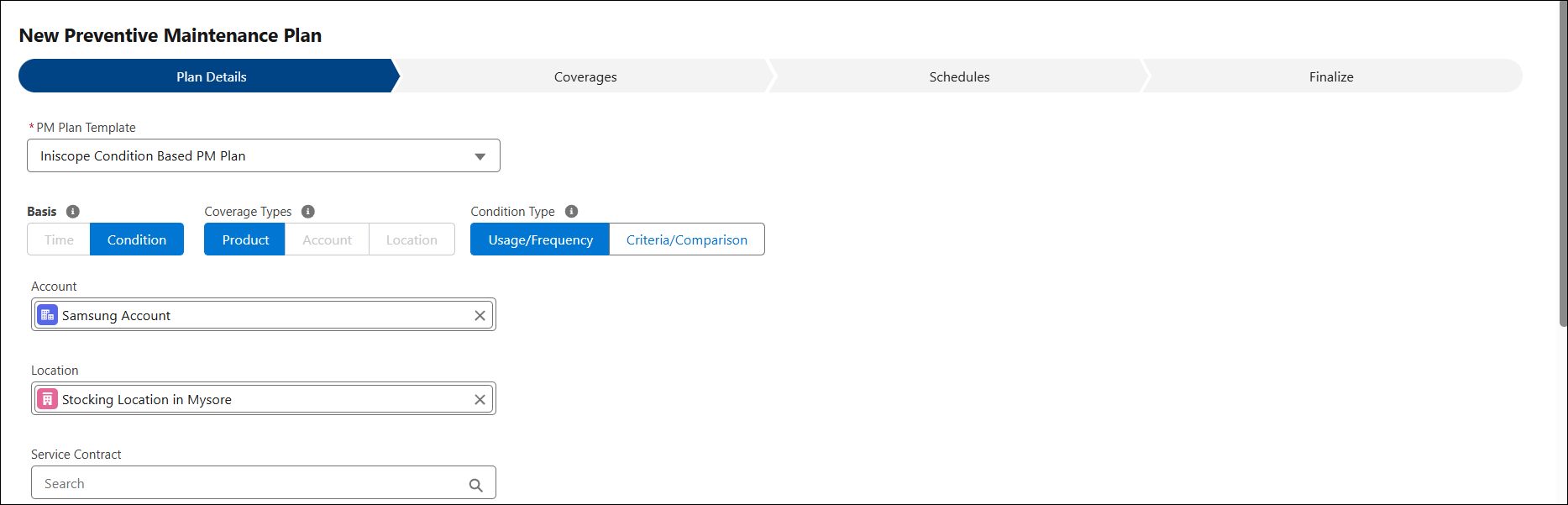
4. Configure the fields in the following tabs:
◦ Finalize
5. Click Save. The PM Plan is created with PM Schedule Definition, Coverages, and PM Schedule.
After the PM plan is created and PM process set up, the SCON scheduler picks up the PM process, and qualified PM plans to check whether PM work orders are ready to be created based on the conditions within the PM Plan. For a Condition-based PM Plan, the PM engine analyzes the conditions with the actual attribute value on the related Installed Product and/or time intervals. If the conditions match, a PM work order is created and linked to the PM plan. If the work order is created after matching an attribute on the Installed Product, the Preferred Start Date is set as the creation date of the work order. If the work order is created after matching the date attribute in the condition, the Preferred Start Date is set as the actual date value on the matching schedule record. When a work order was created after matching both counter and date, Preferred Start Date is set as the actual date value on the matching schedule record.
If work plans are associated with PM Plans, the Work Plan is assigned to the service products of the generated PM Work Order, along with the Work Plan’s service tasks, recommended parts, and tools. For more information, see Executing Work Plans from Work Orders.
PM Schedule Definition is created based on associated PM Template's scheduled templates; the definition, the schedule are generated for each of the definitions. For a condition-based PM Plan, the schedules will be based on conditions and will appear in the wizard as Schedule Outputs.