Configuring Part Settings in 25.1
As an administrator, you can configure part settings under Work Plan Management to manage parts used to service a Service Product or Installed Product. This setup module allows you to:
• Configure the part line creation.
• Enable inventory transactions for the parts.
• Update Installed Product based on the parts used.
• Create Installed Product activities against the parts usage.
• Enable usage of the recommended and replacement parts for the service products.
The Part Usage engine leverages these settings to perform the actions listed above.
To configure various aspects of part usage:
1. Navigate to > > .
The Part Usage Settings page is displayed.
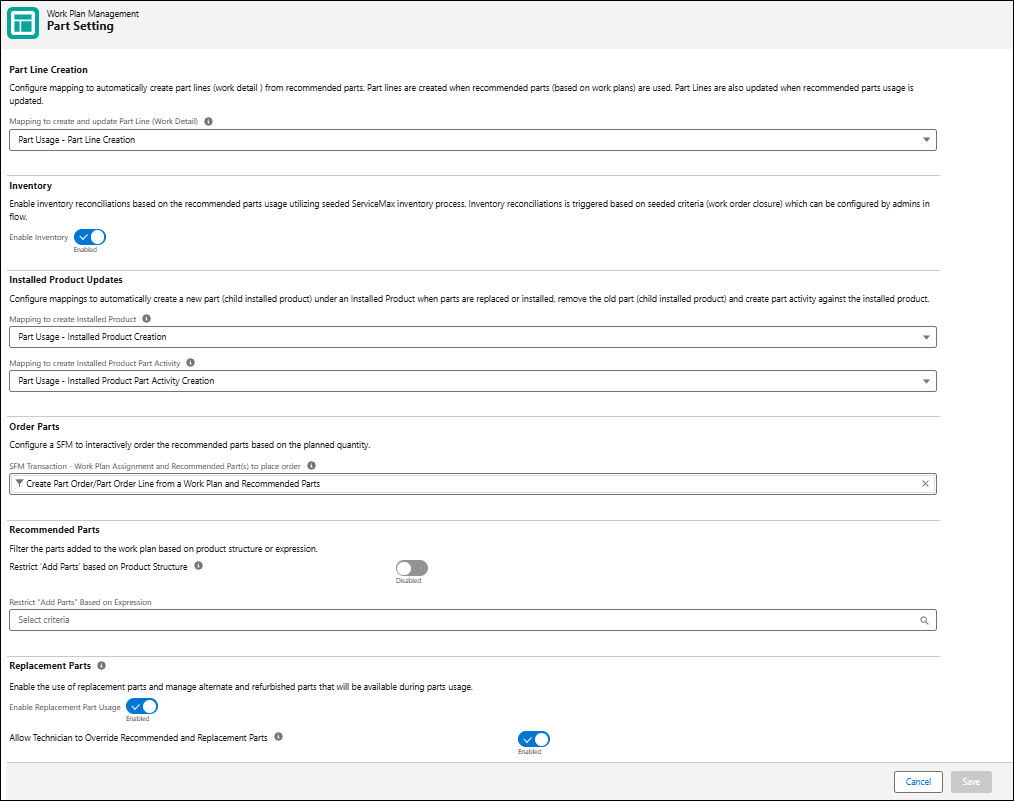
2. Select the mapping to establish work detail creation when part usage is created or updated. For example, when part usage is created on work plans associated with work orders, work details lines are created. The standard mappings are available by default.
3. Click the Enable Inventory toggle button to enable inventory transactions with part usage, is it is disabled. By default, this option is enabled.
4. In the Installed Product Updates section, select the mappings to create the installed product and installed product part activity when the work order is closed. The standard mappings are available by default.
5. Select an SFM to enable technicians to order the recommended parts from work plan assignments. The available SFMs must follow the condition that its source object is Work Plan Assignment, and the target header is Part Order. If an SFM is not selected, technicians cannot order parts.
6. In the Recommended Parts section, enable the Restrict ‘Add Parts’ based on Service Product Part List toggle button to prevent users from adding parts from the service product. If the option is disabled, parts are listed from the Product object that are active in the Add Parts catalog. If the option is enabled, parts are listed form the Product Structure object with the latest updated date.
7. Select an expression from the eligible expression list to filter parts list based on the selected expression.
8. To enable replacement part usage, click the Enable Replacement Part Usage toggle button. Enable this option if you have set up replacement parts for your product catalog. To know more about adding replacement parts, refer to Add Replacement Parts.
When enabled, the available quantity of replacement parts for the selected part is displayed and service engineers can consume replacement parts for consumption. If disabled, the replacement part details are not displayed on the part details screen and service engineers can only consume the recommended parts or parts from the Show All list, not the replacement parts.
9. Click the Allow Technicians to Override Recommended and Replacement Parts toggle button to enable technicians to consume parts from the Show All lists that are specific to your inventory location.
10. Click Save.
 |
For information about how the part usage configuration impacts the part consumption process, see Part Consumption Process Flow.
|