Changing the SFM Lightning Display Mode
You can personalize the Service Flow Manager (SFM) lightning display experience by selecting your preferred combination of field label alignment and spacing between elements on the page. SFM offers two display modes, Compact, for a denser view, and Comfy, for a spacious view. By default, SFM loads in Comfy mode.
Perform the following steps to switch between the display modes:
1. Open any record.
2. Launch an SFM.
3. From the upper-right of the header section of the page, click the drop-down, and then click Set Display Density to Compact.

 |
If the page is loaded with Compact mode, you can click Set Display Density to Comfy to change the display to Comfy mode.
|
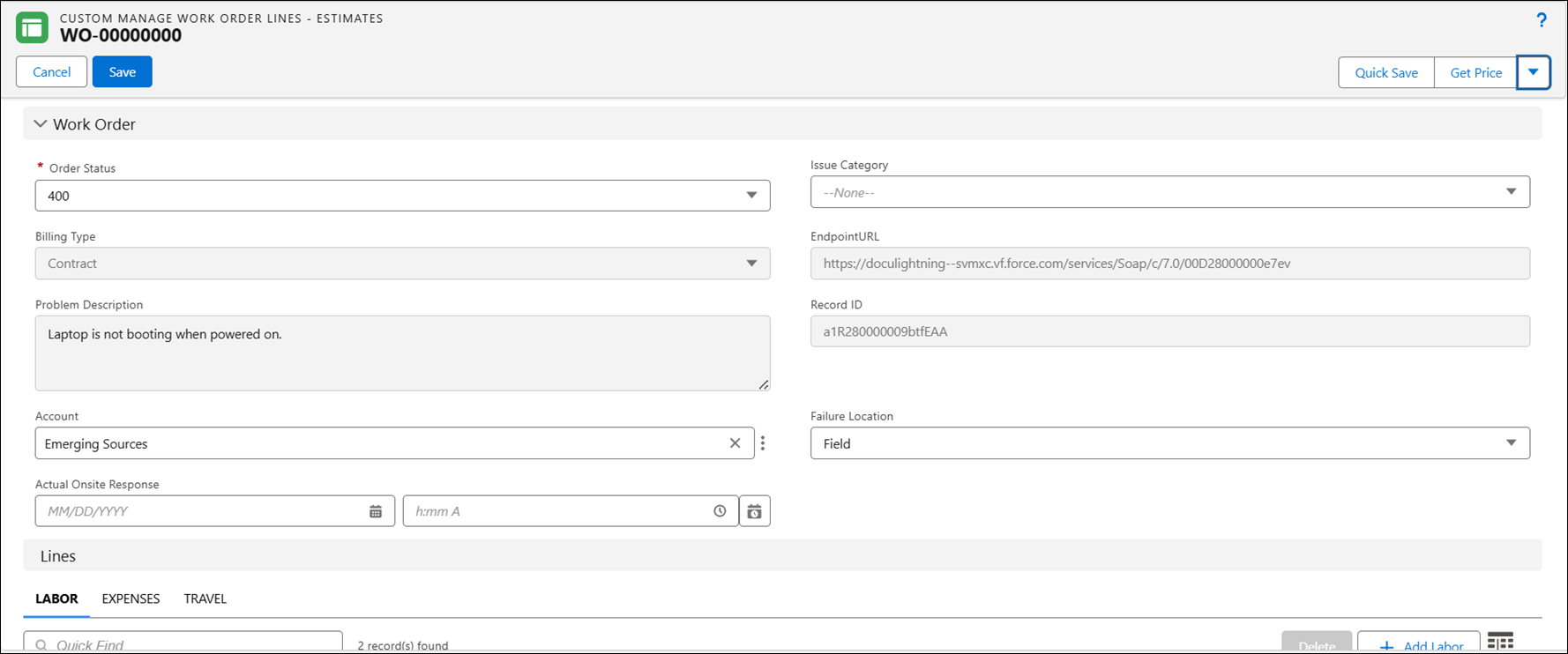
Comfy Mode
The Comfy Mode is intended to provide a spacious and relaxed layout for form fields. This mode prioritizes readability and ease of interaction. This is suitable for forms where readability and ease of use are prioritized over the amount of information displayed on the screen.
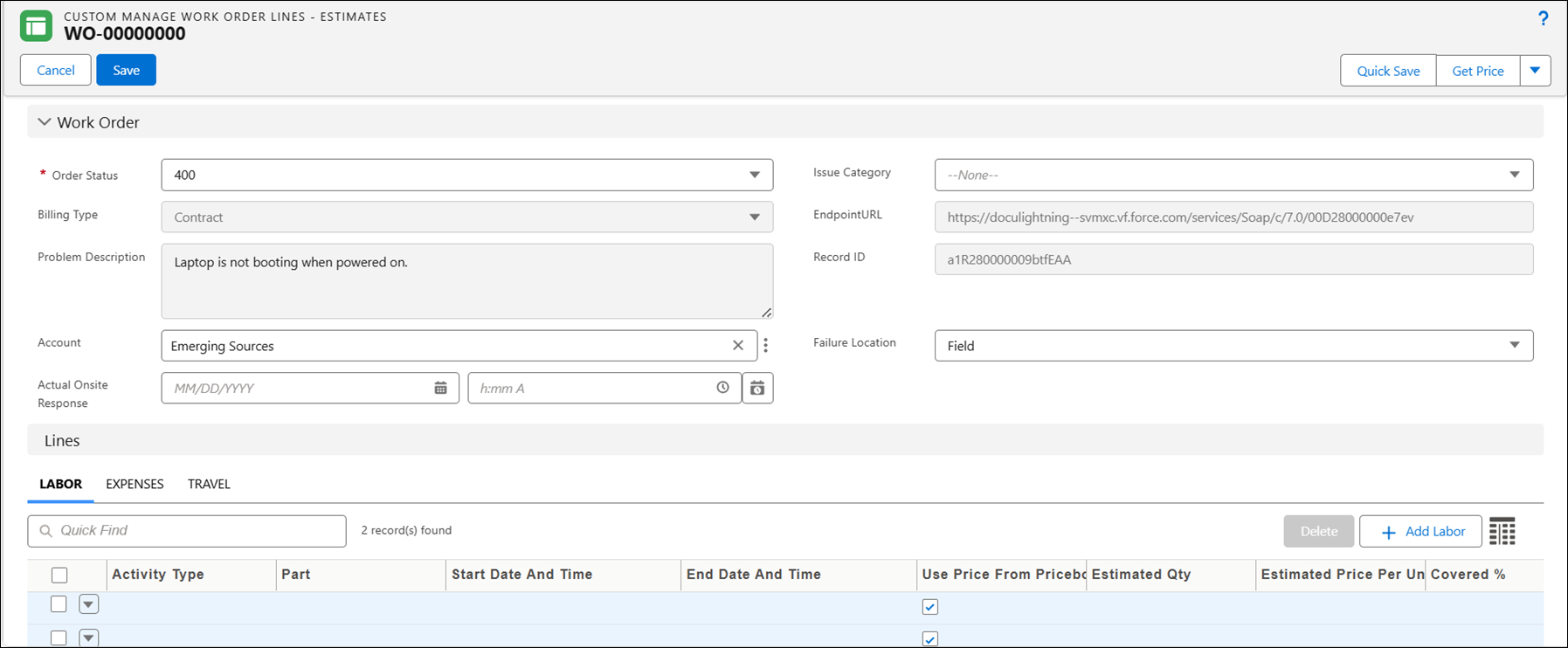
Compact Mode
The Compact mode provides a denser view. Labels are displayed before the fields, in a single row and spacing between the page elements is reduced. This mode allows user to view more information with less scrolling.
|
|
• The display mode selected applies to the Extended Edit view of the child lines.
• The display preference is maintained and applies to all the SFM on web delivery for the logged in user.
|