Updating Parts Consumption for Serialized Parts
As a service engineer, you can consume parts during your service of a serialized part.
To update the usage of non-serialized parts:
1. In a Work Order record, navigate to the Work Plans tab.
2. Expand the work plan for which you need to manage parts.
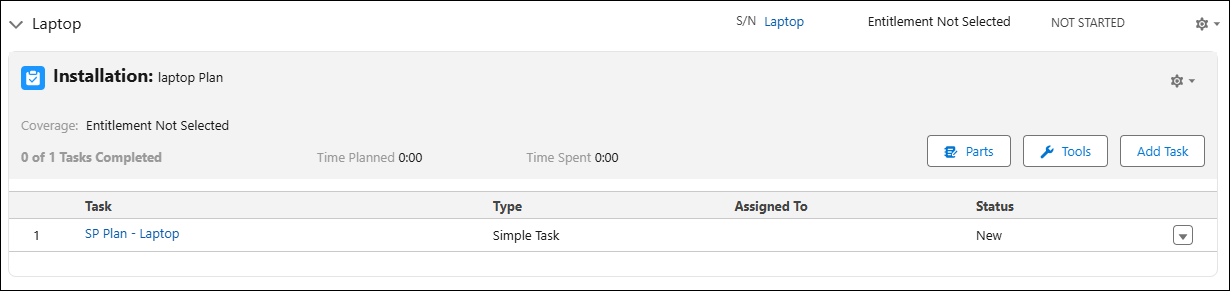
3. Click Parts.
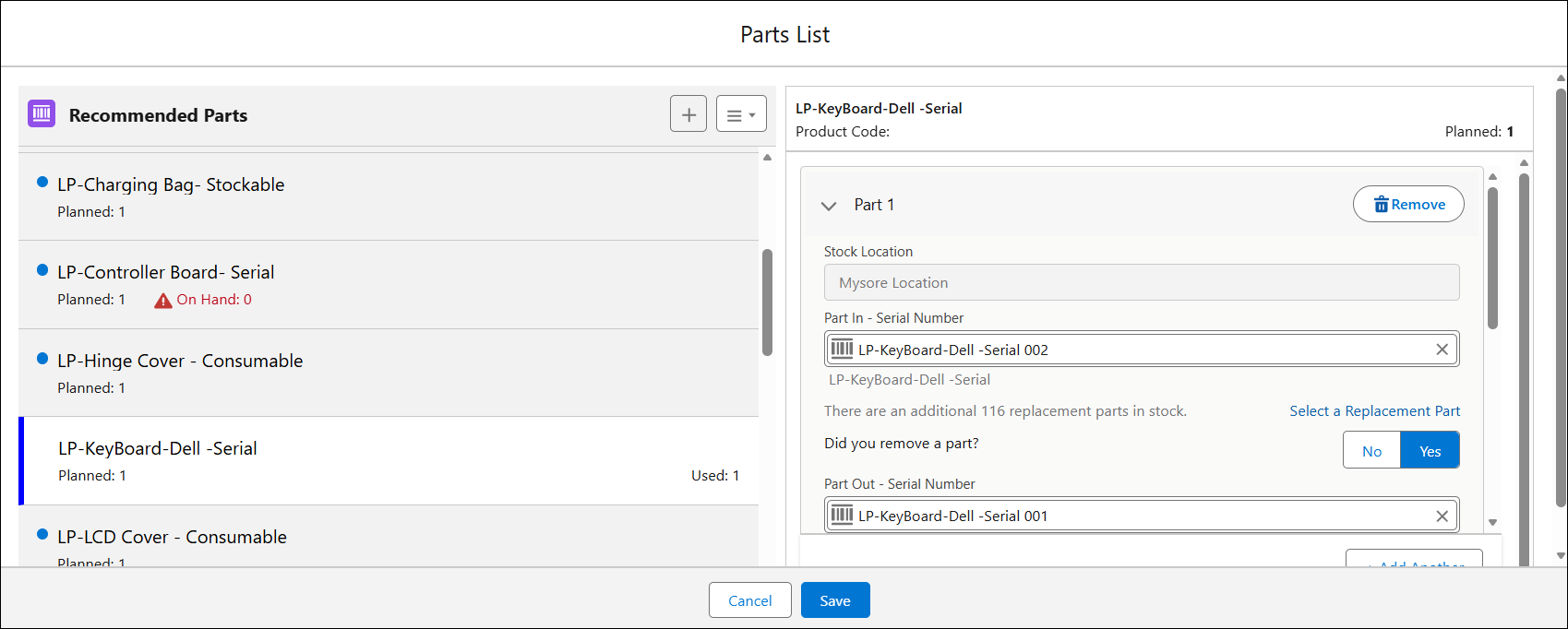
The Parts List window is displayed, with all the recommended parts for the work plan.
 |
The list of recommended parts is displayed with the following details:
• planned quantity required for the service product
• used or consumed quantity
• a red flag if the planned quantity is more than the available quantity in the inventory for a stockable part. The available quantity is referred to as On Hand quantity.
|
4. Select the serialized part from the Recommended Parts list. The part details are displayed as a card on the right pane with the associated parts. You can expand or collapse each part to enter its usage details.
5. Provide the details for the fields as explained in the following table:
|
Fields
|
Description
|
|---|---|
|
Stock Location
|
Displays the location of the stock.
|
|
Part In — Serial Number
|
Identifies the serialized unit being installed or consumed. This ensures traceability, and keeps the Installed Base accurate. A list of recommended parts are displayed. The See All Result allows you to view the list of serial numbers including replacement parts.
|
|
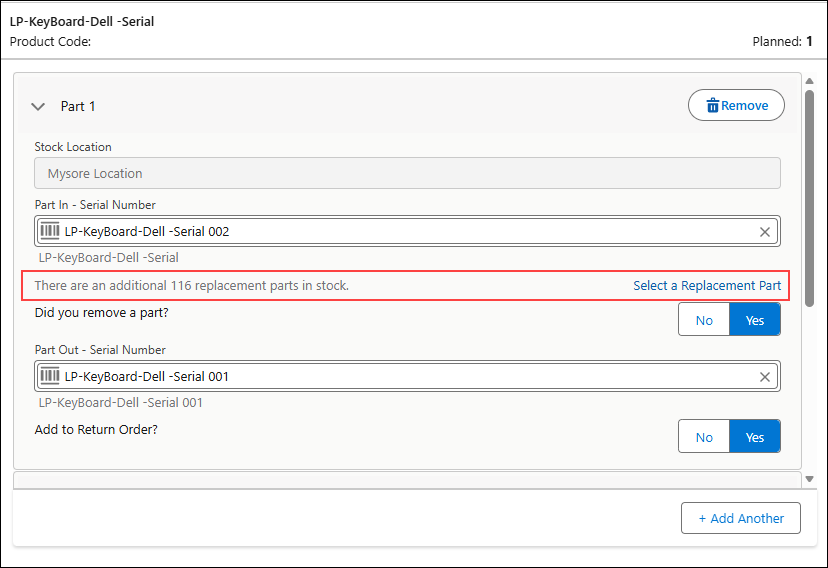
There are an additional xx replacement parts in stock.
|
Displays how many replacement units are available in the inventory. This helps technicians understand the stocking level before selecting a substitute part, ensuring informed replacement decisions.
|
|
Select a Replacement Part
|
Opens the list of eligible replacement parts so you can choose an alternative serialized unit.
|
|
Did you remove a part
|
Indicates whether the action is a swap or a new installation. This determines how inventory, asset records, and lifecycle data update. The available options are:
• Yes — This is a part swap scenario. Specifies the serialized part being removed in a replacement scenario. Select the serial number in the Part Out — Serial Number field.
• No — This is an installation scenario. Records the serialized component when no removal occurs. This preserves the product hierarchy and supports future service and maintenance actions. Select the serial number in the Part in — Parent field.
|
6. Click Add Another to add parts.
7. Click Save. A confirmation message is displayed after successful part processing.
8. To remove a consumed serialized part, click Remove. This option becomes available only after you save the part and then edit it again.
|
Parts card when Replacement Parts is enabled
|
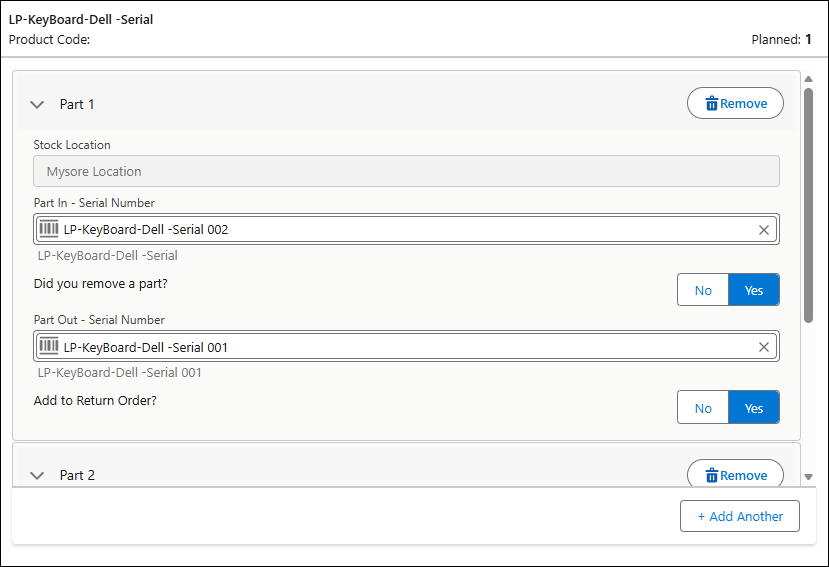
Parts card when Replacement Parts is not enabled
|
|---|---|
 |
 |
When you consume part information for service tasks, the part consumption process flow is triggered as per the configurations set in Part Usage Configuration. This feature helps ensure accurate consumption and tracking of parts.