Logging in to the AI Console
This section explains how administrators can access the ServiceMax AI Console to configure AI Actions, manage AI Agents, and monitor AI-related activities.
|
Prerequisites
|
|---|
|
To enable this step, ensure the following:
• You have valid Salesforce org credentials.
• ServiceMax AI is enabled for your org.
|
To log in to the AI Console, perform the following steps.
1. Navigate to > > .
The SERVICEMAX window is displayed.
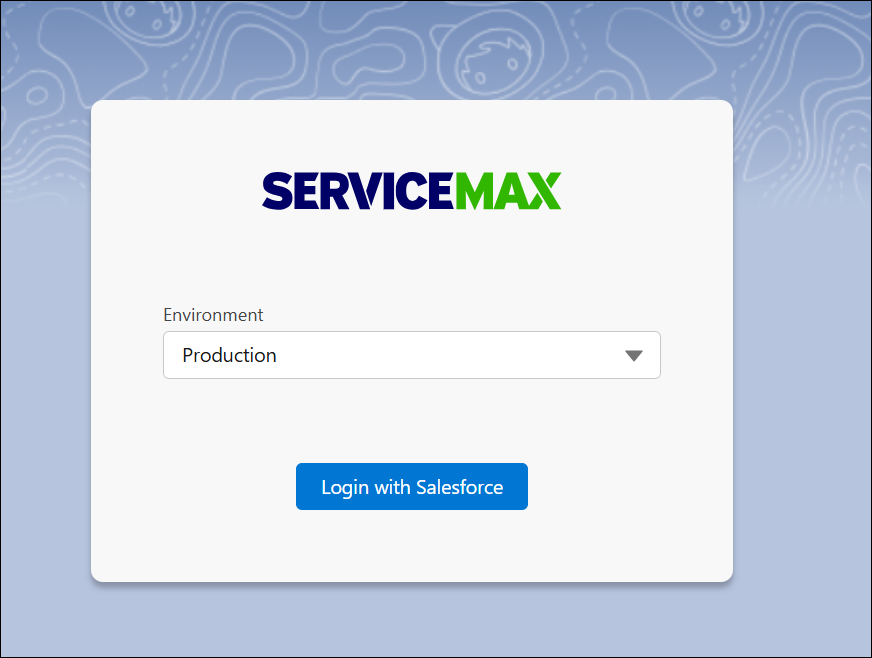
2. Select the required environment and click Login with Salesforce.
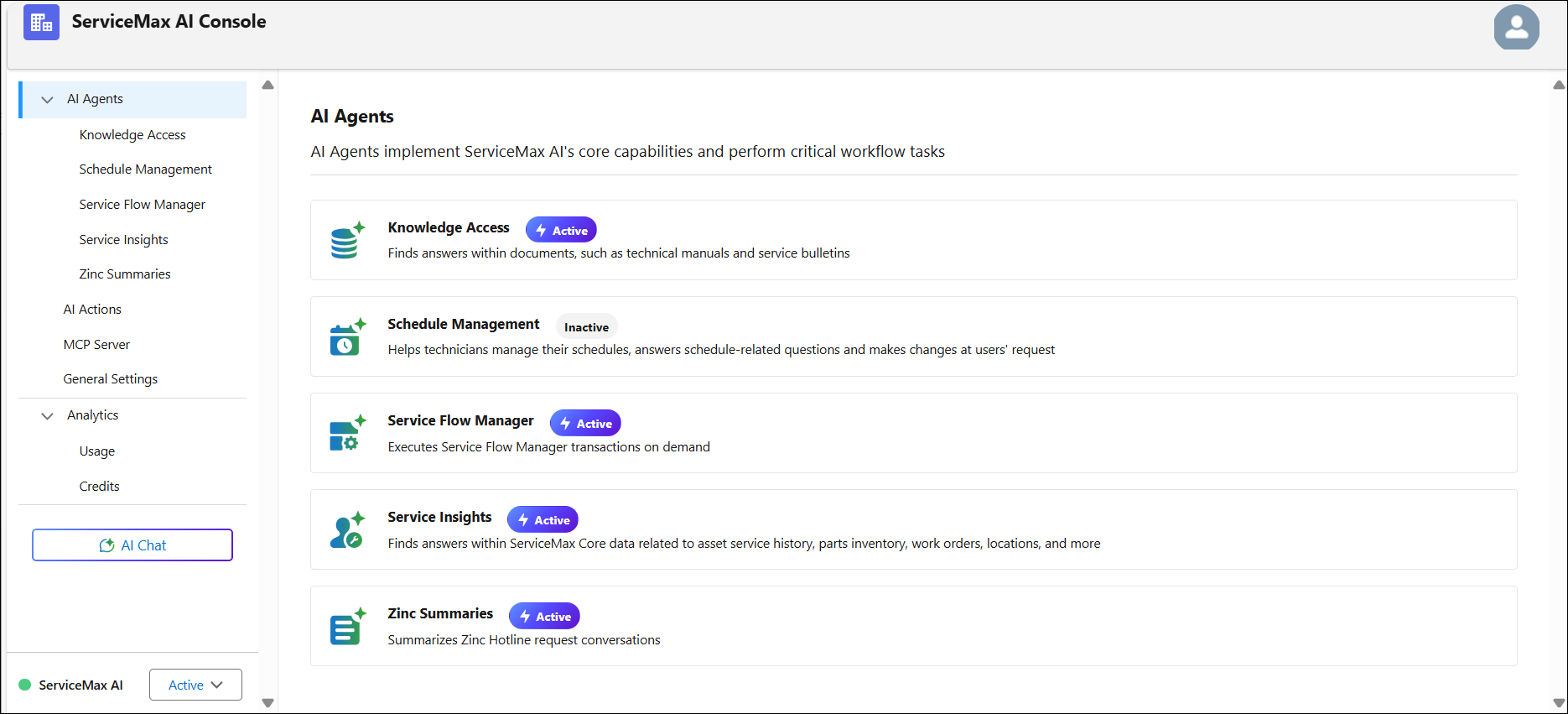
The ServiceMax AI Console is launched.
 |
You can also log in to the ServiceMax AI Console directly at https://console.servicemax.io/ai with your Salesforce org credentials.
|
Navigating through AI Console
The AI Console provides a centralized interface for configuring and managing ServiceMax AI features. Administrators can quickly access, monitor, and optimize AI modules from a single location, improving efficiency and consistency. You can access a module by selecting it from the left-side navigation menu. The landing page provides a summary of each module’s purpose and current status. For detailed configuration, click on the module name to open its dedicated settings page.
The table below summarizes each module available in the AI Console and a brief description of its functionality.
|
Module Name
|
Description
|
|---|---|
|
AI Agents
|
View and manage all AI agents available in ServiceMax AI.
|
|
Knowledge Access
|
Select files and documents accessible to ServiceMax AI for knowledge-based tasks.
|
|
Schedule Management
|
Configure scheduling logic for AI-driven workflows.
|
|
Service Flow Manager
|
Enable and manage AI-powered service flow automation.
|
|
Service Insights
|
Query ServiceMax Core and Salesforce data, such as Work Orders, Installed Product, and Location records.
|
|
Zinc Summaries
|
Enable AI-generated chat and hotline summaries.
|
|
AI Actions
|
Create and test AI Actions in a dedicated workspace.
|
|
MCP Server
|
Enable integration between AI Actions and external MCP clients via an API.
|
|
General Settings
|
Configure global AI settings and preferences.
|
|
Analytics
|
Provide insights into how users interact with AI actions across Salesforce web, Go, Zinc web, and mobile applications
|
|
Usage
|
View detailed reports on AI feature usage, including activity trends and consumption over selected time periods. Filter data by time range and export usage analytics.
|
|
Credits
|
Track available and consumed AI credits to manage resource allocation and ensure continued access to AI services.
|
|
AI Chat
|
Enable real-time, AI-powered chat to assist users with automated responses and support within ServiceMax.
|
|
|
Each agent is accompanied by a status indicator (Active/Inactive), allowing administrators to quickly assess which features are enabled and available for configuration. You can configure each module in the AI Console and modify its active or inactive status as required.
|