Map Tab
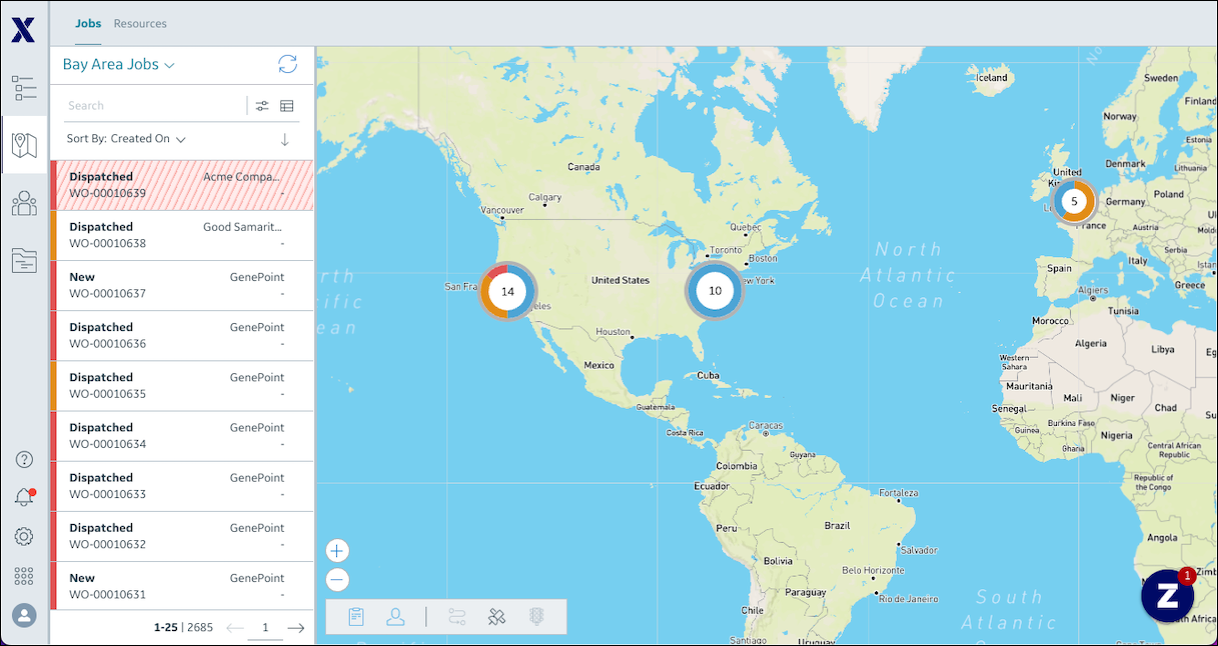
In the Map tab, you can view the physical locations of Jobs, Resources, and Crews. The Map tab includes the Jobs and Resources subtabs. In the left pane, the Jobs subtab shows the default or currently selected Job List, and the Resources subtab shows the Map Resource List. Both subtabs show Job, Resource, and Crew locations on the Map in the right pane.
|
Map Pin
|
Description
|
||
|---|---|---|---|
 |
Resource
Click the pin to highlight the associated entry on the Map Resource List, open the slide panel and view details for the Resource, and show a tooltip.
|
||
 |
Crew
Click the pin to highlight the associated entry on the Map Resource List, open the slide panel for the Crew, and show a tooltip.
|
||
 |
Job
Color-coded based on priority. Click the pin to highlight the associated entry on the Job List, open the slide panel for the Job, and show a tooltip. Default colors are:
• Green: Low
• Amber: Medium
• Red: High
|
||
 |
Group Marker
Represents multiple Technicians, Resources, and Jobs located close to one another at the current zoom level. Click the marker to show the pins in the group.
|
 |
• Pins for Resources associated with specific locations appear in dark blue when location data is still within the configured Resource Location Lifespan setting value, and in light blue when location data has expired or when the default Resource location is used.
• In cases where no valid current location data is available, and the default location for the Resource is used, pins are rendered with the Home icon.
|
When you hover your mouse pointer over Resource pins on the Map, tooltips appear and show location information, as follows:
• For pins that appear at current Resource locations, tooltips show Reported On information, along with the Resource name and type. If current location information was reported less than 5 minutes before the current time, the Reported On value is Just now. Otherwise, the time since current location information was reported appears, for example, 25 minutes ago.
• For pins that appear at default Resource locations, tooltips do not show Reported On information, and Default Location appears instead.
• For pins that appear at Resource locations for which reporting data has expired, tooltips show the most recent Reported On information with (Last known location), for example, 4 hours ago (Last known location). If no Reported On information is available, tooltips do not show location reporting details.
• For pins that appear at previous Appointment or Event locations in Recommend Resources mode, tooltips do not show Reported On information, and Previous Appointment Location appears.
• If Map pin tooltips are enabled and a Resource name value is available, by default, tooltips show the Resource name and type, regardless of pin locations. Your system administrator can customize Map pin tooltips to show other details.
For more information: