Creating Roles
To create roles:
1. Launch Max Admin, and then on the User Management ( ) launchpad menu, click Roles.
) launchpad menu, click Roles.2. On the Roles list, in the top left corner, click Create ( ), and then on the New Role page, in the Name field, enter a name for the role.
), and then on the New Role page, in the Name field, enter a name for the role.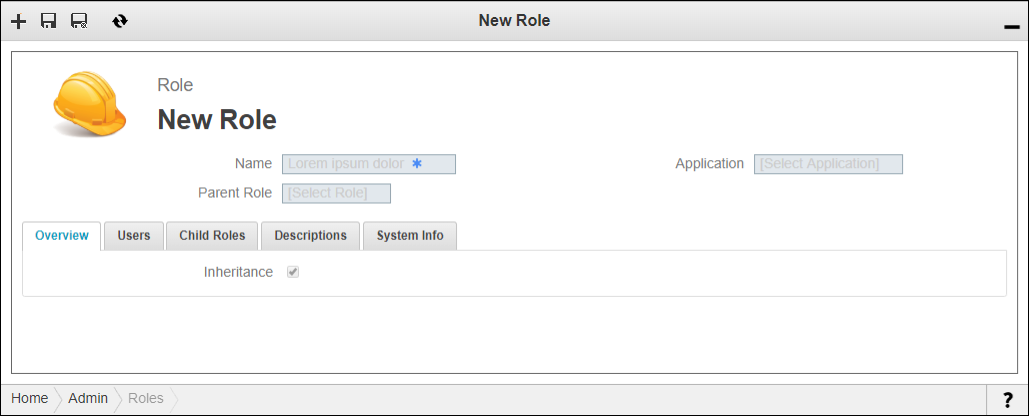
3. In the Parent Role field, if applicable, select a parent role to which you want to apply the permissions defined for this role.
 |
For the Role object, permission hierarchy is traversed upward by the access control system. Therefore, when you grant permission to a role, the value you set is is inherited by all its ascendants.
|
4. In the Application field, select an application with which to associate the role, and then in the top left corner, click Save and Close ( ).
).
).For more information: