Uploading Attachments to the Report
Android and iOS
As a technician, you can upload supporting images, videos, and documents when submitting reports. These attachments enable the Product team to analyze your report efficiently to take necessary preventive actions.
Perform the following steps to upload attachments on the New Issue Report screen.
1. Log in to the Go app with your valid credentials.
2. Navigate to the Work Order or Installed Product record.
3. From the Actions menu, tap the Issue Report/Feedback option.The New Issue Report screen is displayed.
4. Tap Upload Attachments.A pop-up is displayed to select an action.
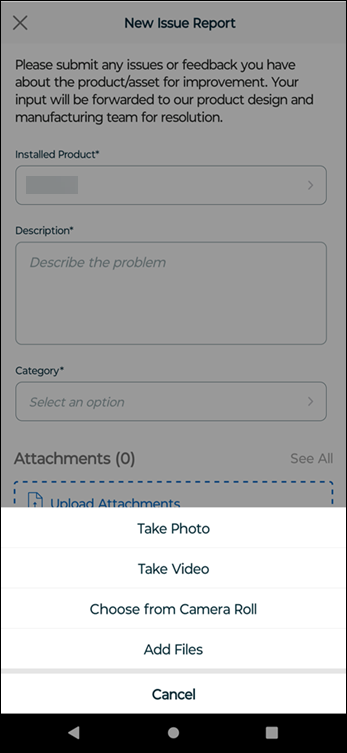
5. Capture or select the attachment.The Add Photo or Video screen is displayed enabling you to update the details for the file.
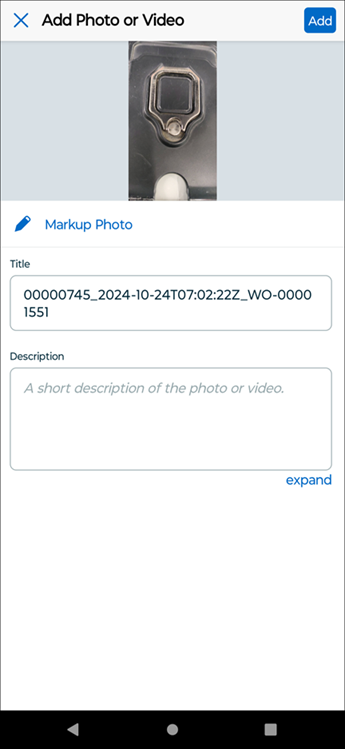
6. Perform the actions explained in the following table.
|
Action
|
Description
|
||
|---|---|---|---|
|
Edit Image
|
Tap the image or tap Markup Photo for the following actions:
• Crop the image
• Mark up the image highlighting a section
• Add arrow marks on the image pointing to an important section
• Add text to the image for additional details
• Download the edited image to your device gallery
|
||
|
Edit Title
|
Update the title of the file.
|
||
|
Enter Description
|
Enter a brief description about the selected file.
|
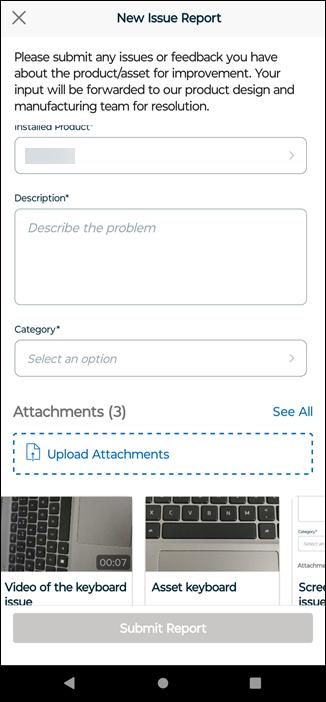
7. Tap Add from the top right corner of the screen.The file is attached to the report and the Attachments header is updated with the number of uploaded files.
 |
• You can tap See All to see all the attachments in a list view.
• You can scroll right or left to view the attachments.
• You can tap an attachment to update or remove it. For more details, refer to Update an Attachment from Issue Report or Delete an Attachment from Issue Report.
|
Windows
As a technician, you can upload supporting images, videos, and documents when submitting reports. These attachments enable the Product team to analyze your report efficiently to take necessary preventive actions.
Perform the following steps to upload attachments on the New Issue Report screen.
1. Log in to the Go app with your valid credentials.
2. Navigate to the Work Order or Installed Product record.
3. From the Actions menu, click the Issue Report/Feedback option.The New Issue Report screen is displayed.
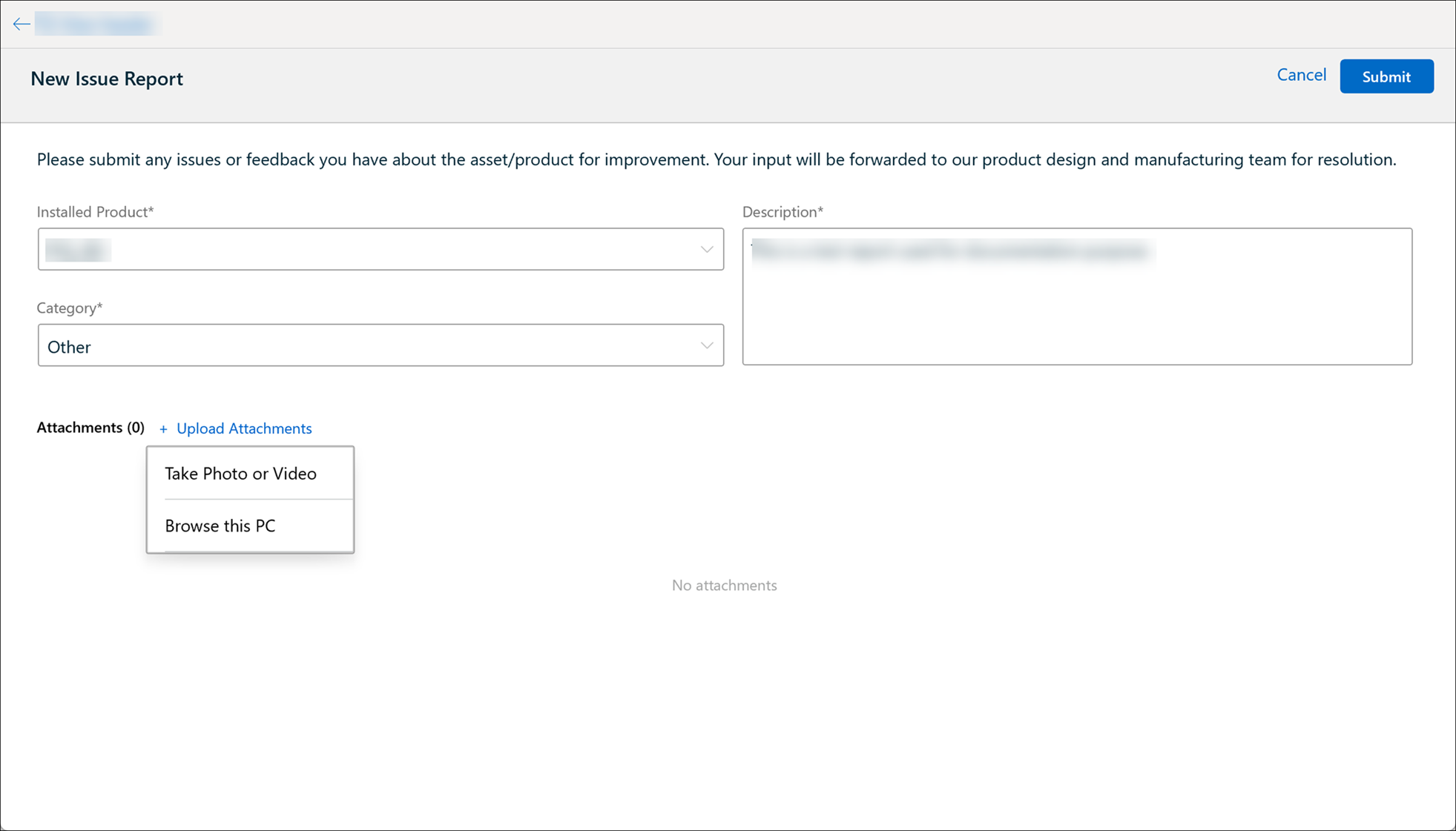
4. ClickUpload Attachments.A pop-up is displayed to select an action.
5. Capture or select the attachment.The Add Photo or Video screen is displayed enabling you to update the details for the selected file.
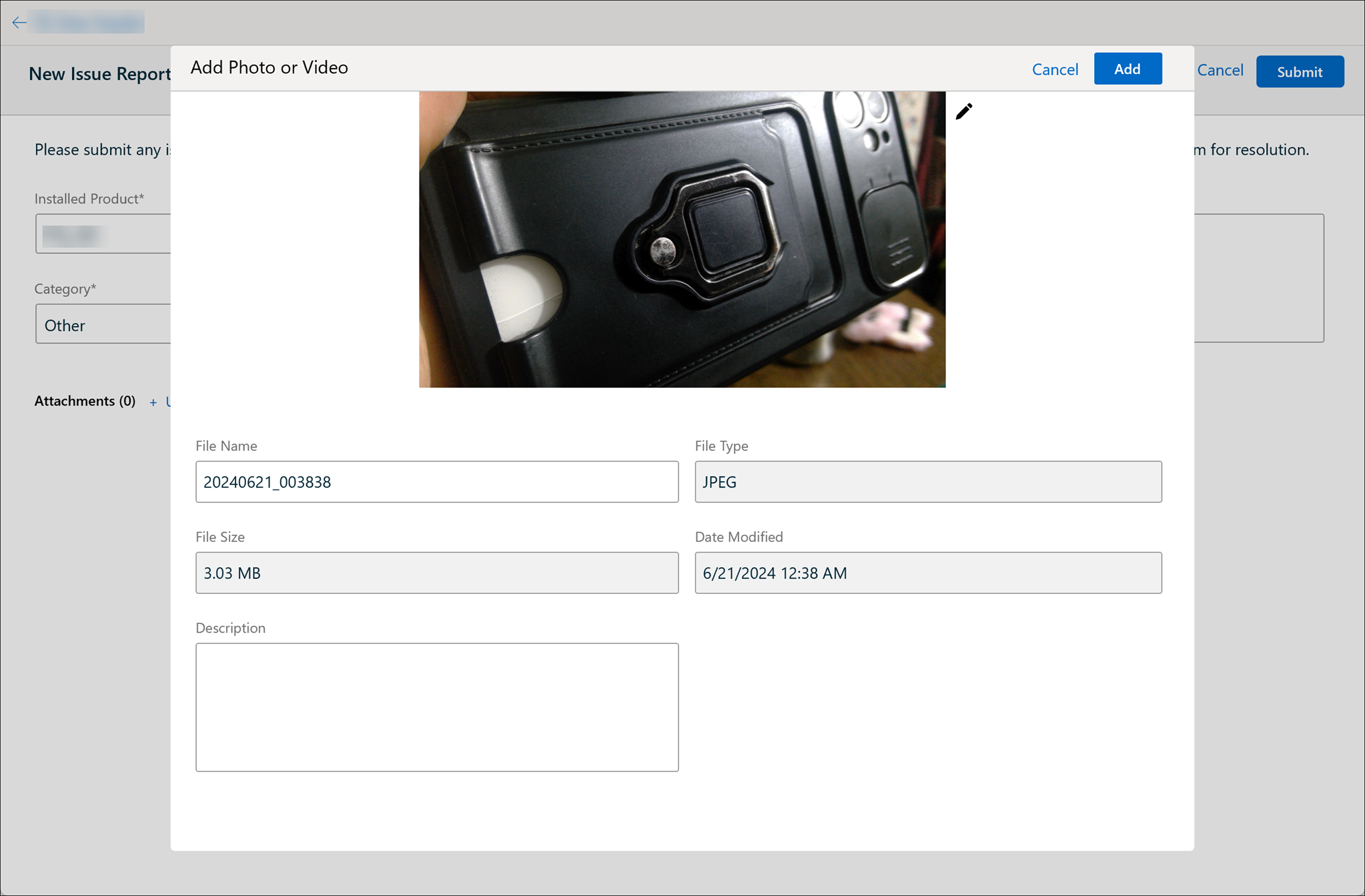
6. Perform the actions explained in the following table.
|
Action
|
Description
|
||
|---|---|---|---|
|
Edit Image
|
Click the pencil icon next to the image to edit the image with the markup tools.
|
||
|
Edit File Name
|
Update the file name.
|
||
|
Enter Description
|
Enter a brief description about the selected file.
|
7. Click Add from the top right corner of the screen.The file is attached to the report and the Attachments header is updated with the number of uploaded files.
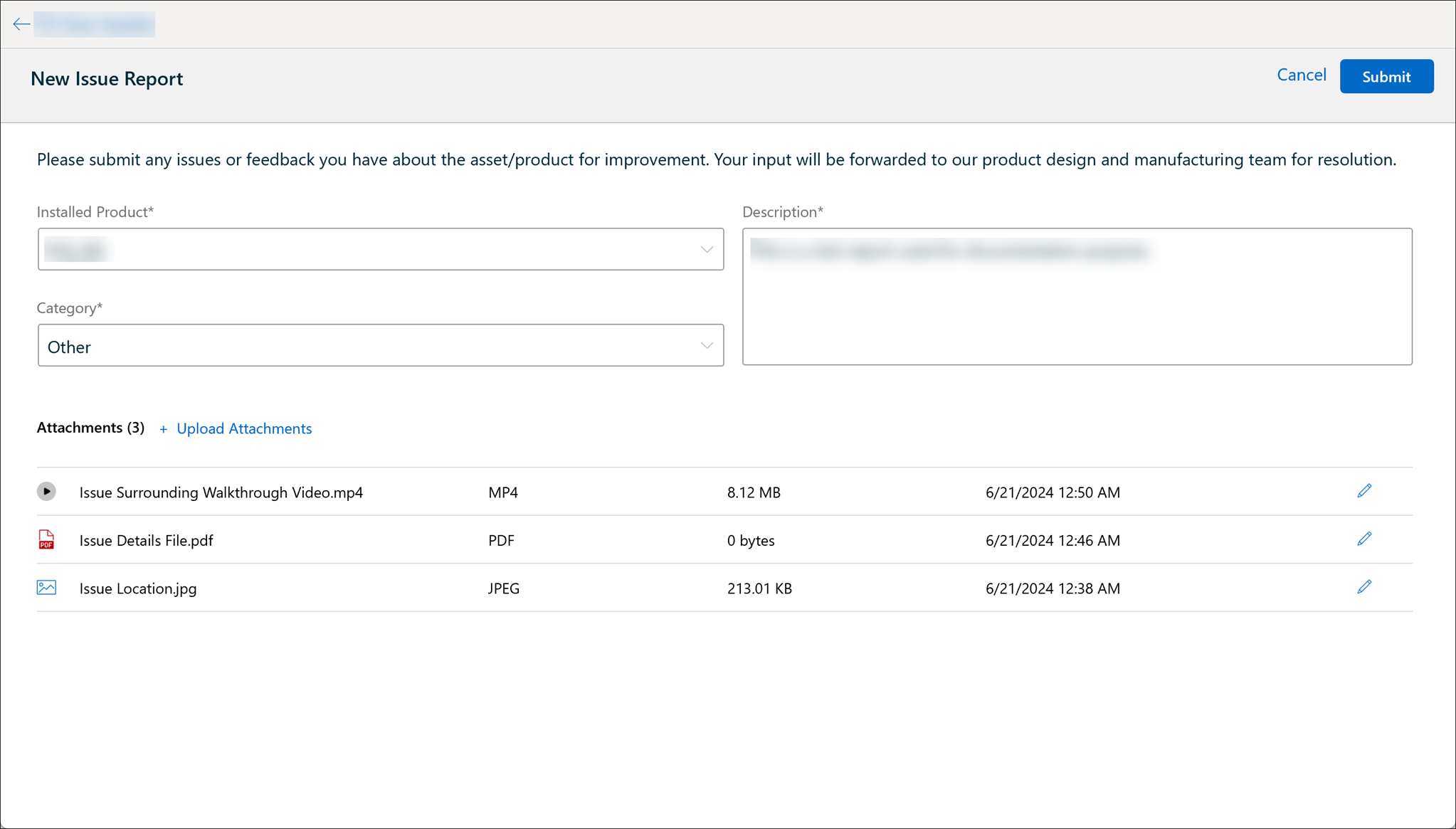
|
|
• You can click the pencil icon for the corresponding file to edit the details.
• You can click on an attachment to update or remove it. For more details, refer to Update an Attachment from Issue Report or Delete an Attachment from Issue Report.
|