Scanning Barcodes and QR Codes
Android and iOS
The barcode scanning feature provides you with a fast and efficient way to access and update records in the Go app. By scanning a barcode or QR code, you can instantly retrieve information, reducing the need for multi-step navigation. The results display key details configured by administrators, giving you immediate insight into the scanned record.
You can perform pre-configured quick actions, such as creating a work order or editing an asset, directly from the scan results. In cases where multiple records are returned, you can select the correct record and proceed with the default or configured actions. If no results are found, the app provides an option to create a new record, ensuring uninterrupted task execution.
You can use the Barcode Scanning widget in the following features:
• SFM transaction create or edit screens to enter the serial number of an installed product.
• Lookup search screens to enable efficient searching.
• SFM Search screen keyword field, to enable search based on serial number as the keyword.
The Barcode Scanning widget is available on the following Go app screens if it is configured:
• Calendar
• Explore
• Recents
• Timesheets
The following table represents the supported barcode and QR code formats.
|
Platform
|
Supported Barcode Formats
|
|---|---|
|
iOS
|
Code128, Code39, QR Code, Data-Matrix, PDF–417, EAN-13, UPC-E, GS1 Database, MSI-Plessey, ITF, Duetsche Post Indentcode
|
|
Android
|
Code128, Code39, QR Code, Data-Matrix, PDF–417, EAN-13, UPC-E, ITF (greater than 6 characters), Duetsche Post Indentcode
|
Perform the following steps to scan a barcode or QR code through the widget.
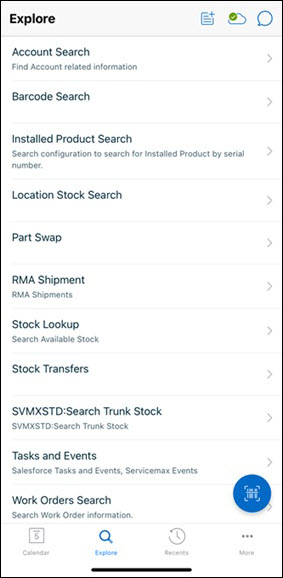
1. Open the Go app with your valid credentials.
 |
You can launch the barcode widget from any screen of the Go app.
|
2. Tap the barcode widget to launch the barcode scanner viewfinder.
|
|
If there is a single barcode in the viewfinder, the serial number is applied directly in the scan result.
|
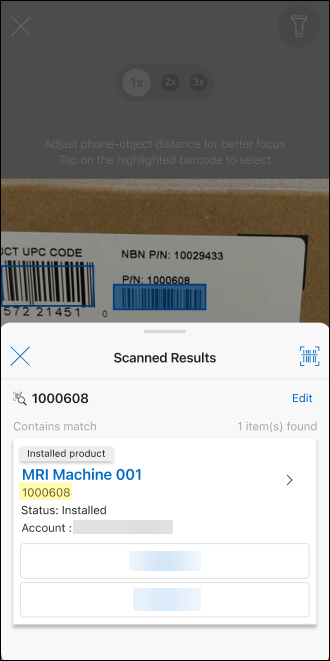
3. Tap the required blue box or the serial number in a case when there are multiple barcodes within the viewfinder. The Scanned Results modal is displayed for the matching result.
|
|
The search result is displayed with the matching serial number from the scan and the serial number is highlighted for each item. Also, the configured SFM actions are displayed for each item.
|
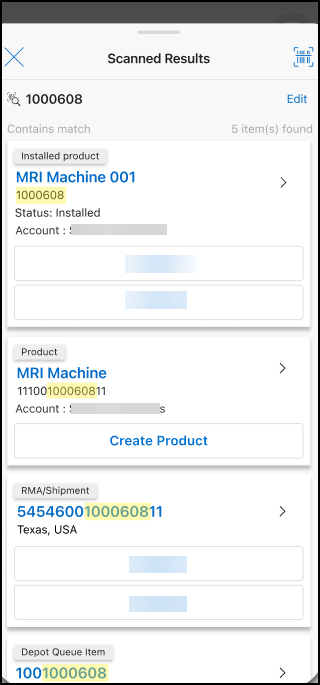
4. Pull the half modal up to see the complete list of the search result.
|
|
To edit the scanned result, tap Edit. Update the serial number in the text field and tap OK on the keyboard to apply the search. You can also tap the barcode widget to launch the view finder for the scan.
|
5. Tap the item to navigate to the View SFM screen.
6. Tap the configured action button for the required item to launch the corresponding Create or Edit SFM. You are navigated to the original screen from where the barcode widget was launched when the Create or Edit SFM is completed successfully.
|
|
• You can tap the flashlight icon on the Scan Barcode screen if required.
• You can tap Reset on the multiple barcode screen to scan the barcodes again.
• You can tap the zoom labels 1x, 2x, or 3x on the multiple barcode screen to zoom in or out to focus on the barcodes.
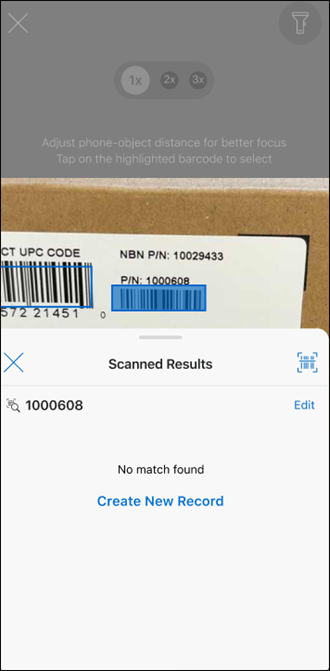
• You can tap Create New Record if an alternate action is configured to create a record for no scan results. You are redirected to the Create Record screen. For more information on creating a record, refer to Create Record.
 |
Windows
ServiceMax Go enables you with the barcode and QR code scanning capabilities to capture data related to products and parts efficiently. The ability to scan barcodes and QR codes prevents you from entering serial numbers or other long text strings manually. It also allows you to use external devices such as USB or Bluetooth devices for scanning barcodes.
You can use the Barcode Scanning feature in the following features:
• SFM transaction create/edit screens to enter the serial number of an installed product
• Lookup search screens to enable efficient searching
• SFM Search screen keyword field, to enable search based on serial number as the keyword

The following table represents the supported barcode and QR code formats.
|
Platform
|
Supported Barcode Formats
|
|---|---|
|
Windows
|
Aztec, Code 39, Code 93, Code 128, Databar, Data Matrix, EAN-8, EAN-13, ITF-14, PDF417, QR Code, UPC-A, and UPC-E
|
|
|
• You can cancel and close the barcode scanner. When you cancel, close the barcode scanner modal.
• If there is more than one barcode in the scan window, the barcode scanner scans and returns the first detected barcode.
|