Adding Responses with One Section Visible at a Time
Android and iOS
The checklist response screen behaves differently when your administrator enables the Section Visibility option. With this option enabled, the checklist sections that are not required are disabled. Perform the following steps to add a checklist response when the Section Visibility option is enabled.
1. Open the Work Order record in View SFM Process.
2. Tap the SFM Transaction for Checklists from the Actions menu. The Checklist page lists the checklist processes whose entry criteria are satisfied for the given record.
3. Tap any checklist process. The In Progress and Completed tabs are displayed.

4. Tap any checklist process. The first checklist section that meets the entry criteria is listed.

 |
• When a checklist is in In Progress state, you cannot create a new instance of the same checklist until the In Progress checklist is submitted.
• All the enabled checklist sections that are displayed meet the entry criteria.
• All the disabled but displayed checklist sections are the sections that are skipped because of exit criteria configured in the previous sections.
|
5. Tap each checklist section. All the questions under that section are displayed on one page and are scrollable.

6. Respond to each question one by one. Tap Save to save the current section, or tap Next for the next section. Changes made are not saved automatically when you move from one section to another.

|
|
• All the disabled but displayed checklist sections are the sections that are skipped because of exit criteria configured in the previous section.
• During the filling of the checklist form, if a section does not qualify for entry criteria and the previous section is skipped, then the navigation is to the next sequentially-qualified section.
|
7. Repeat step-6 until you are finished answering all the questions in all the sections.
|
|
• You cannot save the section if the required fields are empty.
• If there is an error due to data validation, you must resolve the error to proceed to the next section.
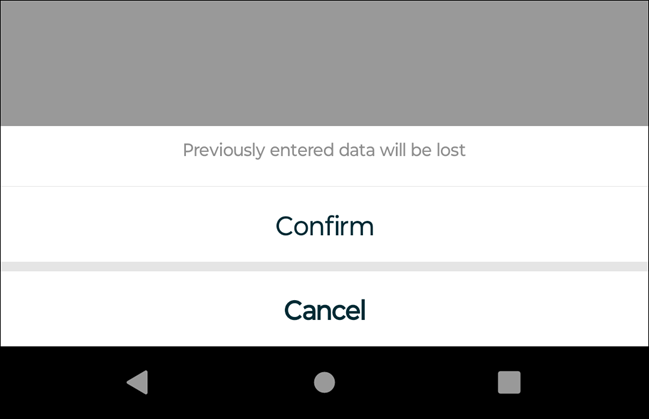
• An alert message is displayed when you modify data in one of the visited sections that change the navigation between the sections. You can click Confirm to proceed. Clicking Confirm removes the previously entered data.
 |
8. Tap Submit to submit the checklist responses. Your checklist process is now in the Completed state.
|
|
• Smart Sync is triggered if the Sync on Submit option in the Checklist Designer is configured to run the Smart Sync.
• The Submit button is available on the last checklist section that is not configured with any exit criteria.
|
Windows
The checklist response screen behaves differently when your administrator enables the Section Visibility option. With this option enabled, the checklist sections that are not required are disabled.
Perform the following steps to add a checklist response when the Section Visibility option is enabled.
1. Open the Work Order record in View SFM Process.
2. Click the SFM Transaction for Checklists from the Actions menu. The checklist processes with satisfied entry criteria are listed on the left pane.
3. Tap any checklist process. The In Progress and Completed tabs are displayed in the right pane. By default, the In Progress tab is displayed with the incomplete checklist. The Start New Checklist option is displayed if there is no In Progress checklist.
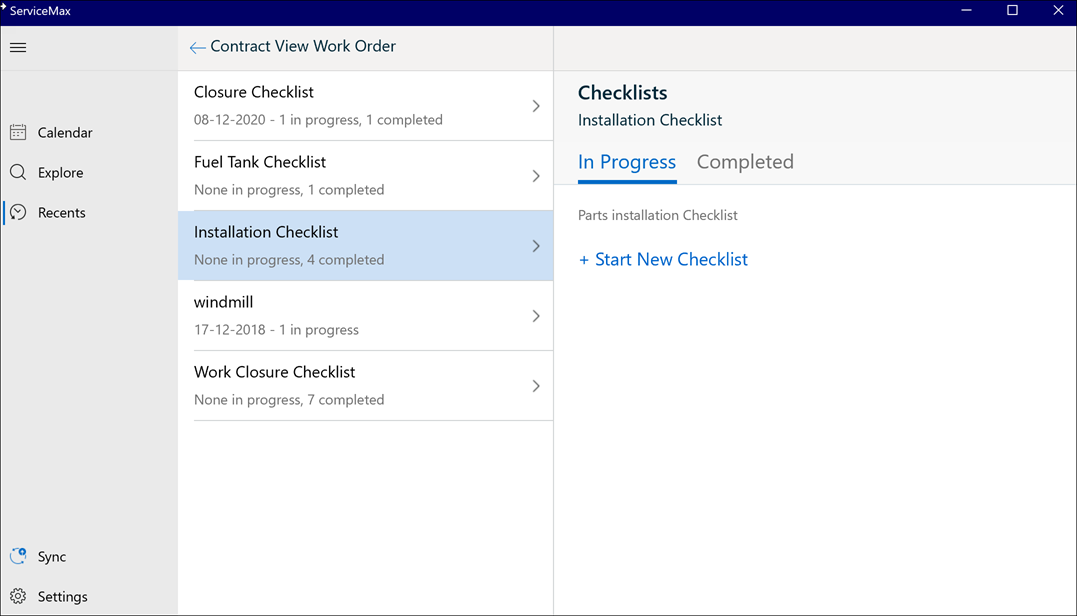
4. Click Start New Checklist to add a checklist. The first checklist section that meets the entry criteria is listed on the left pane. By default, the questions of the section are displayed on the right pane.

|
|
Note:
• When a checklist is in In Progress state, you cannot create a new instance of the same checklist until the In Progress checklist is submitted.
• All the enabled checklist sections that are displayed meet the entry criteria.
• All the disabled but displayed checklist sections are the sections that are skipped because of exit criteria configured in the previous sections.
|
5. Answer the questions and click Next. The next section is displayed as the exit criteria configured in the previous section and the questions for that section are displayed on the right pane.

|
|
Note:
• All the disabled but displayed checklist sections are the sections that are skipped because of exit criteria configured in the previous section.
• During the filling of the checklist form, if a section does not qualify for entry criteria and the previous section is skipped, then the navigation is to the next sequentially-qualified section.
|
6. Click the Expand icon from the top right corner to launch the question section in full-screen mode.
7. Click the checklist title from the top of the screen to edit or rename the title. The title and the timestamp are anchored at the top of the checklist screen.

8. Enter the values for each question one by one. The number of questions answered across the total number of questions for that section is displayed in the bottom left corner of the screen. The Pending Update text denotes unsaved data.
9. Click Save to save the current section.
10. Click Next to go to the next section. Updates to the questions are saved automatically when you move from one section to another.
|
|
Note:
• You cannot save the section if the required fields are empty.
• If there is an error due to data validation, the section name and the question number are displayed with the error description. It helps you identify where to solve the error before submitting the checklist.
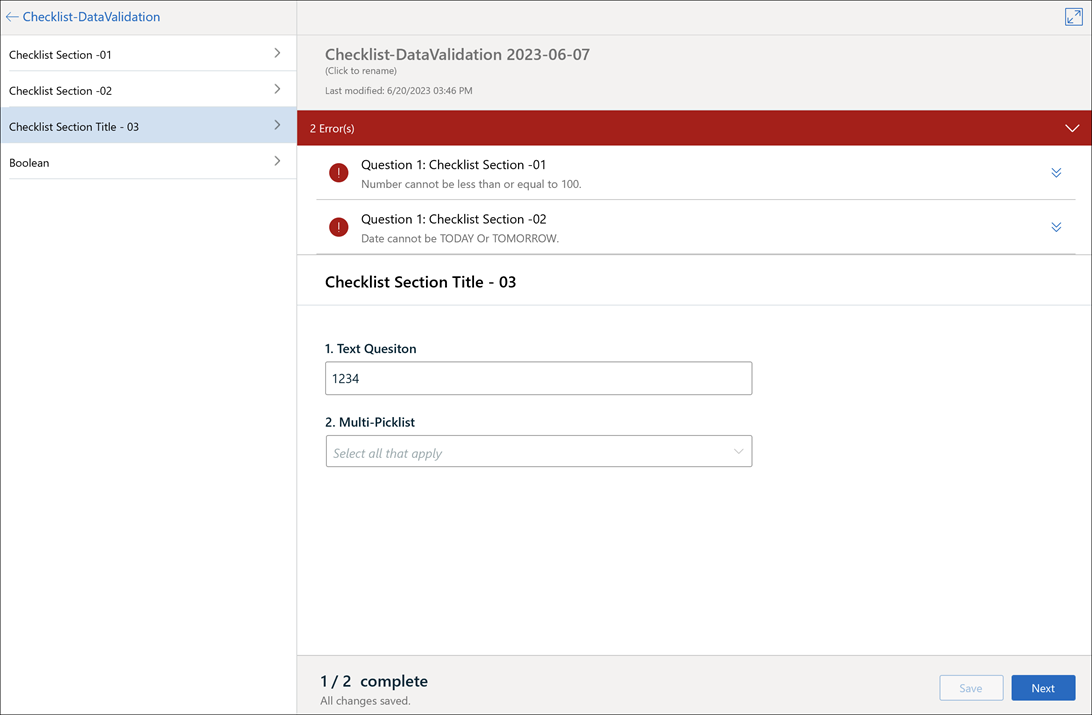 • For an invalid data validation error for a Number field, the question name is displayed with the section name. The question number is not displayed.
• An alert message is displayed when you modify data in one of the visited sections that change the navigation between the sections. You can click Confirm to proceed. Clicking Confirm removes the previously entered data.
 |
11. Tap Submit to submit the checklist.
|
|
Note:
• Smart Sync is triggered if the Sync on Submit option in the Checklist Designer is configured to run the Smart Sync.
• The Submit button is available on the last checklist section that is not configured with any exit criteria.
|