Enabling Batch/Lot Tracking for Product
To track batched products, you must enable the Batch/Lot tracking option in the Product record page.
To enable Batch/Lot tracking for a Product, perform the following steps:
1. To enable batch/lot tracking, on an existing product, navigate to the Product record you wish to update.ORTo create a new Product, navigate to the Product Objects landing page and click New.
2. If updating an existing product record, select Edit Product SFM Transaction from the Service Flow Wizard.Products Record screen is displayed as shown:
 |
Only the admin user can ensure that Enable Batch/Lot Tracking checkbox is included in both the Product Object record Page Layout and Edit Product SFM Transaction screen.
|
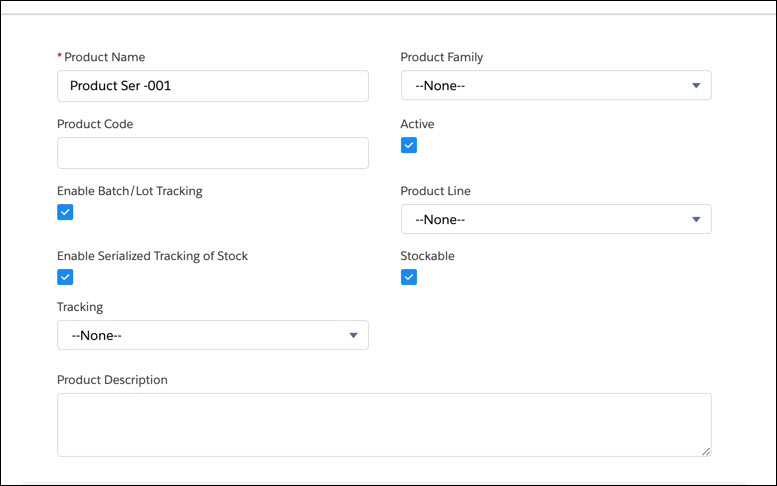
3. Select the following fields for configuring the product record:
|
|
If you are updating an existing product record, you need only enable the Batch/Lot tracking checkbox (set to TRUE) and Tracking picklist. You can also enable Stockable checkbox, if this was not included in the product previously.
|
|
Field
|
Description
|
||
|---|---|---|---|
|
Product Name
|
The name of the product.
|
||
|
Product Family
|
Select the product family value from the available drop-down list.
|
||
|
Product Code
|
The product code applicable to the product or part.
|
||
|
Active
|
This checkbox indicates if the product is active.
|
||
|
Enable Batch/Lot Tracking
|
Set this checkbox to True, to enable inventory tracking of the Batch/Lot information for the product.
|
||
|
Enable Serialized Tracking of Stock
|
Set this checkbox to TRUE to enable Inventory tracking of serial numbers for this product.
|
||
|
Tracking
|
Select the drop-down value to indicate the tracking option for the product when shipped to customers. The available options are as follows:
• Serialized: Indicates if the products will have serial numbers
• Lot/Batch Tracked: Indicates if the products will have a batch number.
• Non-Tracked products: Indicates if the products will not have either of the above.
|
||
|
Stockable
|
Select this option to indicate if this product is stockable.
Note: ServiceMax does not maintain an inventory of non-stockable products.
|