Creating a New Service Plan
To create a new Service Plan:
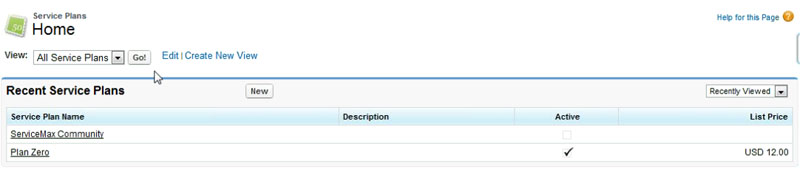
1. In the Recent Service Plans screen, click New, as shown in the following screenshot.
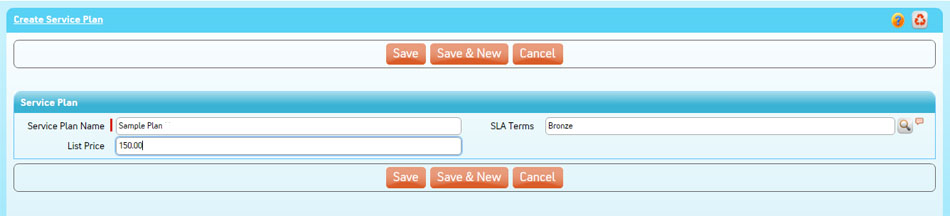
2. In the Information area of the New Service Plan screen:
a. Enter the Service Plan Name.
b. Enter the Default Parts Price Book in the appropriate text box.
c. Select the price type from the Price Type picklist.
d. Enter the SLA terms in the SLA Terms text box or use the Lookup feature to find it.
e. Enter a List Price in the appropriate text box.
f. Click Save.
3. In the Service Plan Detail area, click the appropriate tabs in the Service Plan Pricing SFW (Service Flow Wizard) area for your new service plan (Pricing Rule, Parts Pricing, Labor Pricing, Expense Pricing, Travel Policy, Service Offering). See steps below for an example.
4. In the Service Plan area, enter a Parts Price Book or use the Lookup feature to find it (for example, Standard Pricebook).
5. Click the Pricing Rule tab in the Service Plan Pricing SFW area:
a. In the Pricing Rule area, click Add a row and enter the Service Type or use the Lookup feature to find the Service Type.
b. You can also use the Quick find feature text box to quickly find a Service Type. Enter the text and click Filter. Click Reset Filter to reset the filter.
c. You can also click Search and Add to search for the Service Type.
i. In the Pricing Rule dialog box, select a search filter (Contains, Starts With, Ends With, Exact Match).
ii. Enter the Service Type in the appropriate text field.
iii. Click Lookup. The Service Name area updates to include your filtered search criteria.
iv. Select the Service Name you want to add.
v. Click Add Selected.

6. In the Rate Type field, select a rate type (Fixed, NTE, Minimum, Surcharge).
7. Enter a rate in the Rate field.
8. Click Save. The Pricing Rule area updates with your data in the Service Plan Detail screen.
9. Click the Parts Pricing tab in the SFW area.
a. In the Parts Pricing area, click Add a row and enter the Product or use Lookup to find the Product.
b. You can also use the Quick find feature text box to quickly find a Product. Enter the text and click Filter. Click Reset Filter to reset the filter.
c. You can also click Search and Add to search for the Product.
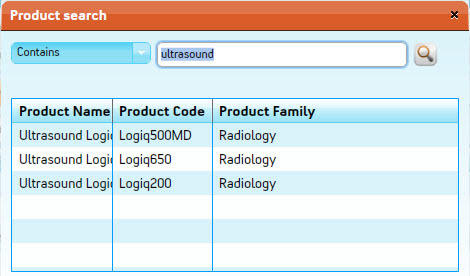
10. In the Product search dialog box, select a search filter (Contains, Starts With, Ends With, Exact Match).
a. Enter a Product in the appropriate text field or click Lookup to search for it. The Product area updates to include your filtered search criteria.
b. Select the Product you want to add.
c. Click Add Selected.
11. In the Price Per Unit area, enter the price for the product.
12. Check the Active check box to activate the parts pricing.
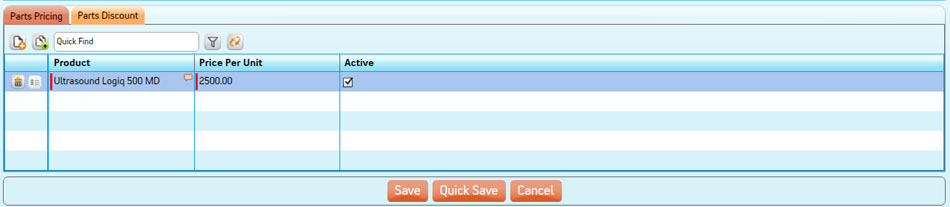
13. Click Quick Save to save the parts pricing and remain in the Parts Pricing area.
14. Click the Parts Discount tab to apply discounts to Products, Product Families, and Product Lines.
 |
If you assign more than one item in the discount (Product, Product Family, Product Line), you will receive an error message indicating that you can only apply one discount to one item at a time.
|
a. Assign individual discounts to Products, Product Families, and Product Lines on one line each for each part.
b. For Product discounts:
i. Enter the Product in the appropriate text field or use Lookup to search for it.
ii. Enter a discount percentage in the Discount % area.
iii. Check the Active check box to activate the discount.
c. For Product Family discounts:
i. In the Product Family field, select a product family from the picklist.
ii. Enter a discount percentage in the Discount % area.
iii. Check the Active check box to activate the discount.
d. For Product Line discounts:
i. Select a product line from the Product Line field picklist.
ii. Enter a discount percentage in the Discount % area.
iii. Check the Active check box to activate the discount.
e. Click Save to save the Parts Discount and return to the Service Plan Detail area.
15. Click Labor Pricing in the SFW Service Plan Pricing Toolbar.
16. In the Labor/Overtime Rounding Rules area:
a. In the Round Labor to the Nearest (Mins) text box, enter the number in minutes only.
b. In the Minimum Labor (Mins) text box, enter the number in minutes only.
c. In the Rounding Type (Labor) picklist, select a type (Round Up, Round Down, Actuals).
17. In the Labor Pricing tab:
a. Click Add a row to add a row.
b. In the Activity text field, enter the labor activity or use the Lookup feature button to find it.
c. In the Activity Product area, enter the product for the activity or use Lookup to find it.
d. In the Unit area, select Flat Rate or Per Hour from the picklist.
e. Enter the minimum number of labor minutes in the Minimum Labor area.
f. In the Regular Rate area, enter the rate.
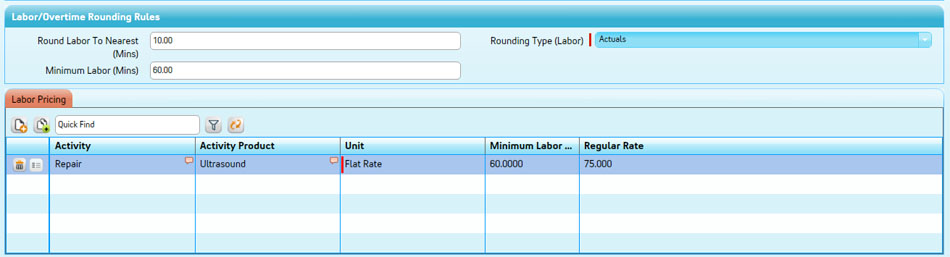
18. Click Save to save the parts pricing and return to the Service Plan Detail area.
19. Click the Expense Pricing tab in the SFW Service Plan Pricing Toolbar.
20. In the Expense Pricing tab:
a. Click Add a row to add a row.
b. In the Expense Type area, select an Expense Type from the picklist.
c. Select a Rate Type from the picklist.
d. Enter the rate amount in the Rate area.

21. Click Travel Policy from the SFW Service Plan Pricing Toolbar.
a. In the Service Plan area:
i. In the Default Travel Unit picklist, select a travel unit.
ii. Enter a price in the Default Travel Price text box.

b. In the Time Based Billing Rules area:
i. Enter the number of minutes in the Round Travel to Nearest (Mins) text box.
ii. Enter the minimum travel minutes in the Minimum Travel (Mins) text box.
iii. Select a rounding type from the Rounding Type (Travel) picklist.

c. In the Travel Policy tab:
i. Click Add a row or Search and Add.
ii. In the Service Type area, enter a service or use the Lookup.
iii. In the Unit area, select a type from the picklist.
iv. Enter a rate in the Rate area.
v. Click Quick Save.

d. In the Mileage Tier tab:
i. Click Add a row or double-click one of the grid lines.
ii. In the Tier Name area, enter a name for the mileage tier.
iii. In the Minimum area, enter the minimum number of miles.
iv. In the Maximum area, enter the maximum number of miles.
v. From the Unit picklist, select a unit type.
vi. Enter the rate per mile or the flat rate in the Rate area.

e. Click Add a row or double-click one of the grid lines.
i. In the Zone area, select a zone from the picklist.
ii. In the Rate area, enter a flat rate for the zone.

22. Click Service Offering in the SFW Service Plan Pricing Toolbar. In the Service Offering tab:
a. Click Add a row or Search and Add.
b. In the Service Type area, enter a service or use Lookup to search for it.
c. Enter the number of allowed units in the Allowed Units text box.
d. Enter the discount for the Parts Discount Covered in the appropriate area.
e. Enter a discount for labor in the Labor Discount Covered text box.
f. For expense discounts, enter the amount in the Expense Discount Covered text box.
g. Enter discounts for travel in the Travel Discount Covered text box.
